Enable order nr on kitchen tickets
Let's go through how you enable order numbers on your kitchen tickets.
Step 1: Choose order number type
There are three alternatives for how to use order numbers on your kitchen tickets:
- Counter: A number series is created and the order number increases automatically with each sale
- Manually: Enter the order nr manually from the cash register upon sale
- None: Order numbers are not used
Follow these steps to manage this setting:
- Sign in to BackOffice.
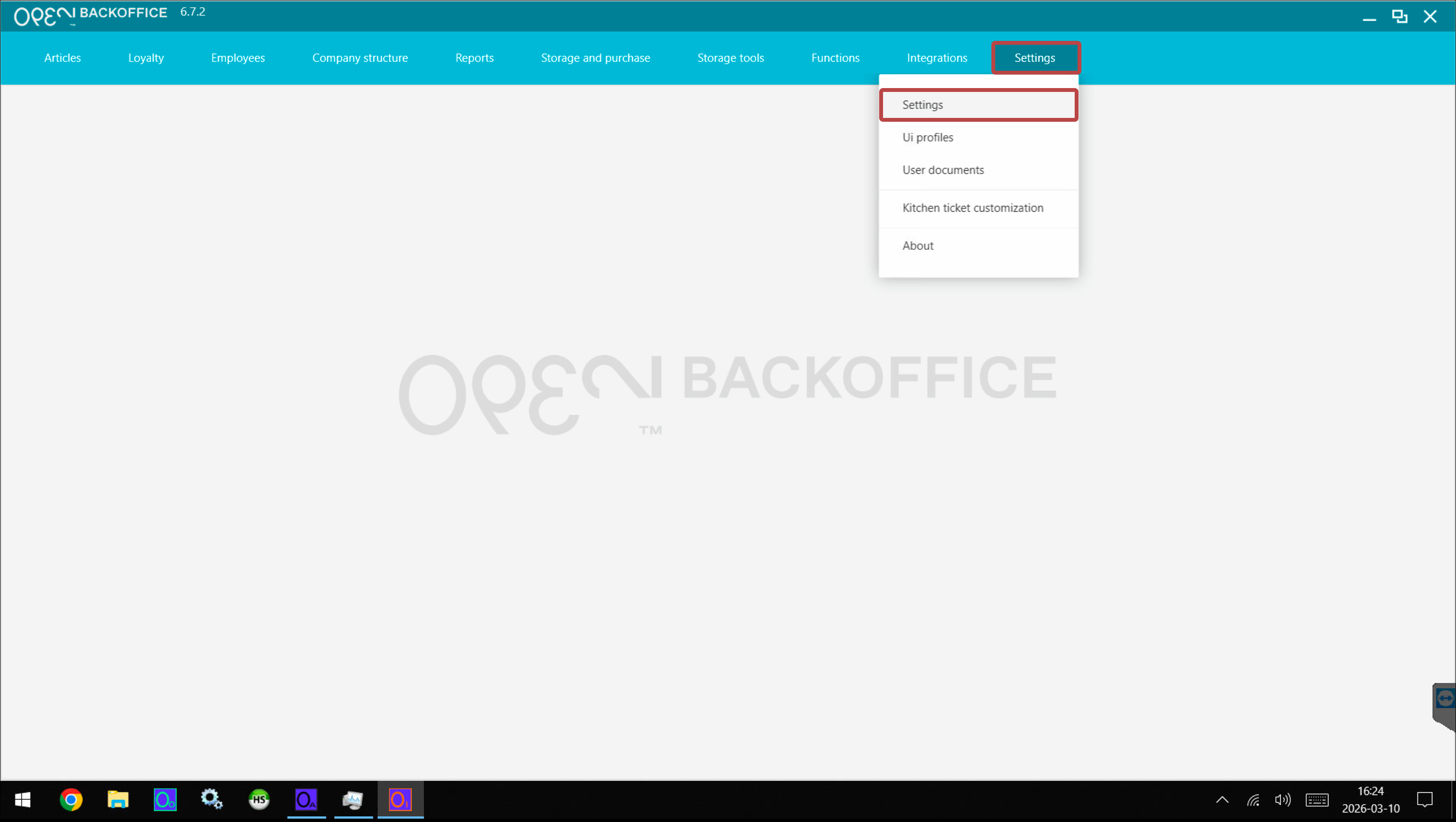
- Go to Settings -> Settings.
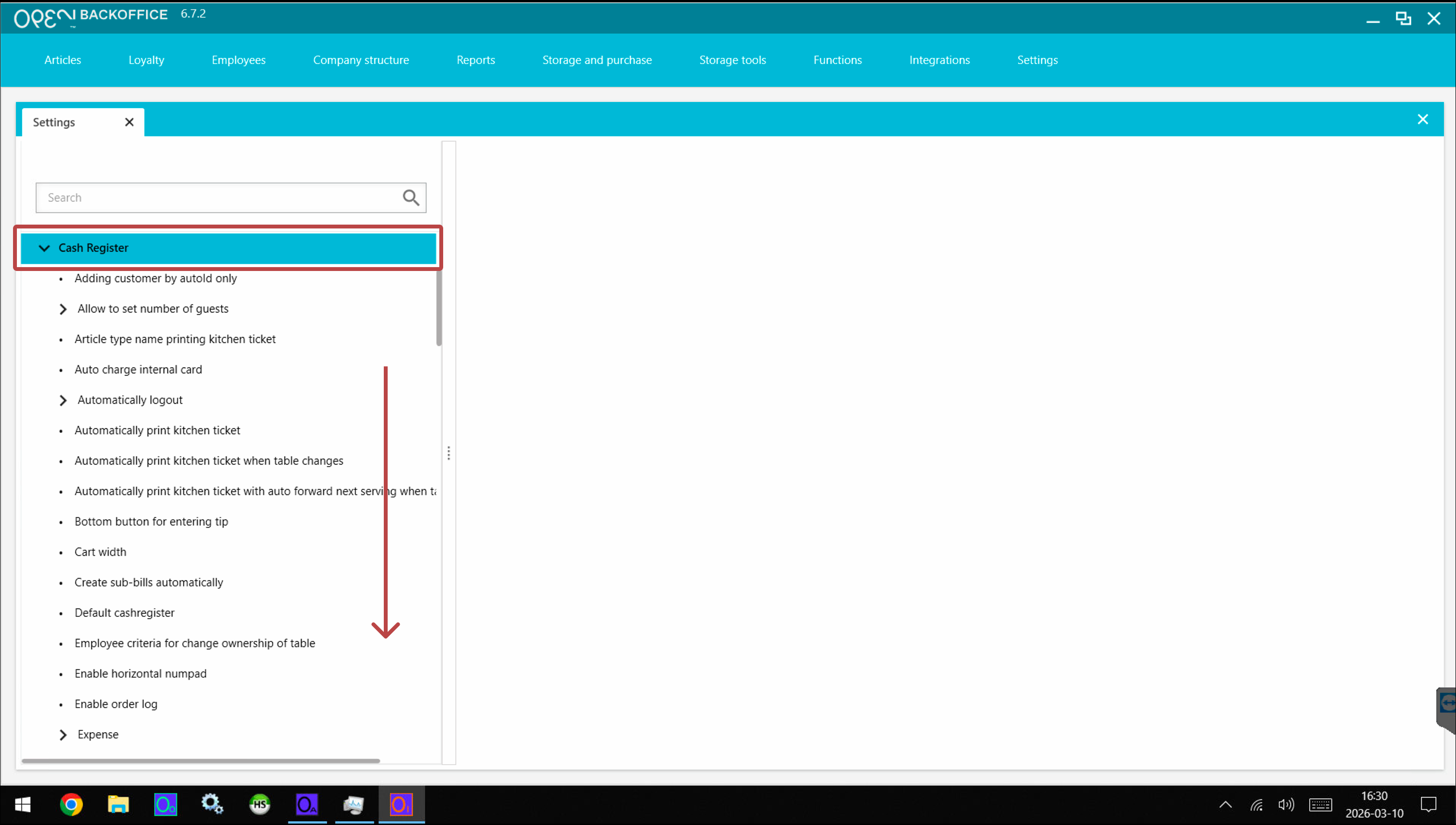
- Expand the Cash register section and scroll down to find the Kitchen ticket number type setting.
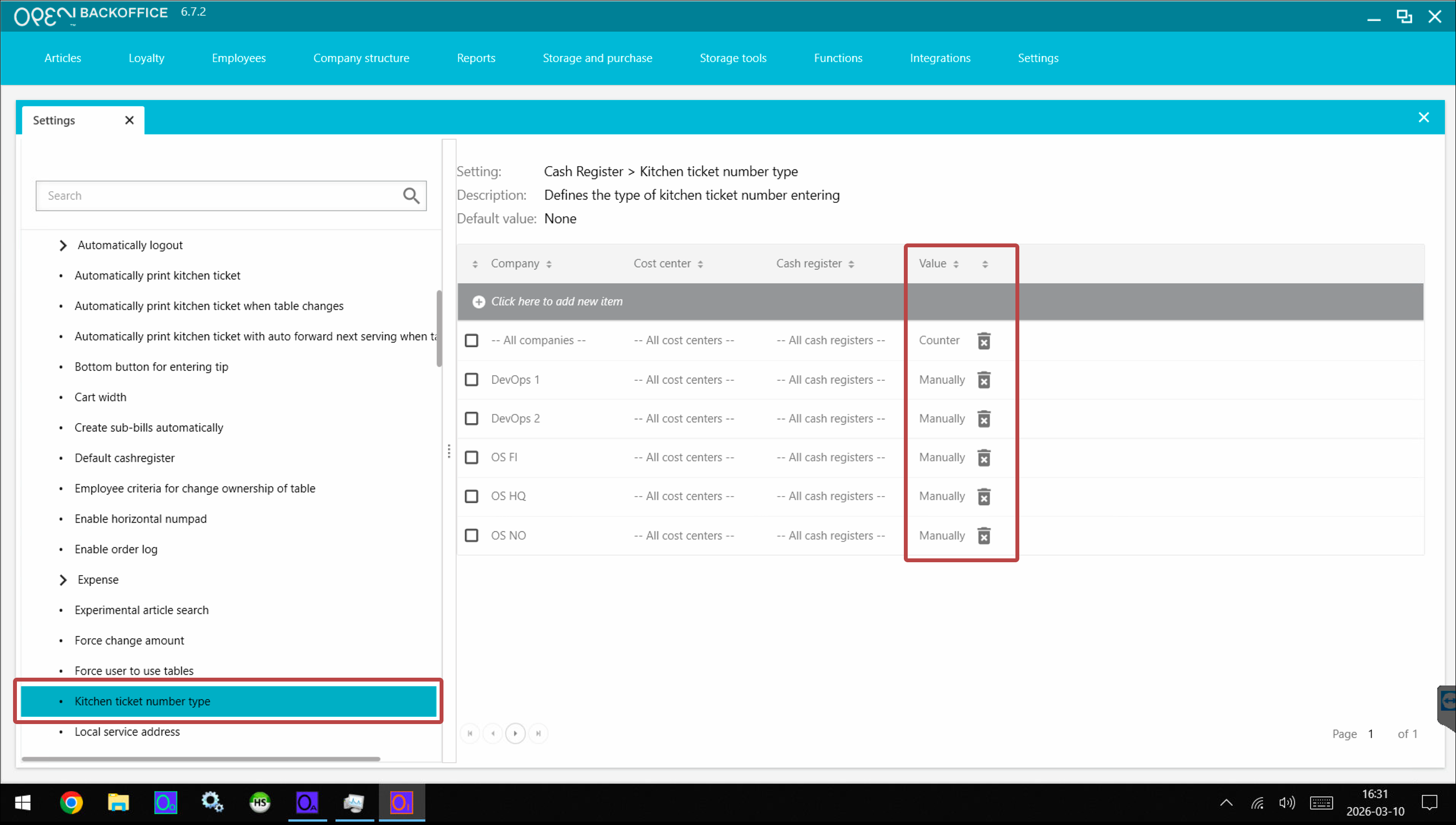
- Select an option for your company or for specific cost centers or cash registers. Choose between using a counter, manually entering an order number or not using order numbers at all.
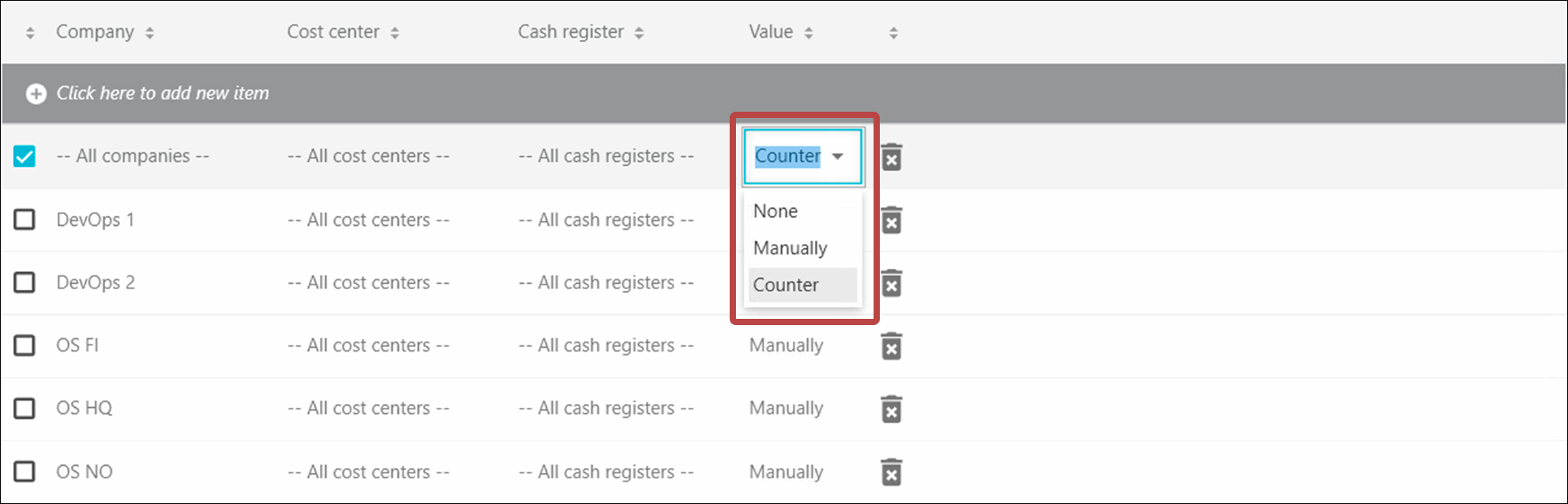


Step 2: Enable kitchen ticket nr on you articles
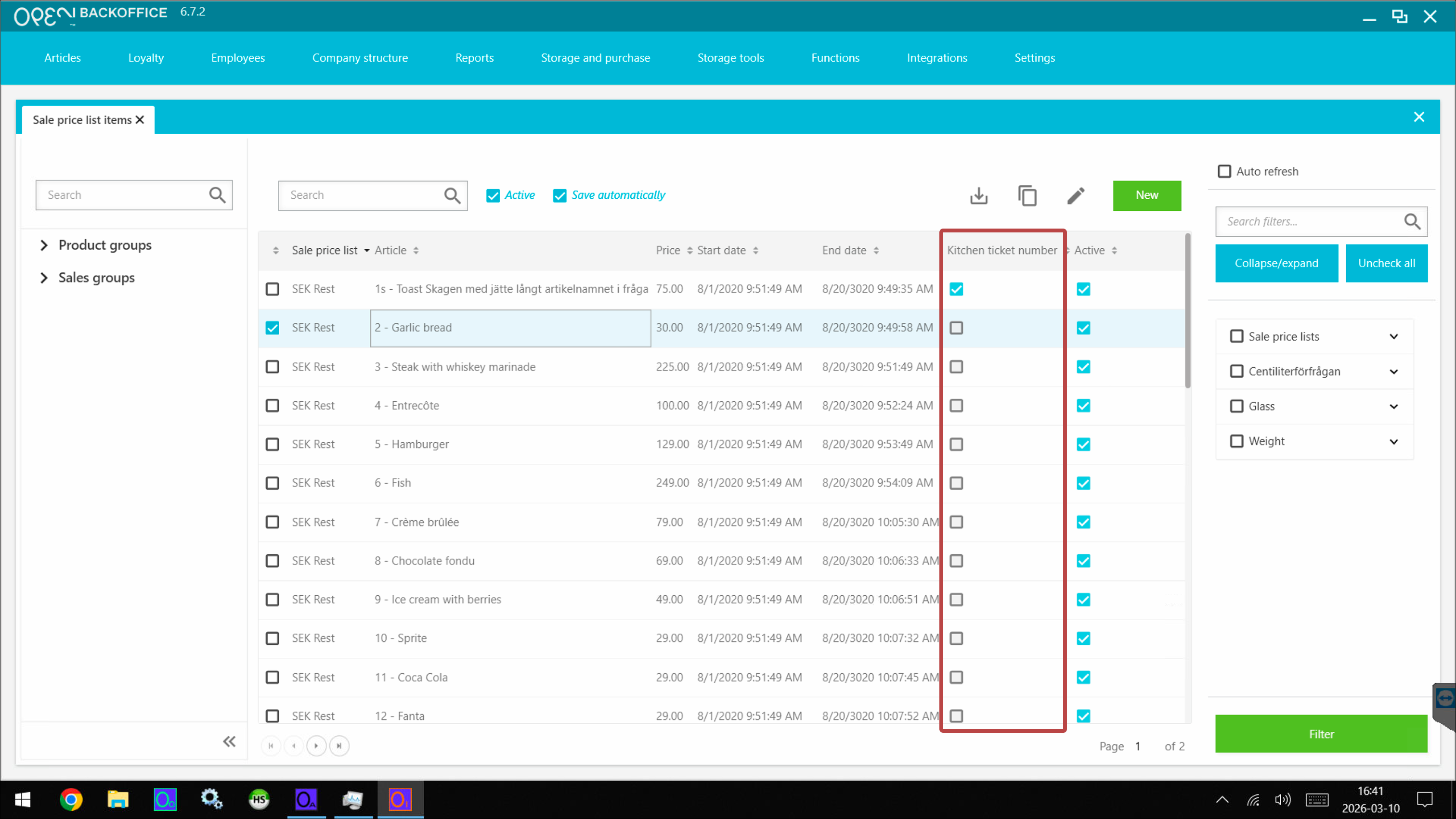
For the order number to actially be printed on the kitchen ticket, you also need to enable the kitchen ticket nr on your articles.
- Sign in to BackOffice.
- Go to Articles -> Sale price list items.
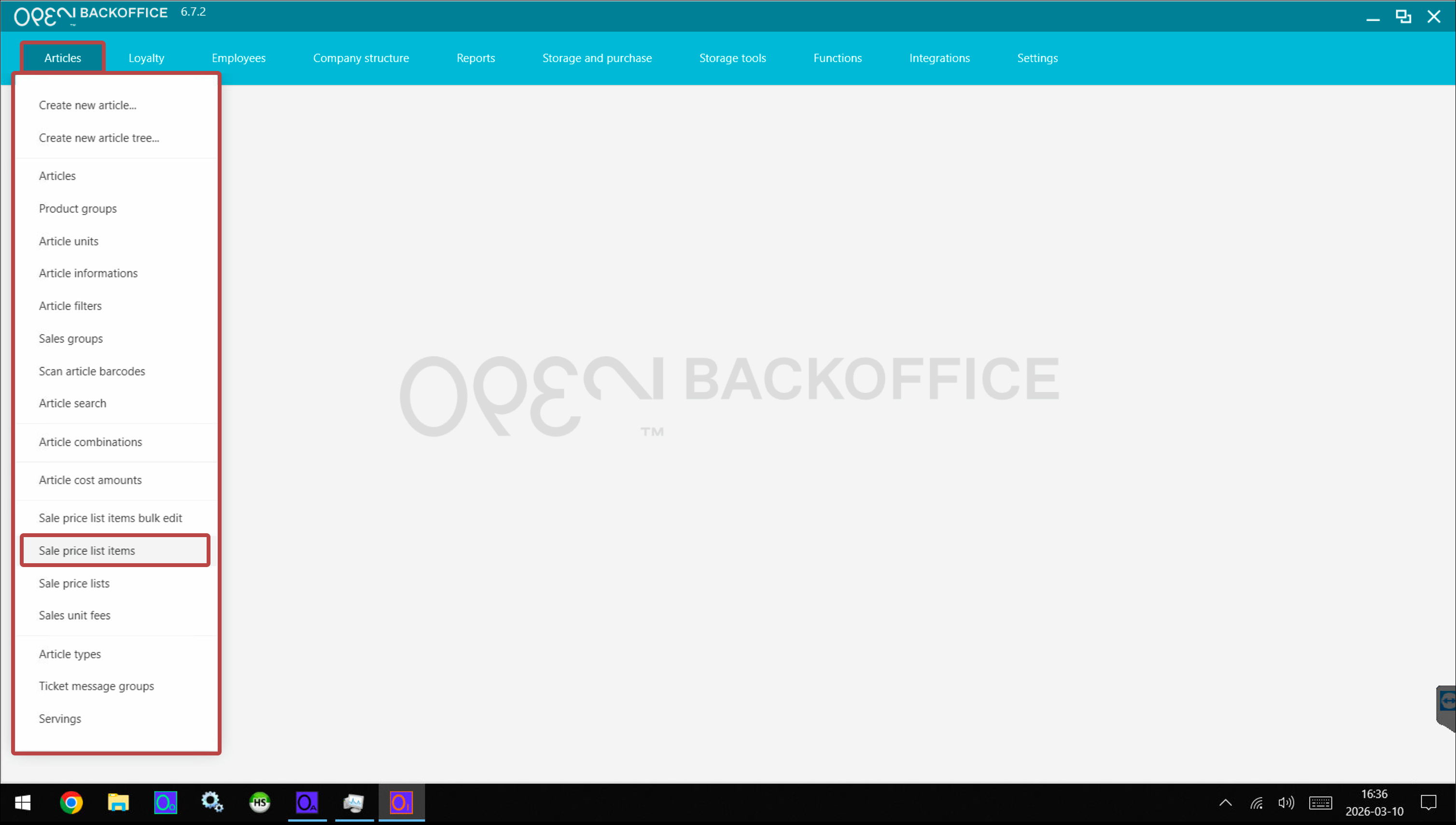
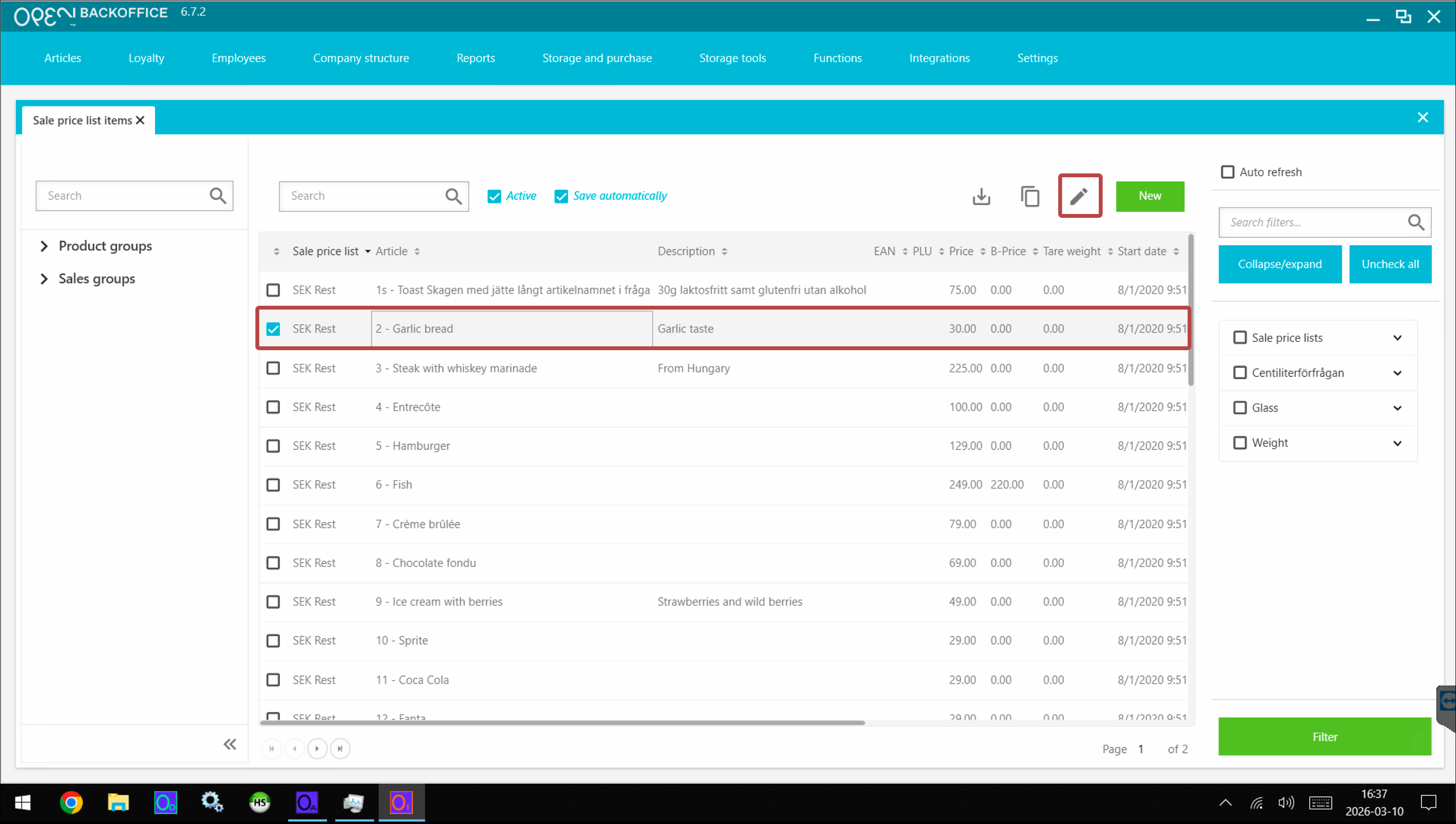
- Select your articles and tap the Edit button.
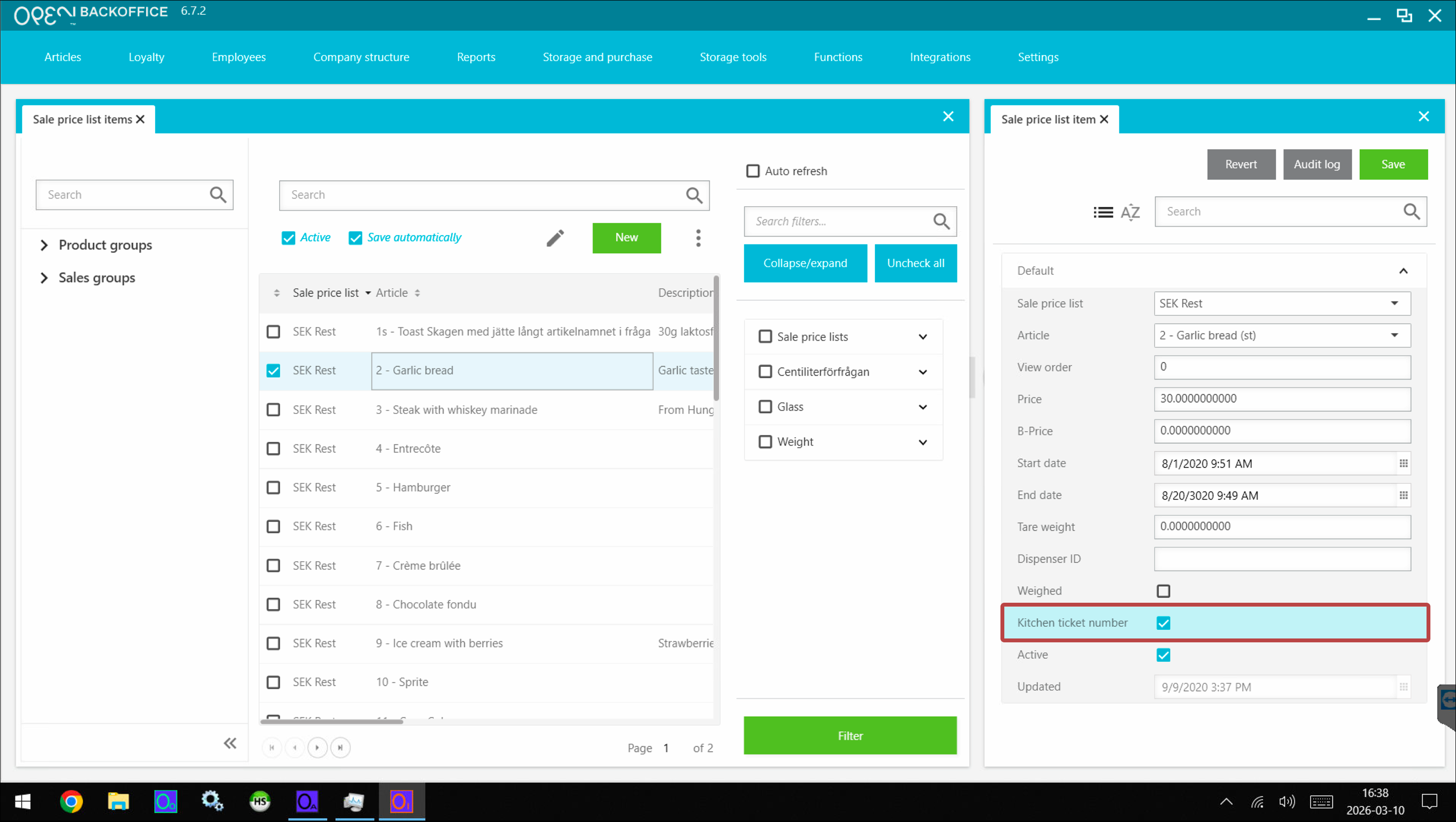
- Enable the Kitchen ticket number setting and Save your changes.


Tip: How to work more easily with data tables in BackOffice
By choosing what columns to display in your data tables, you can more easily enable or disable certain settings directly from the table view.
- Right click the columns header and select Settings.
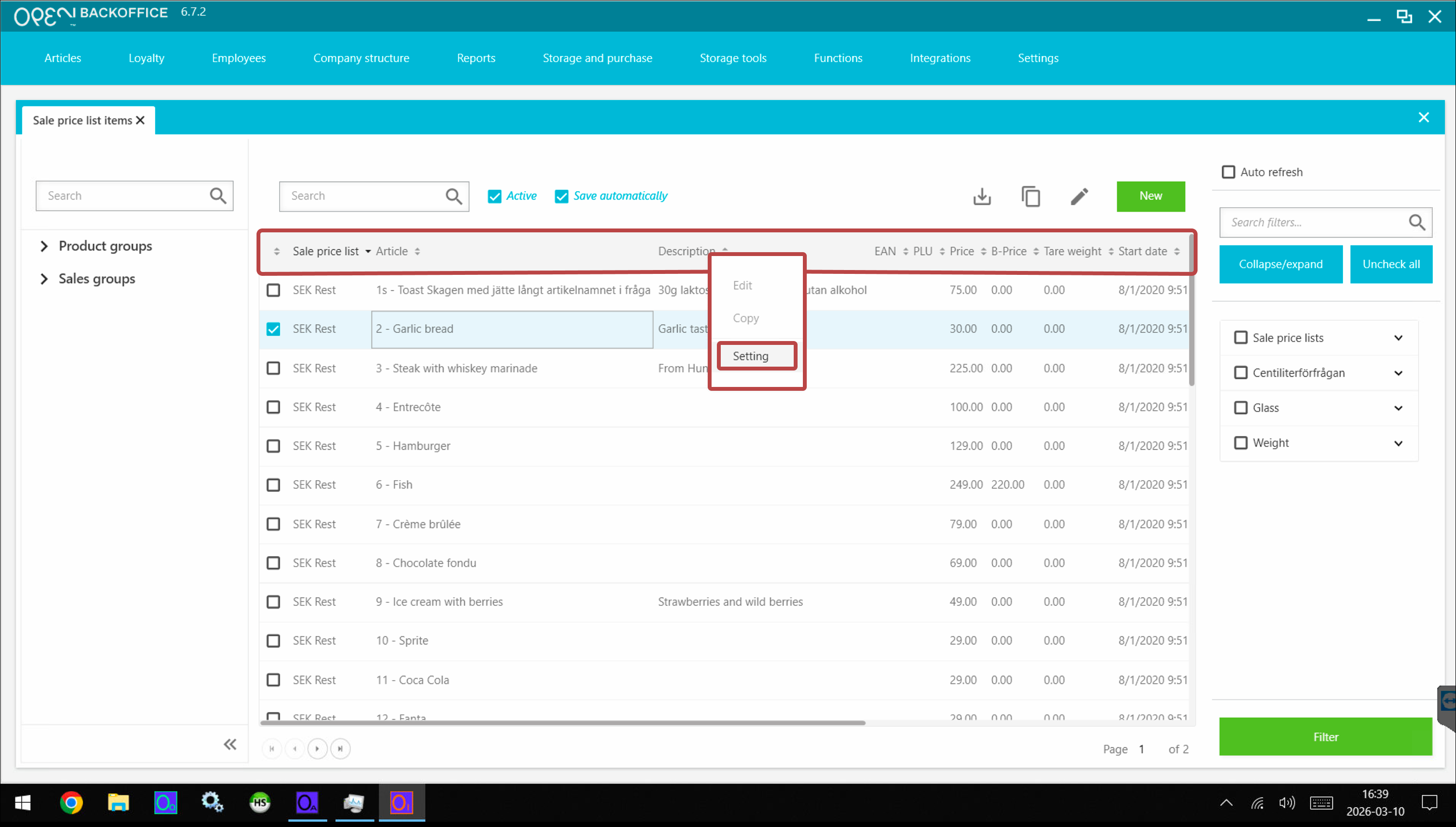

- Choose what settings (i.e. columns) to display in the data table.
Focus on the task at hand
The less options you choose to display, the easier it will be to work with the data table. Focus on your task at hand and hide unrelated settings.

- Perform your settings directly from the data table.