Bar order handling — Overview
The Bar Order Handling feature lets you manage open bar tabs without using a regular table map. It’s ideal for venues with both bar and restaurant sections, or for bars that don’t use standard table layouts but still want to keep open bills for their guests.
With Bar Order Handling, you can:
- Keep open tabs directly from the Direct Sale view
- Name each open bill (for example, “John” or “Corner Guest”)
- Easily add more items to existing bar tabs
- Quickly fetch and charge open tabs when guests are ready to pay
This means bartenders can stay in the main sales view all night—no need to switch to the Tables page.
Getting started
Before using Bar Order Handling, a few setup steps are required in BackOffice.
Get the License Make sure your account includes the Bar Order Handling feature license.
Enable Cart Actions In BackOffice → Settings → Cash Register, activate the following cart actions:
- Move to table
- Fetch table


TIP
Enable the actions by ticking the checkbox for each setting.
These actions allow you to send and retrieve bar orders directly from the Direct Sale view.
Create a Bar Area In BackOffice → Table Handling, create a new area (for example, Bar). This area will hold all bar tabs created from the POS.
- Go to Tablehandling and press the New map button.

- Choose type Bar table area and press Continue.
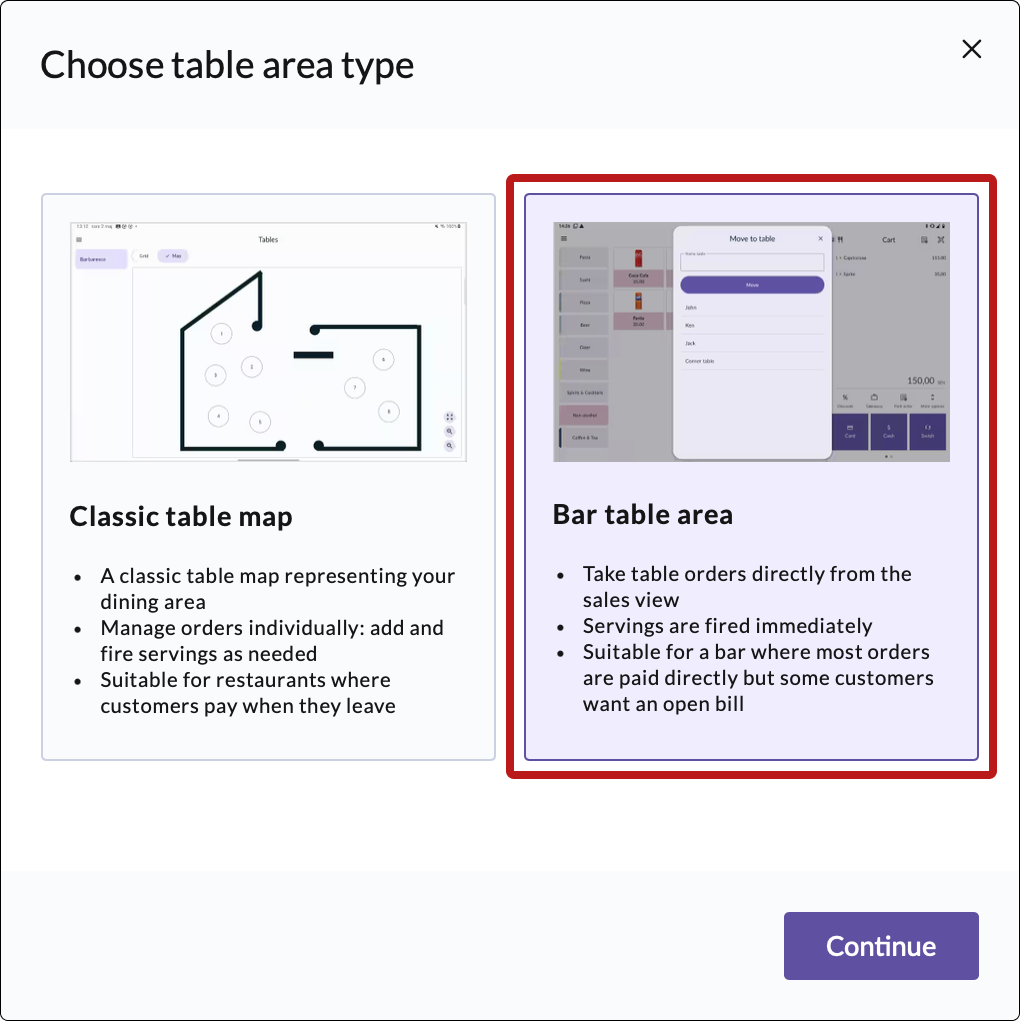 4. ✅ Done! Your bar area has been created.
- Enter a name and choose a cost center.


- Go to Tablehandling and press the New map button.


Once you’ve completed these steps, your POS is ready to use Bar Order Handling.