Skip to content

Worldline payment terminal

Worldline payment terminals are easy to integrate with your OPEN Two POS system, meet the latest security standards and handle all the most common payment methods. Use the guides below to easily install and get started with your Worldline terminal.

Axium DX8000 - Android POS terminal with large touchscreen

The portable Axium DX8000 comes with a built-in receipt roll and a large touchscreen , making it easy to use on the go. It has a powerful battery that lasts all day.

TIP

This device can also be used as a cash register, however this requires a specific license. Talk to your sales staff to learn more about your options.

Installation

  1. Take out the charging dock and plug the supplied power cord into the dock and the power outlet.
  2. Place the terminal in the dock.

Don't forget to put the terminal back in the dock when you're not using it. This will keep it charged and ready to use when you need it. 3. Start the terminal by pressing the power button to the left of the screen. 4. Connect the terminal to mobile Wi-Fi (recommended).

The DX8000 comes with a mobile network connection, but you should connect it to Wi-Fi if available.

  • Connect to Wi-Fi under the Menu icon.
  • Select Settings / Network Settings, then select Wi-Fi network and enter the password.
  • Make sure you have your terminal password available.
  1. Since the OPEN Two app is already activated and ready, all you need to do is start the terminal.

Tip

To wake up the terminal when it is turned off, double-click on the screen.

Connect the terminal to the cash register

  1. In your Open TWO cash register device, open the menu and go to SETTINGS.

  2. Go to PAYMENT TERMINAL.

  3. Select your payment terminal from the list.

  4. Optional: change the payment terminal name by clicking the pen icon.

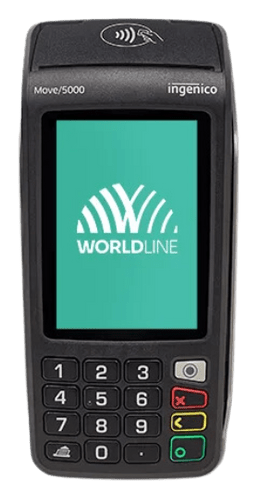
Move 5000 - Portable card terminal

Would you like to offer your customers a seamless shopping experience? The Move 5000 portable terminal is suitable for indoor and outdoor use and offers maximum payment convenience. The mobile terminal is ideal for use in the hospitality industry, retail and smaller commercial operations.

Installation

  1. Retrieve the charging dock and connect it with the provided power cord to both the dock and the electrical outlet.

  2. Place the terminal in the dock.

    Don't forget to put the terminal back in the dock when you're not using it, so it's always charged when you need it.

  3. Connect the terminal to mobile Wi-Fi (recommended).

    Move 5000 comes with connectivity via mobile network, but you can also connect it to Wi-Fi yourself. For this, you will need your terminal password. This is a unique password designed to protect you as a merchant against fraud, so keep the password in a secure place. You can find your password in your welcome email or by logging in to the Merchant Portal.

    Select Wi-Fi under Menu / Settings / Communication / Connection Type, and then choose the network. Make sure to have your terminal password available.

  4. Start up the terminal.

    Since the OPEN Two app is already activated and ready, you just need to start up the terminal.

Connect the terminal to the cash register

  1. In your Open TWO cash register device, open the menu and go to SETTINGS.

  2. Go to PAYMENT TERMINAL.

  3. Select your payment terminal from the list.

  4. Optional: change the payment terminal name by clicking the pen icon.

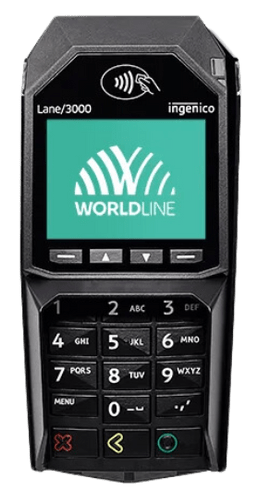
Lane 3000 - Stationary terminal

The Lane 5000 card terminal is easily integrated with your OPEN Two POS system and is well suited for businesses that take payment at a cash counter. Lane 3000 facilitates management as the payment terminal is controlled from the cash register.

Installation

  1. Connect the network cable to the terminal.

    Start by connecting the terminal to the network via your router or switch. Both your cash register and your terminal must be connected to the same network.

  2. Connect the power adapter to the terminal, and the terminal will start up automatically.

Connect the terminal to the cash register

  1. In your Open TWO cash register device, open the menu and go to SETTINGS.

  2. Go to PAYMENT TERMINAL.

  3. Select your payment terminal from the list.

  4. Optional: change the payment terminal name by clicking the pen icon.