Activate OPEN Two on a Worldline DX8000
This guide only applies if you will be using the Worldline Axium DX8000 terminal as a cash register. The terminal can also be used only as a payment terminal but for it to work as a cash register it must be ordered as one. Talk to your sales representative to learn more about your options.

Activate OPEN Two
- In the OPEN Two app, press LET’S GET STARTED.

- Agree to terms and conditions by pressing YES, I AGREE.

- You will now see a code on your screen. Use another device with an internet connection (e.g. your phone or computer) and go to http://backoffice.op3n.dev/activate

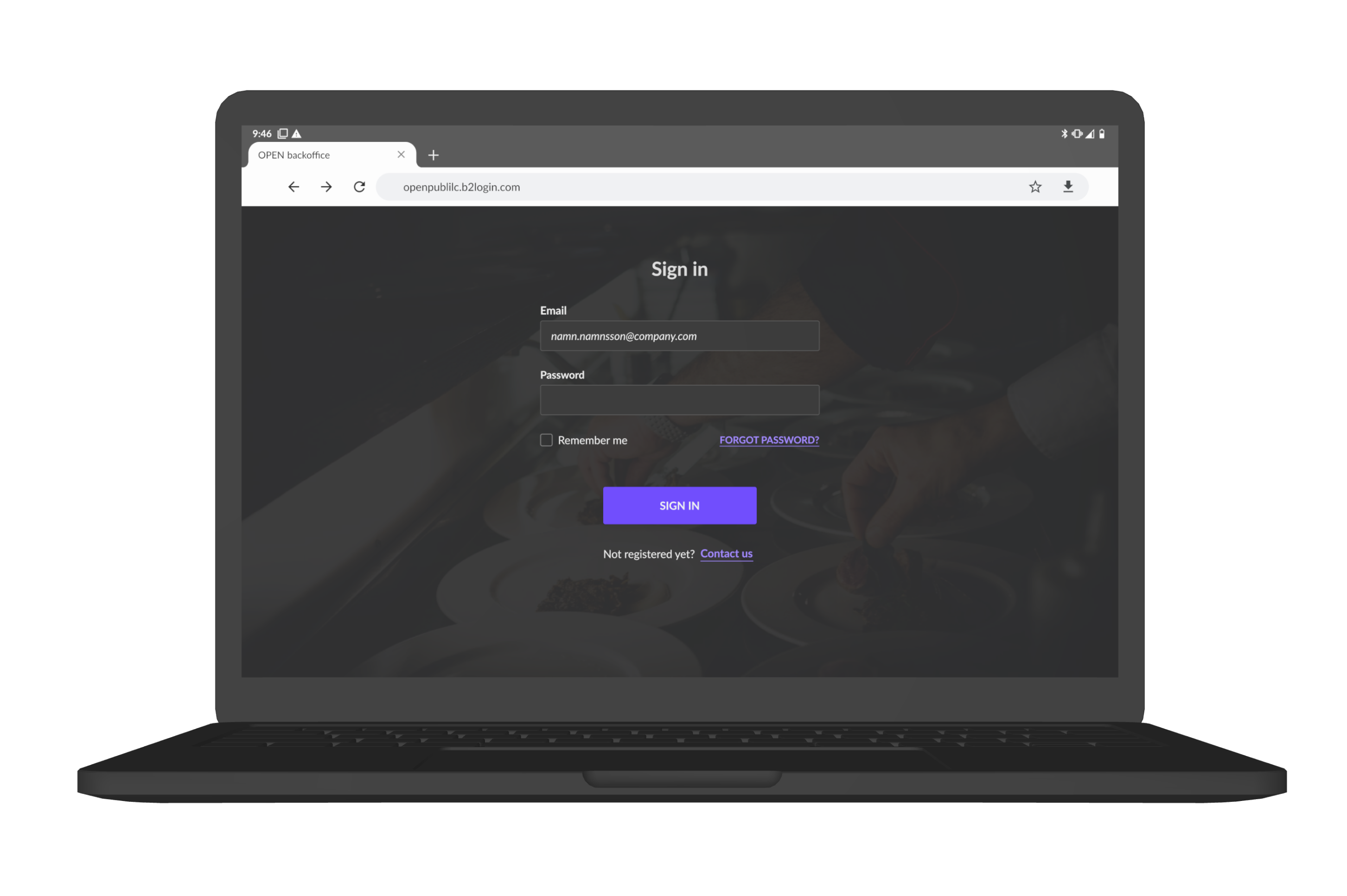
Sign in with your BackOffice account.
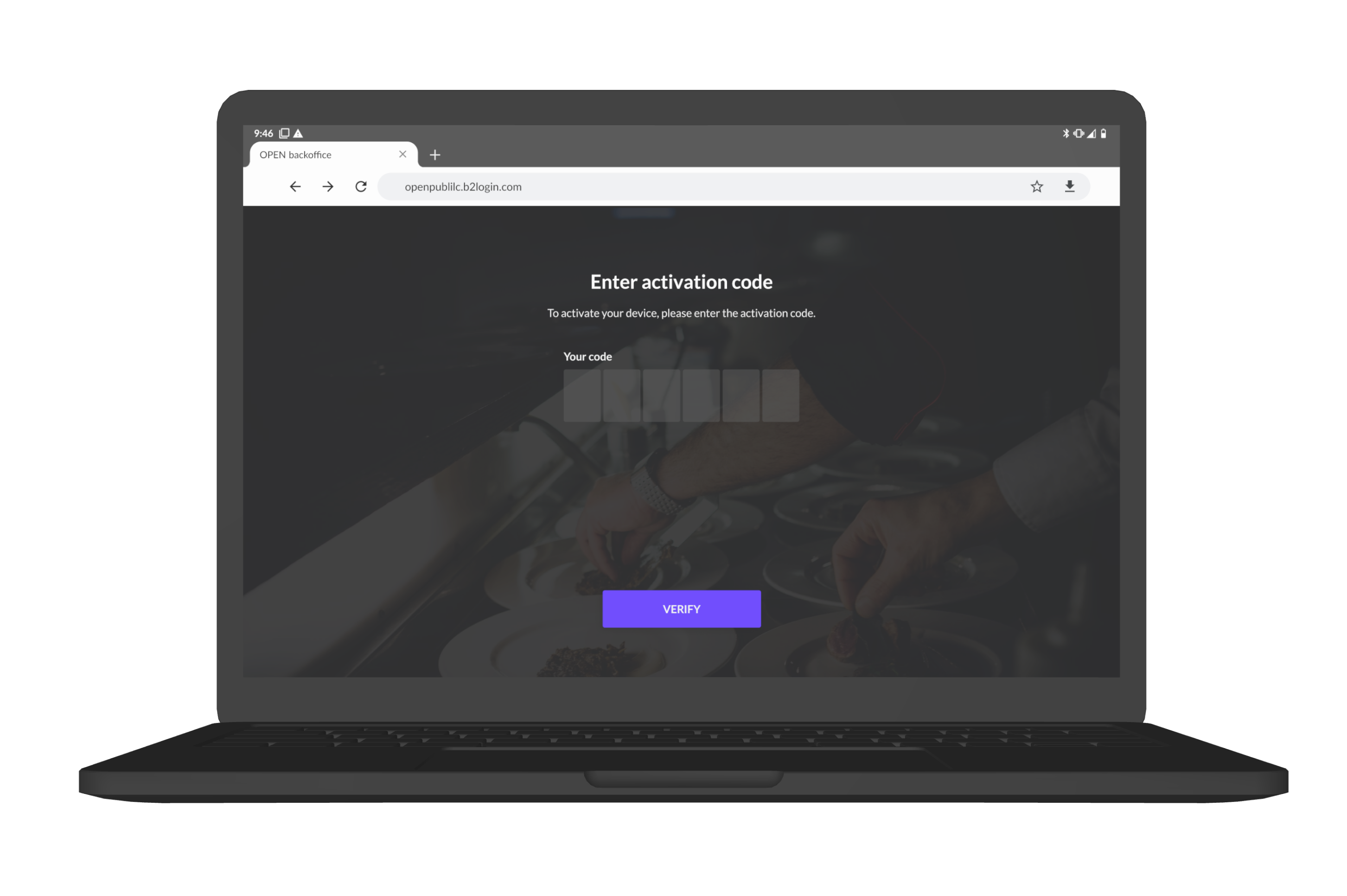
Enter the code you’ve received in your terminal and press VERIFY.
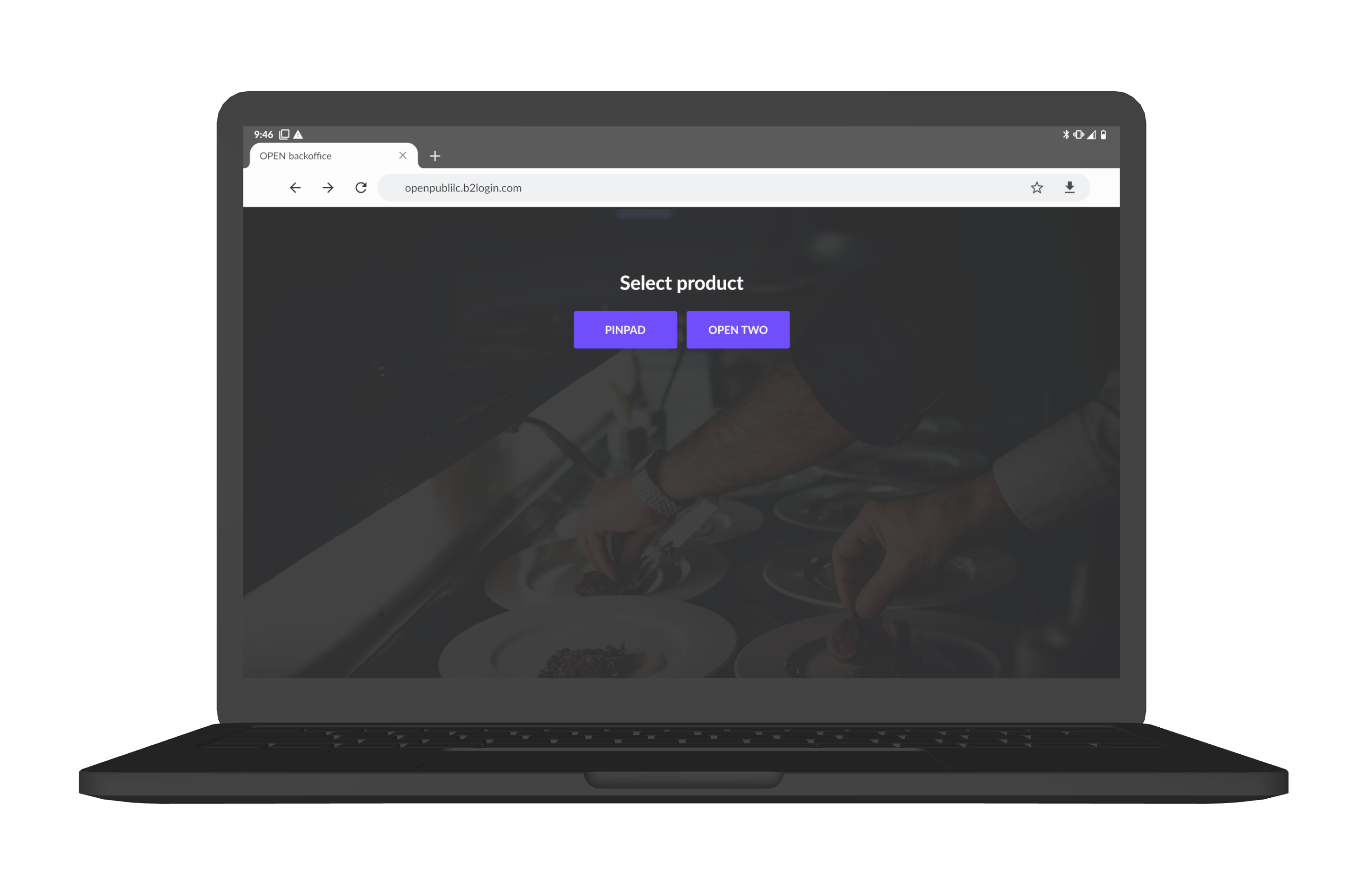
In the next view, select that you want to activate OPEN Two.
Finally, do the following:
- Enter any name for the cash register.
- Enter which cost center you want the cash register to belong to. This only applies if you have added one or more cost centres in BackOffice, otherwise you will not see this option.
- Press CONFIRM.


- Now you can sign in to the OPEN Two app in your terminal with the PIN code you have set in BackOffice.

Forgotten you PIN?
If you have forgotten or want to change your PIN, you can do so in BackOffice by clicking on your profile icon in the top right corner.

In the menu that opens, select CHANGE CASH REGISTER PIN.
