Manage your mini stock in the register
Set mini stock for an article
Sign in to the OPEN Two app.
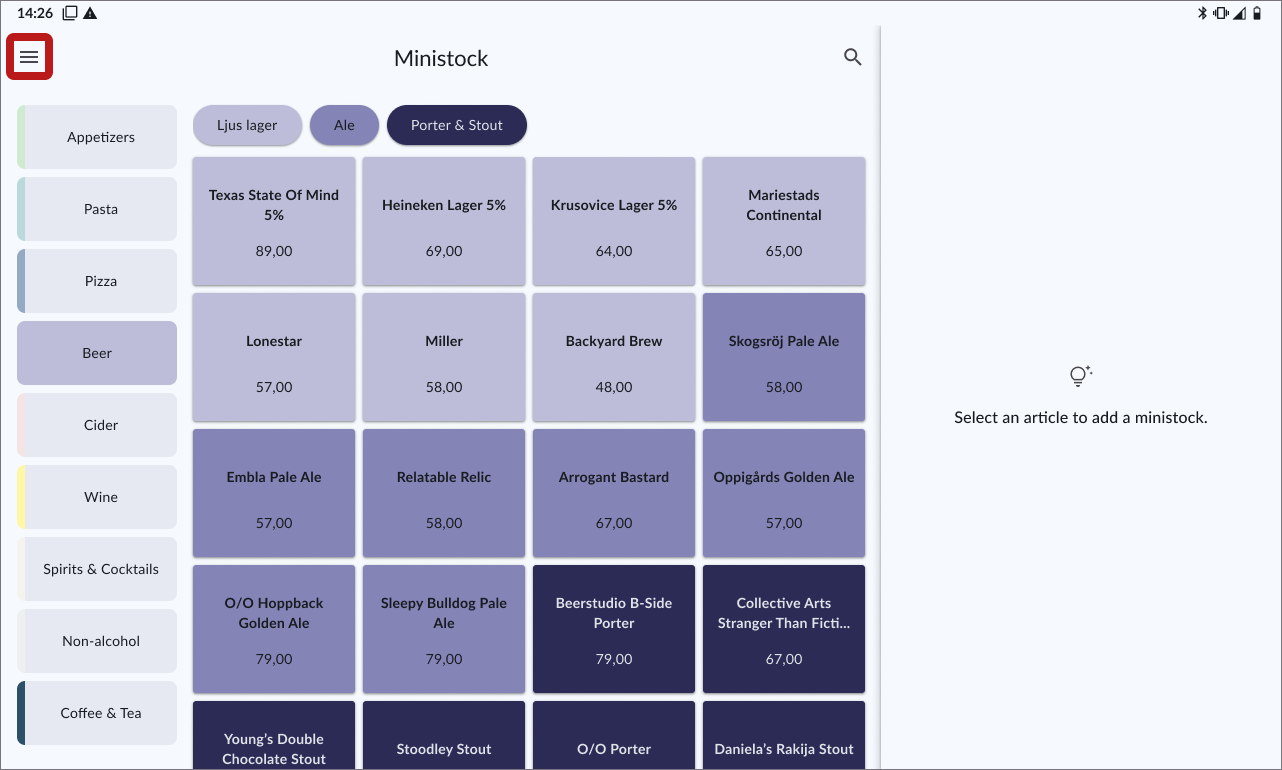
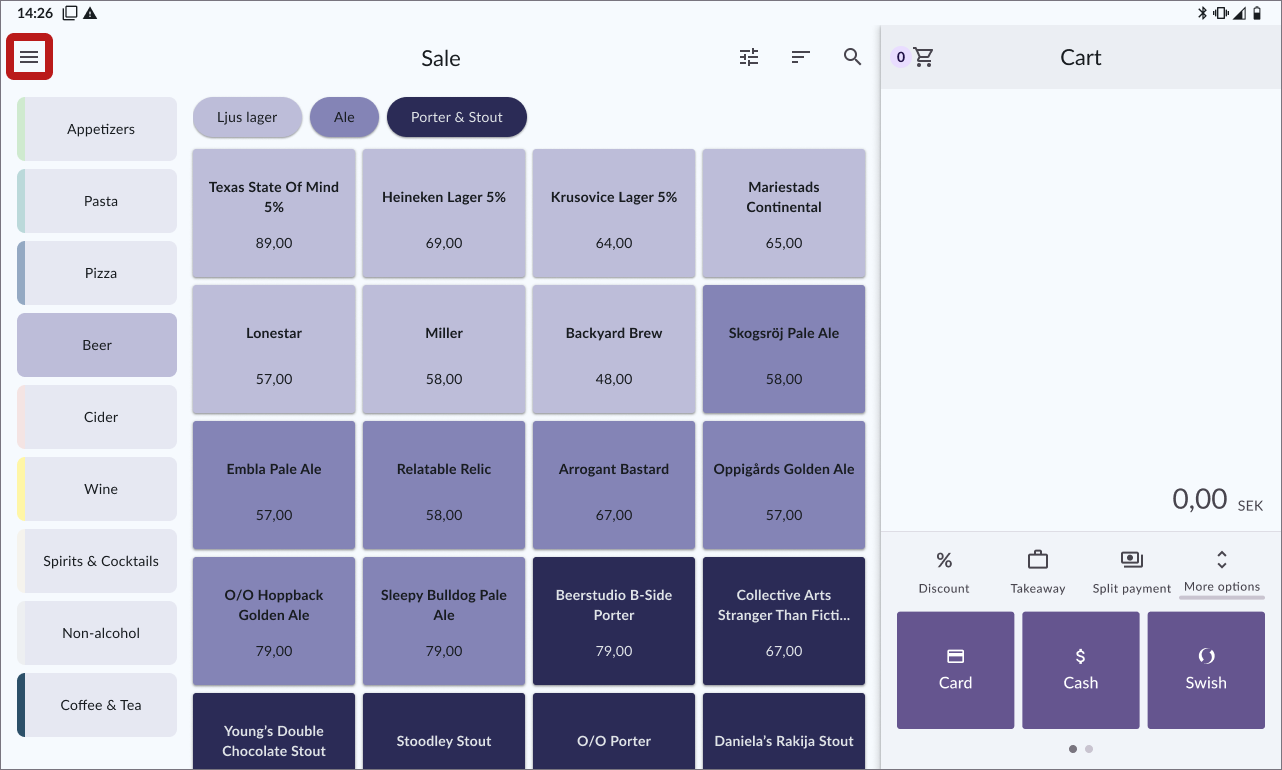
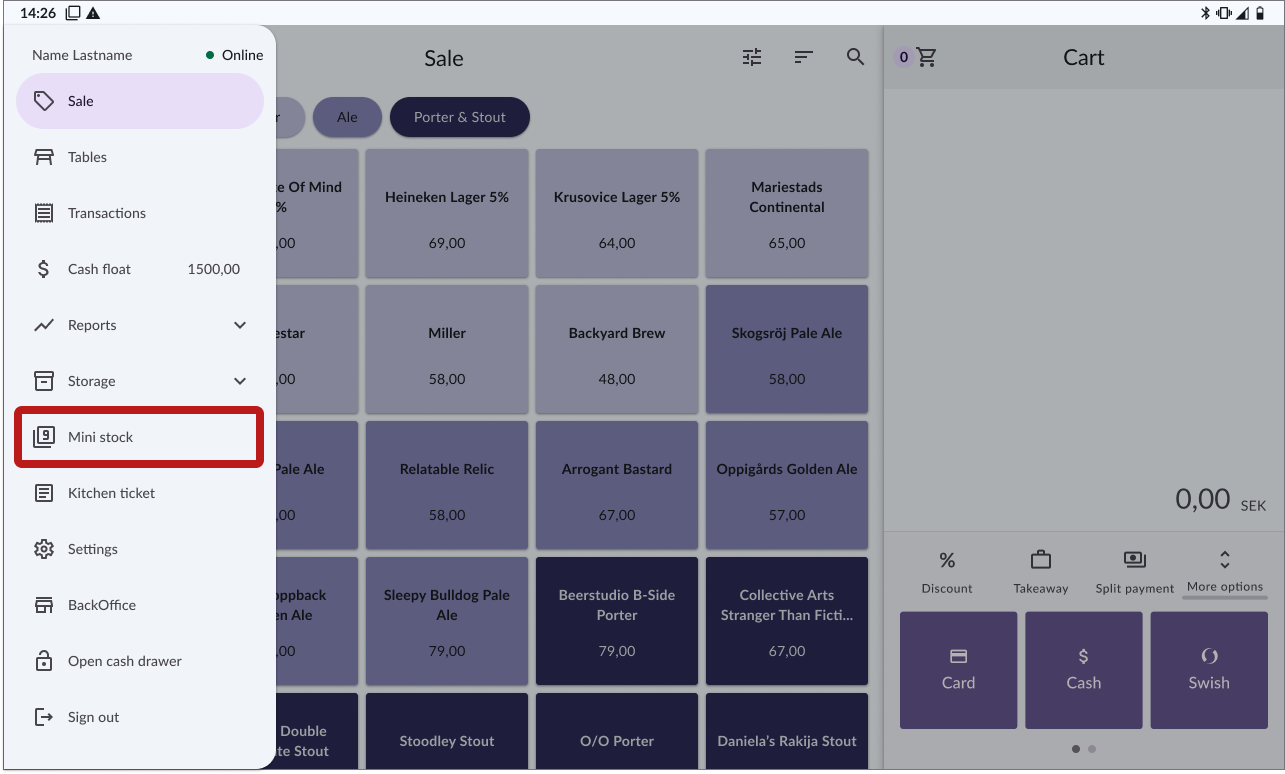
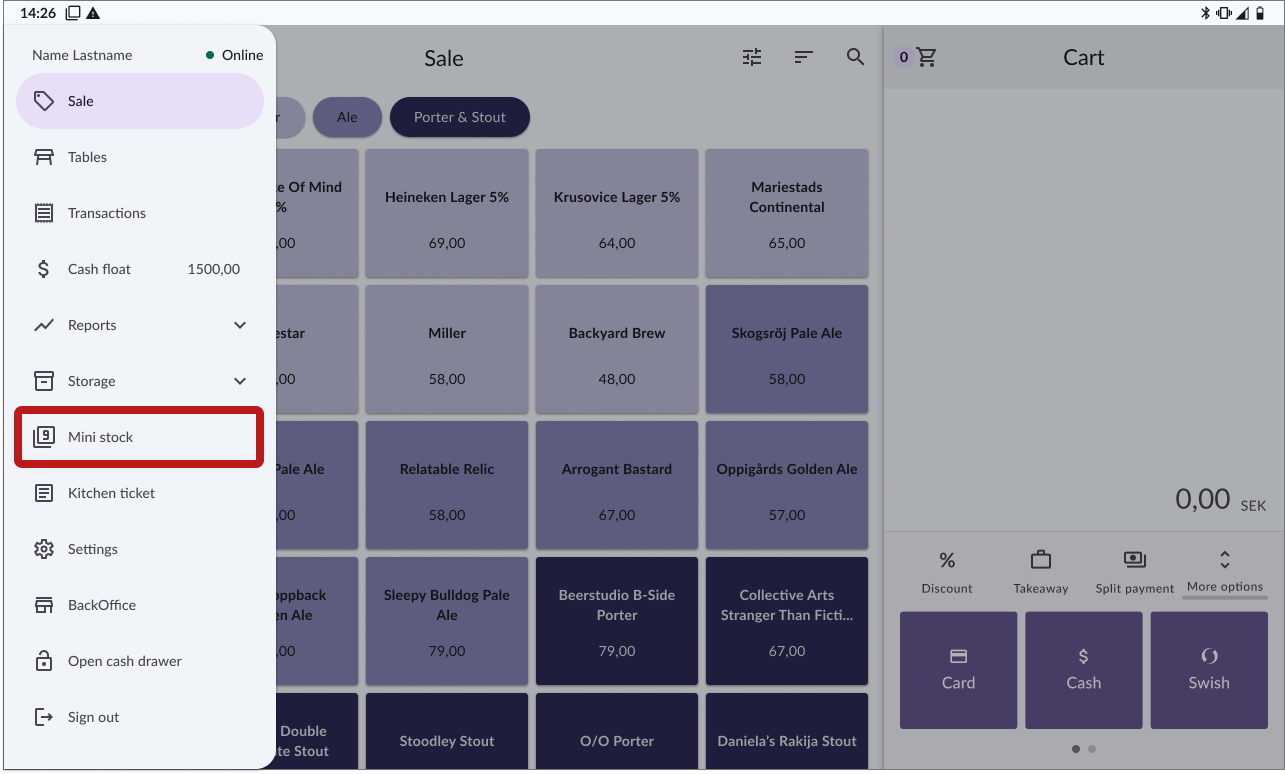
Open the menu and go to Mini stock.
Select the article for which you want to activate mini stock.
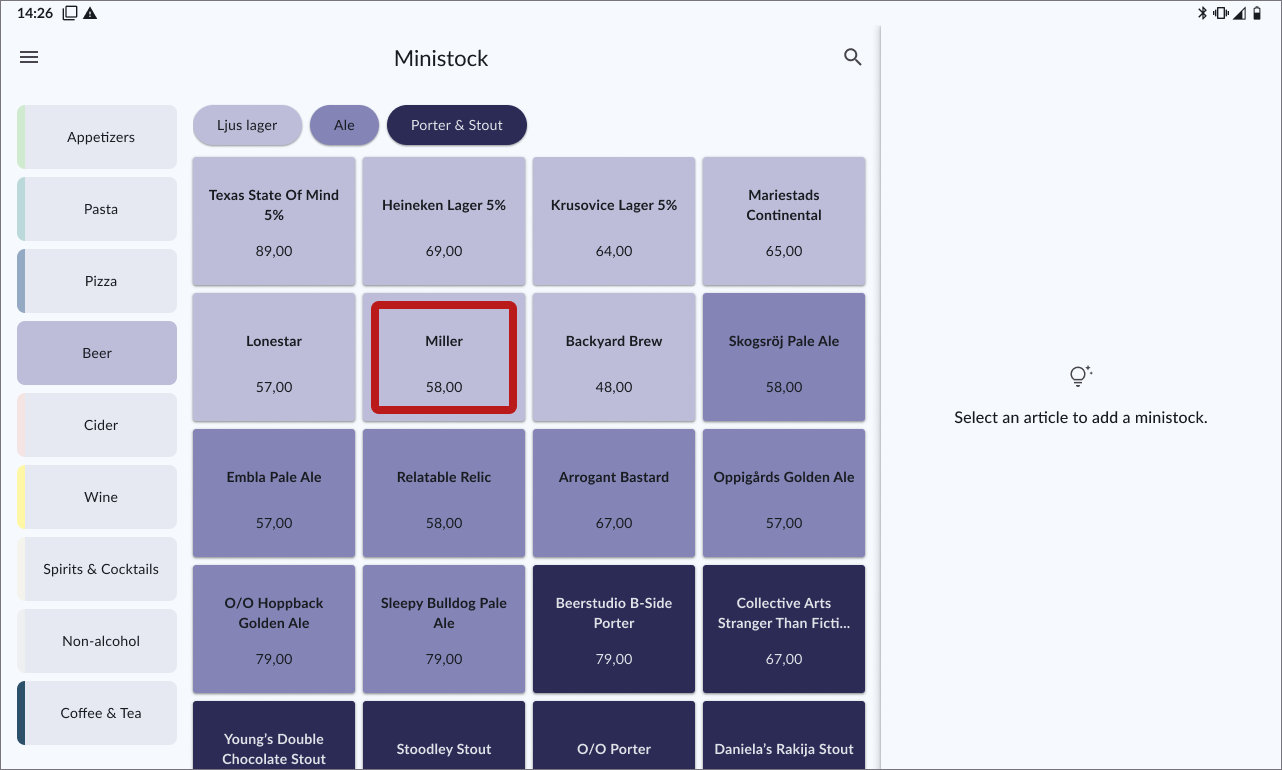
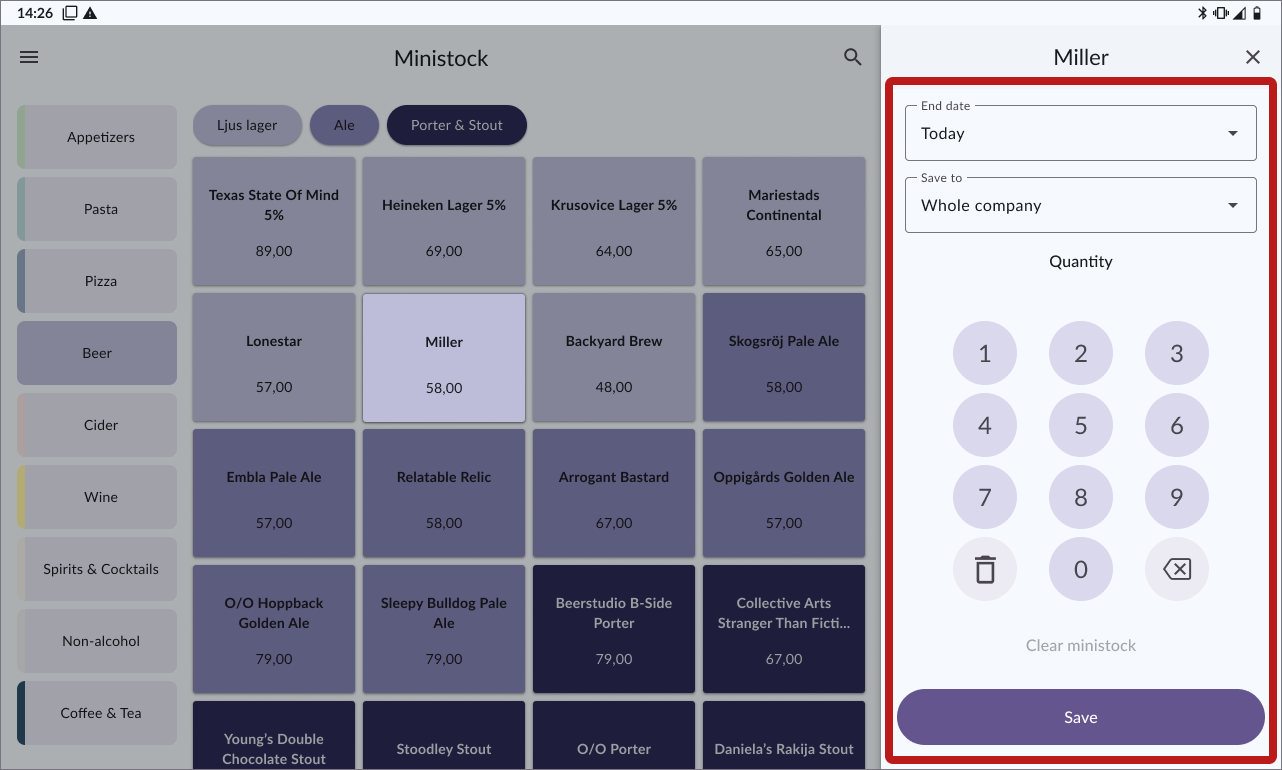
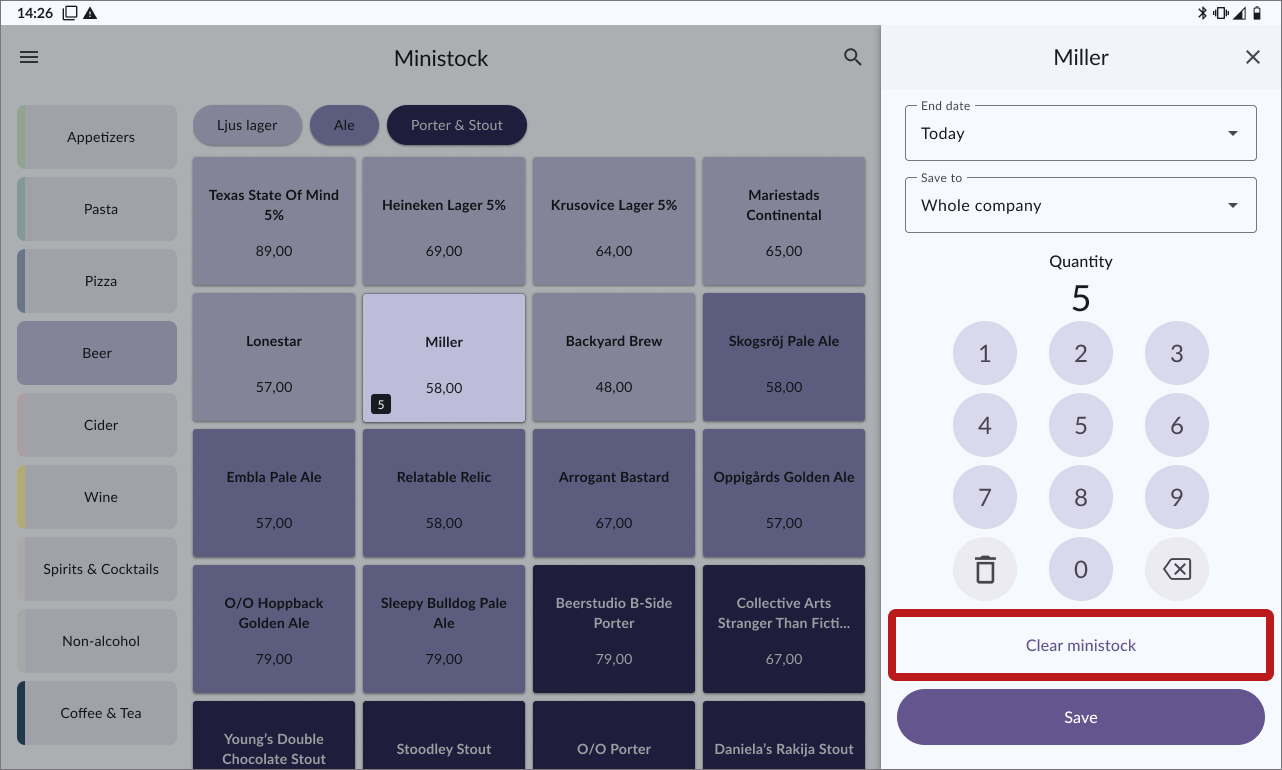
Choose end date: Choose for how long the temporary stock balance should be valid. The mini stock can be valid for today, today and tomorrow or until a custom end date.
Choose destination: Choose if the stock balance should be saved to the cost center or the whole company.
Enter quantity: Set the temporary stock quantity.
Press Save.
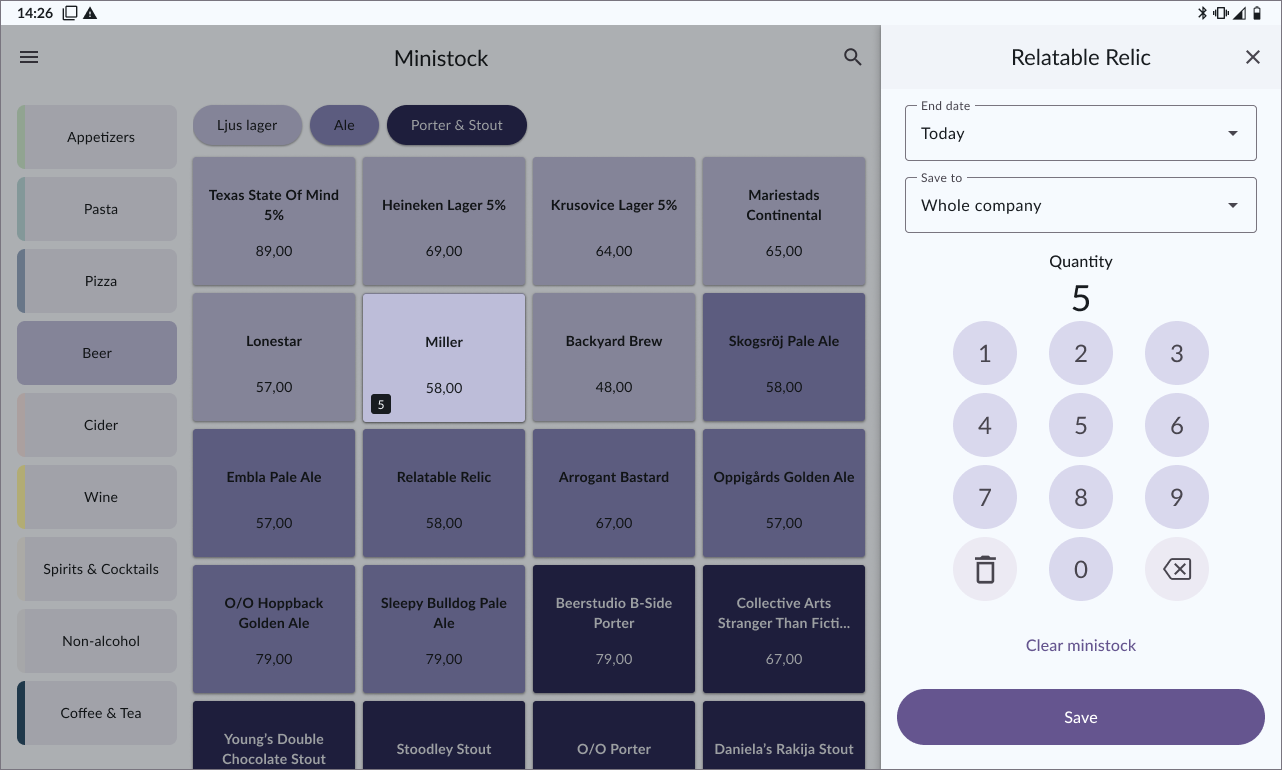
You can repeat the same thing for several articles at the same time.
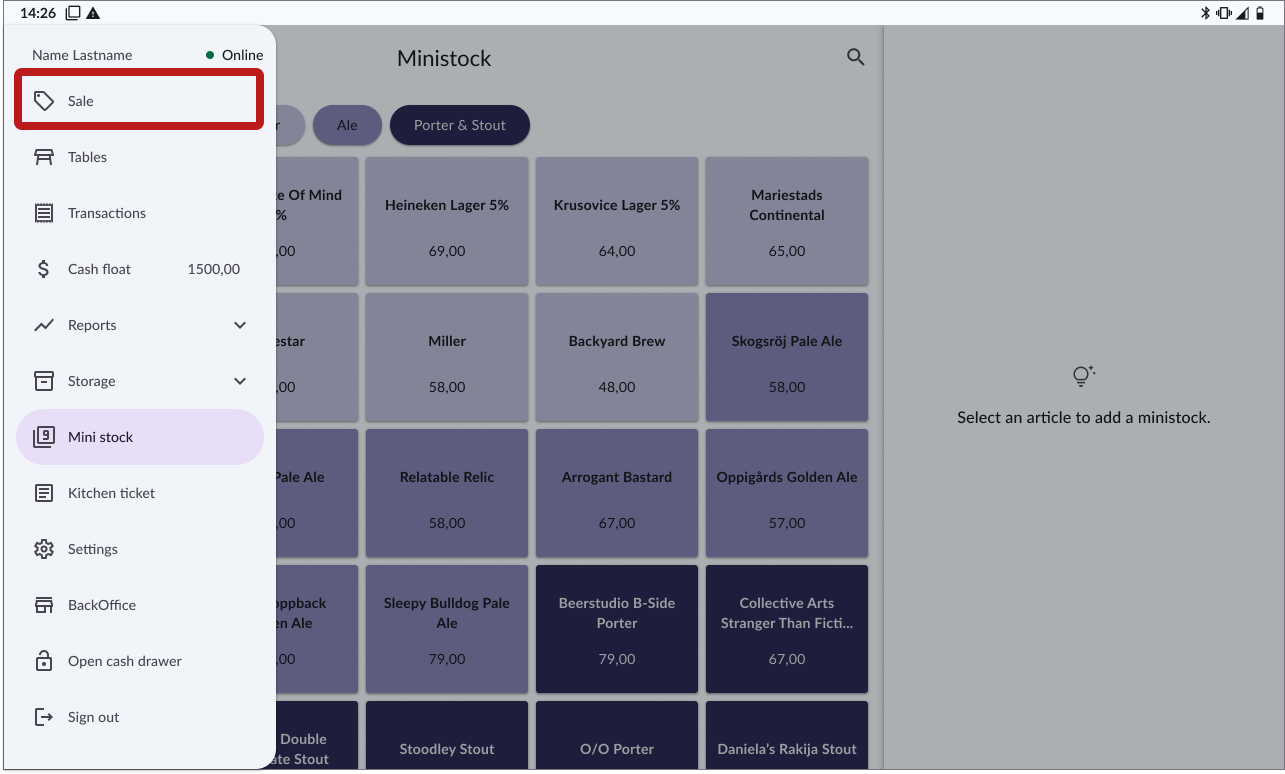
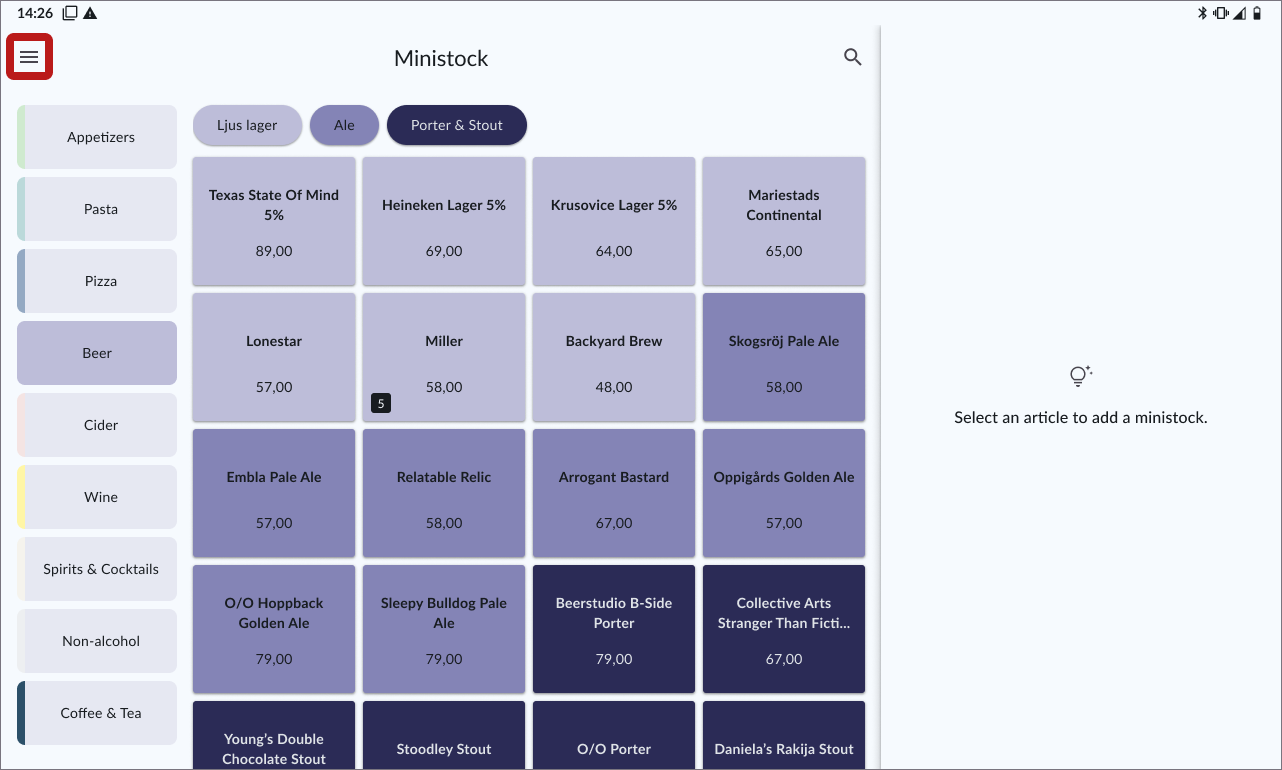
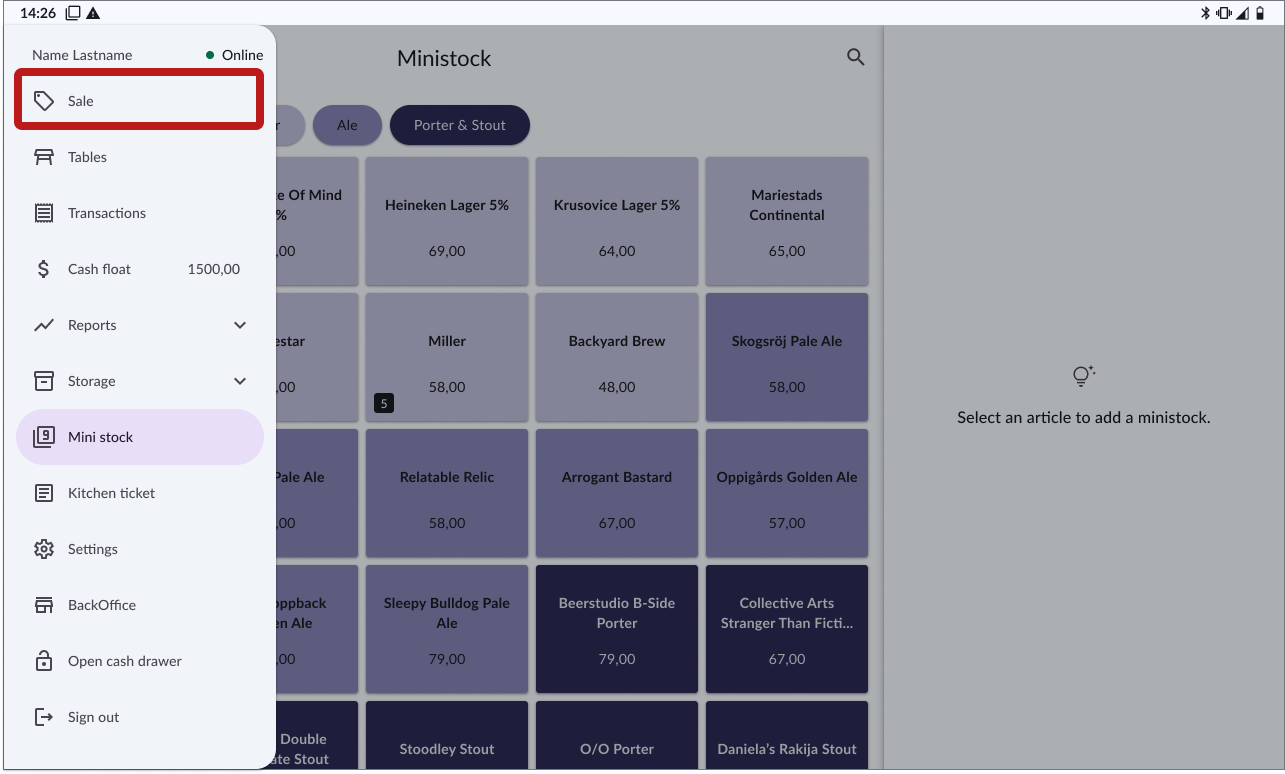
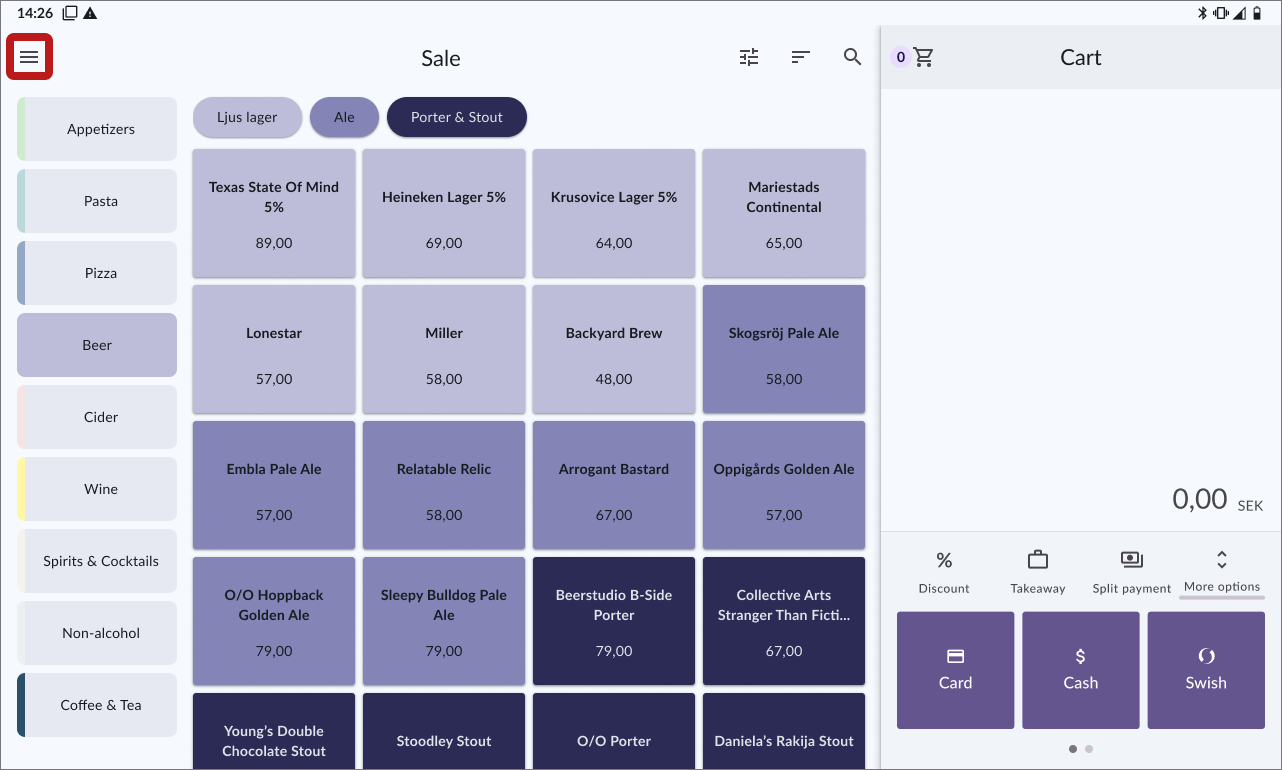
To return to sales mode, press the menu and select Sales.


Sold out items
When you sell an article with a limited stock balance, the article will become disabled once the stock balance reaches zero, preventing you from selling an out of stock item.

Clear mini stock for an article
Sign in to the OPEN Two app.
Open the menu and go to Mini stock.
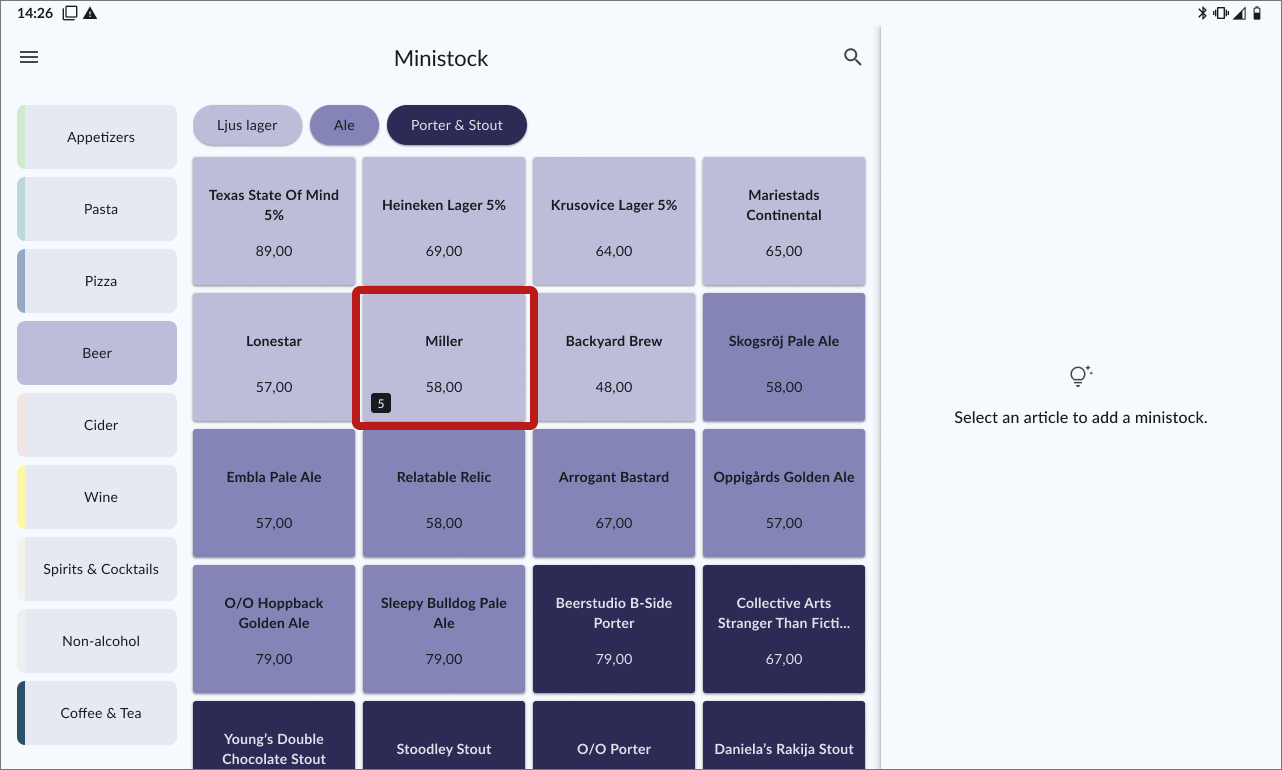
Select the article for which you want to clear mini stock.
Press the Clear mini stock button.
Return to sales mode by pressing the menu and selecting Sales.