Accounting via Accounted
Connect OPEN Two to Accounted and your daily sales are booked in Accounted automatically after each end of day. No more typing figures in by hand.
Accounted is a Swedish bookkeeping service for books, VAT and accounts. The integration sends one voucher per end of day (Z-report), split across the accounts you link during setup: payment methods, VAT rates, product groups and other events such as tips.
Before you start
Have these ready and the setup runs straight through:
- A Swedish company in OPEN Two. The Accounted card only shows for companies registered in Sweden.
- Access to Integrations in BackOffice. Your user role needs permission to view and change integrations.
- An Accounted login that is allowed to create API keys for the company.
- A chart of accounts in Accounted. Most Swedish companies use BAS. Every account you plan to book on must exist and be active in Accounted.
- A start date. Sales from this date onward are sent to Accounted. Agree on it with your accountant, usually the first day of a month or a new financial year.
- A voucher series (optional). Only if your accountant wants cash register sales in a specific series.
Activate the integration
1. Open the Integrations page
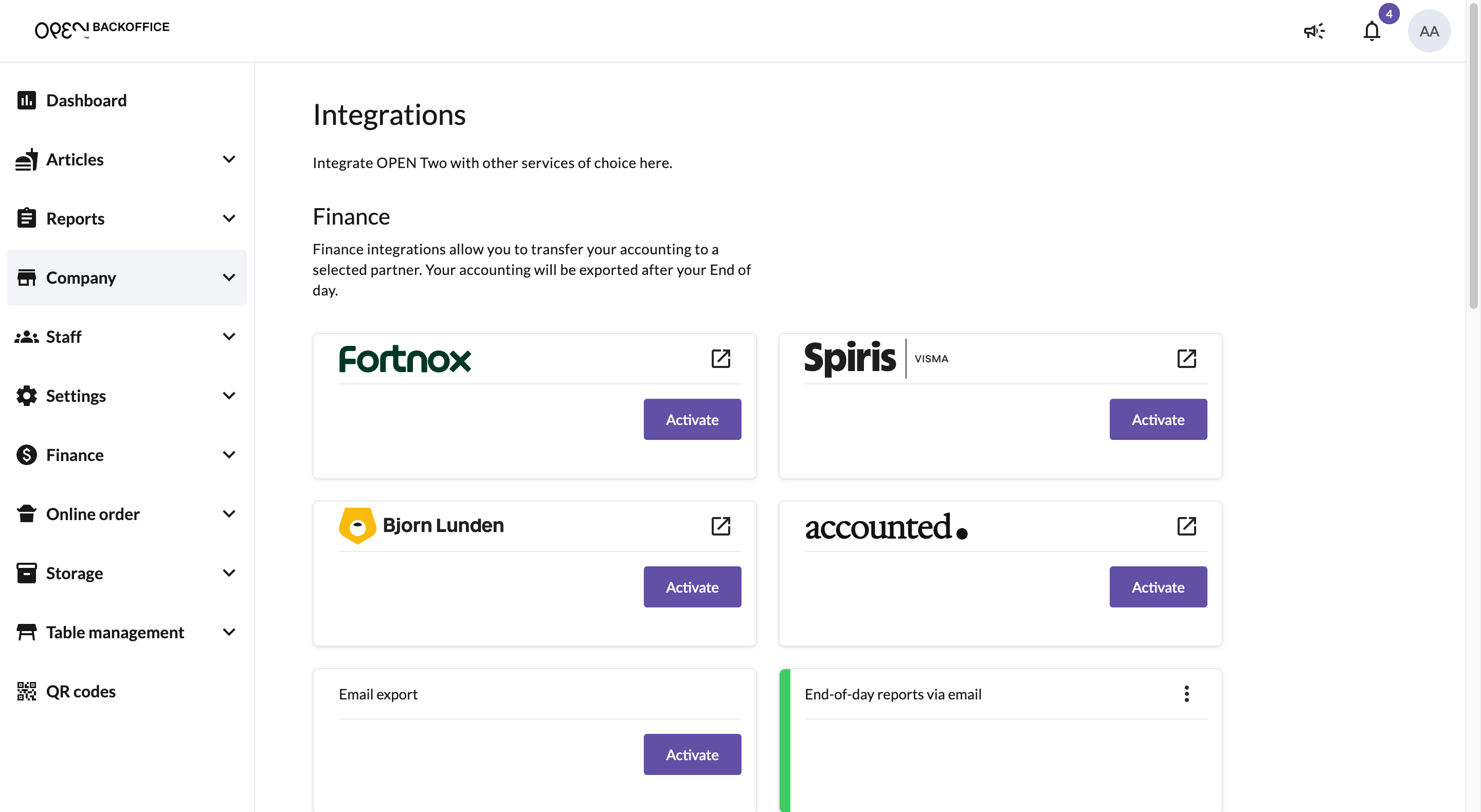
In BackOffice, go to the Company menu.
Select Integrations.
Find the Accounted card and click Activate.

- Read About this integration and click Let's get started.

2. Connect with an API key
You connect OPEN Two to Accounted with an API key. Keep Accounted open in a second browser tab.
Create the key in Accounted:
- Log in at app.accounted.se.
- Click your name at the bottom left and choose Inställningar.
- In the list on the left, under AI och kopplingar, choose API och MCP.
- Under API-nycklar, click Skapa nyckel.
- Give the key a name, for example OPEN Two.
- Under Miljö, choose Live. A Test key books nothing in your real accounts.
- Under Behörigheter, tick only the permissions in the table below.
- Click Skapa and copy the key.

Permissions the key needs
The key only needs access to what OPEN Two sends. Leave everything else unchecked.
| In Accounted | Tick | Needed |
|---|---|---|
| Företag | Läs | Always |
| Rapporter | Läs | Always |
| Bokföring | Skriv | Always |
| Dokument | Läs and Skriv | Always |
| Kunder | Läs and Skriv | Only if you use invoicing |
| Fakturor | Läs and Skriv | Only if you use invoicing |
- Back in BackOffice, paste the key into API key.
- Click Verify.
- When you see "Your key works", click Next.

3. Choose company
- Pick the company in Accounted that your sales should be booked in. If your key only reaches one company, it is already selected.
- Click Next.

4. Bookkeeping settings
- Set the Accounting start date.
- Fill in Voucher series only if your accountant has asked for one.
- Click Next.

5. Link your accounts
Every account in OPEN Two must be linked to an existing, active account in Accounted. For each row, pick the matching account under Account in Accounted. Each choice is saved right away. If you are unsure which account to use, ask your accountant.

Payment methods
- Choose an account for each payment method, such as card, cash and Swish.
- Click Next.

VAT rates
- Choose an account for each VAT rate.
- Click Next.

Product groups
- Choose a sales account for each product group.
- Click Next.

Product groups (takeaway)
- Shown only if your company uses takeaway VAT.
- Choose a sales account for takeaway sales in each product group.
- Click Next.

Expenses
- Shown only if expense accounts are turned on under Accounting.
- Choose an account for each expense.
- Click Next.

Other events
- Choose accounts for other events, such as tips and rounding.
- Click Finish.

A row can show one of three messages:
- Choose a matching account in Accounted. No account is linked yet. You can't continue until you pick one.
- This account number is already used for something else. Pick a different account.
- This account is inactive in Accounted. Activate it in Accounted, or pick another account.
Is an account you need missing from the list? Create it in Accounted first, then reopen the step. Accounts can't be created from BackOffice.
The integration is now activated
Accounted is now active. Press OK to close the dialog. The Accounted card on the Integrations page gets a green bar.

TIP
While Accounted is connected, account numbers are managed in the integration, not on the Accounting page.
Daily use
There is nothing to do day to day: sales are sent to Accounted automatically after each end of day.
Open the menu (the three dots at the top right of the Accounted card) to:
- Settings – change start date, voucher series, company, API key or linked accounts.
- Inactivate – stop sending sales to Accounted.
- Export manually – send sales to Accounted now instead of waiting for the next end of day.
- accounted.se – open Accounted in a new tab.

If something needs attention, the card says what and offers a Fix this button that opens the right step.
Change or disconnect
- New API key. Choose Settings in the card menu, paste the new key in the API key step and click Verify. Do this when a key has expired or was deleted in Accounted.
- Another company. In Settings, change the company. A new company has its own chart of accounts, so check every account step again.
- Disconnect. Choose Inactivate in the card menu and confirm. Sales stop going to Accounted and the API key is removed from OPEN Two. Your company and start date are kept, so reconnecting later only needs a new key.
To fully revoke access, also delete the key in Accounted under Inställningar → API och MCP.
Troubleshooting
| The card or wizard says | What to do |
|---|---|
| That key did not work | Copy the whole key again from Accounted and click Verify. Create a new key if the old one was deleted. |
| Not connected to Accounted | Click Fix this and enter a new API key. |
| No company chosen in Accounted yet | Click Fix this and pick a company. |
| No start date chosen yet | Open Settings and set the accounting start date. |
| Some accounts are not linked to an account in Accounted yet | Click Fix this and link the listed accounts. New payment methods and product groups need linking too. |
| Some accounts are inactive in Accounted | Activate the listed accounts in Accounted, or link other accounts under Settings. |
| We could not get your accounts from Accounted | Check that your key still works in Accounted, then try again. |
| You are connected with a test key | Replace it with a live key under Settings when you are ready to book for real. |
I can't see the Accounted card. It only shows for Swedish companies, and your user role needs access to Integrations.
I added a new payment method or product group. Link it to an Accounted account under Settings. Until then, the card shows a warning.