Scan to pay
Let your guests pay directly from their mobile phones by scanning a QR code at the table — no app required.
You create QR codes in BackOffice, and guests use them to access the payment flow on their own device.
Step 1: Enable QR codes on your table map
Sign in to BackOffice.
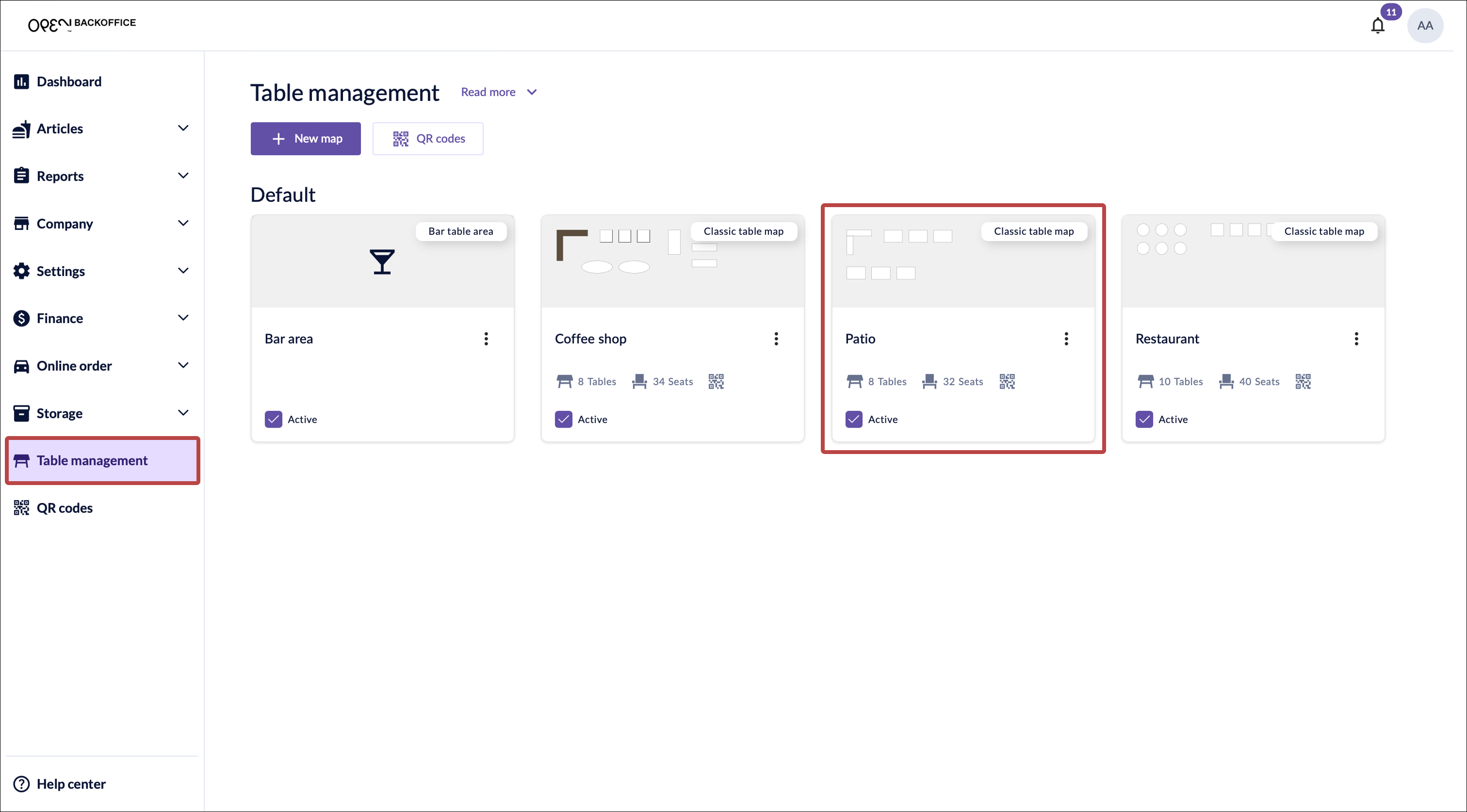
Go to Table management in the menu and select the table map where you want to enable QR code checkout.
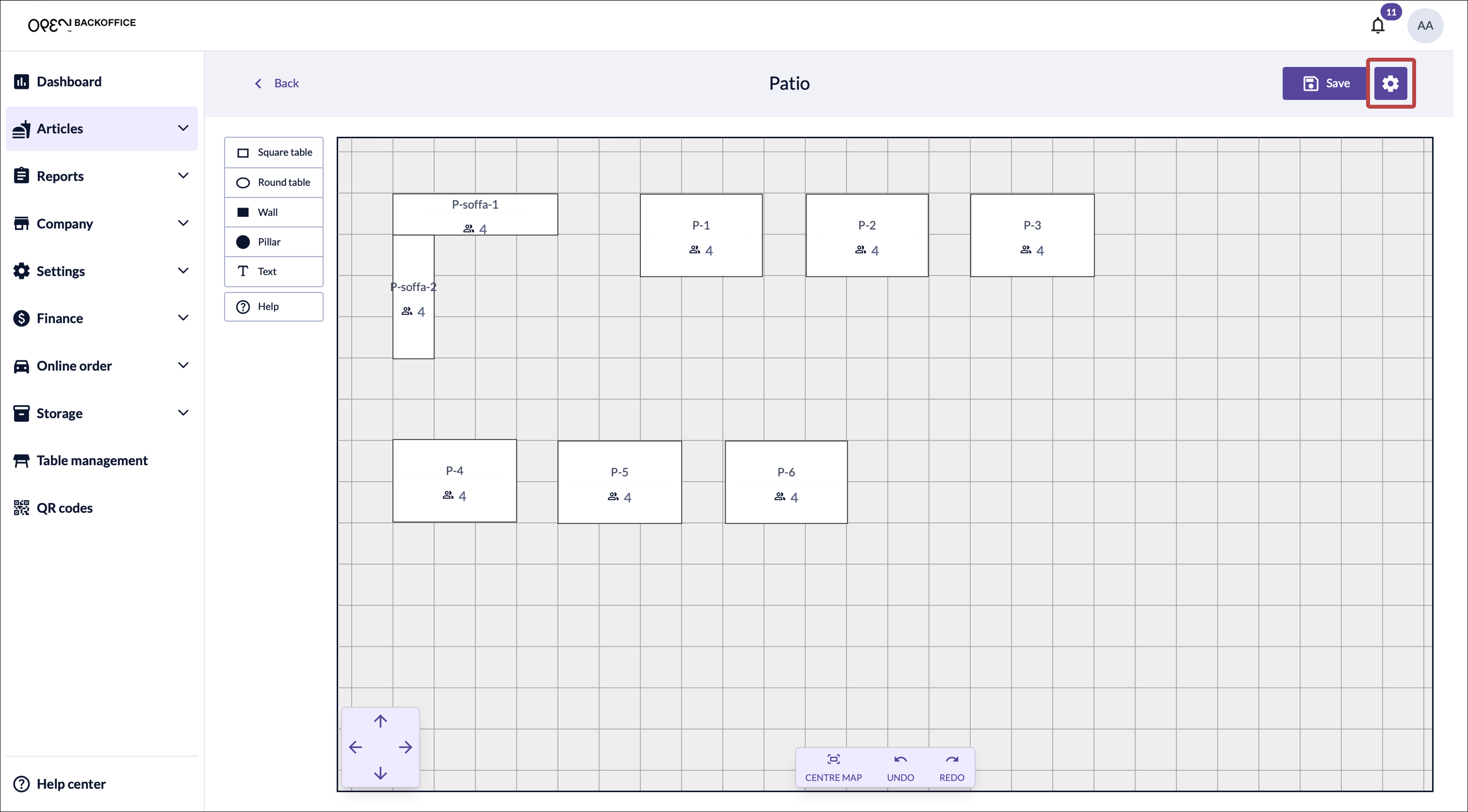
Click the Settings icon in the upper right corner.
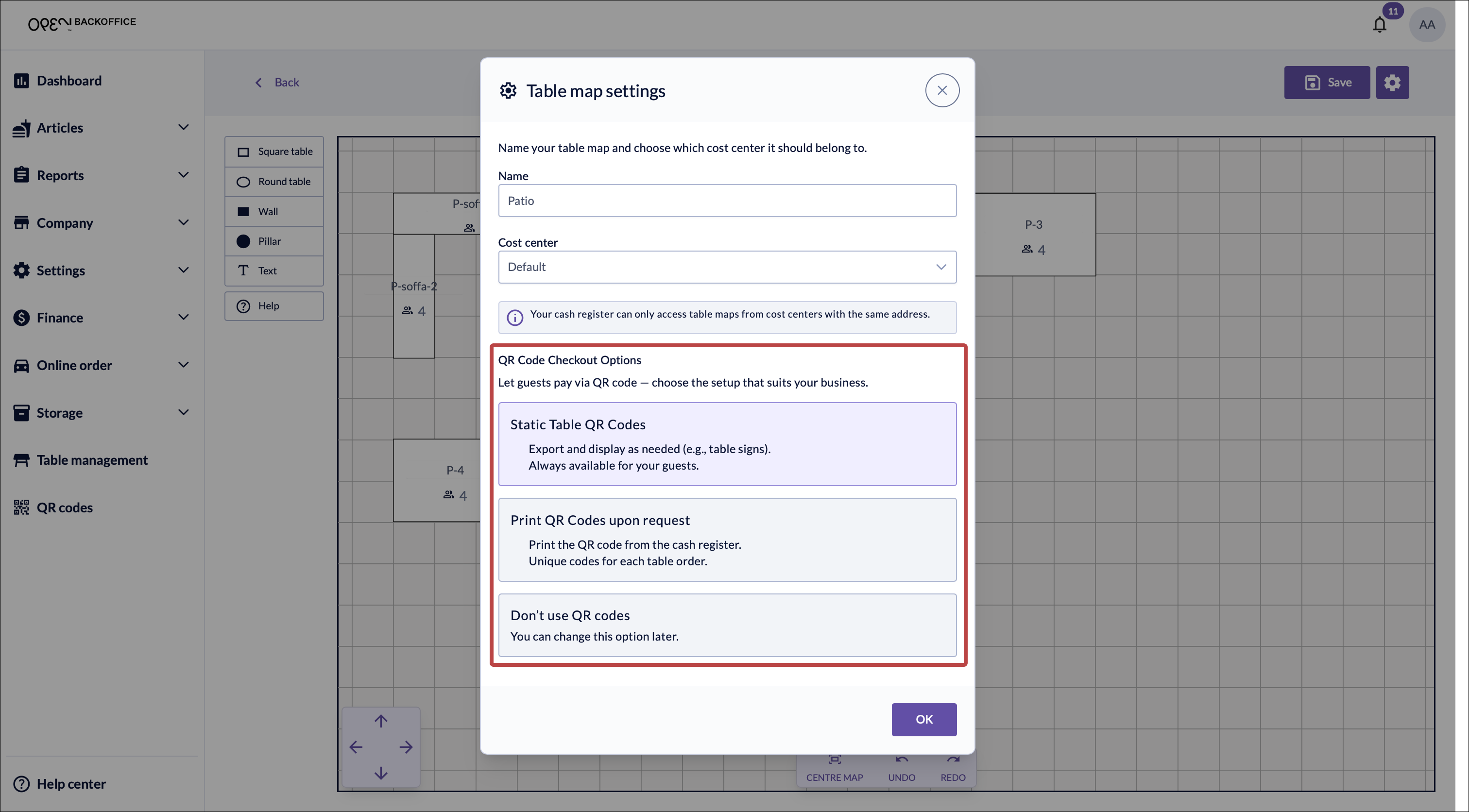
Choose a QR code option: Static Table QR Codes or Print QR Codes upon request.
- Static Table QR Codes: QR Codes that are always available at your tables.
- Print QR Codes upon request: The waiter controls when the qr codes are printed and provided to guests.
Also printed on guest note
With this option the QR code will also be printed on the guest note - providing a convenient alternative for how the bill is paid.
Click OK to close the settings dialog.
Click Save to save your changes.


Which option should you choose?
Static Table QR Codes
A fixed QR code is placed on each table and linked to that table permanently. Guests can scan it at any time to access the payment flow — no staff involvement needed.
Best for: restaurants where guests regularly pay on their own.
Print QR Codes upon request
This option adds a button to the table order view in the cash register. Staff can use it to print a unique QR code for a specific table order when needed.
Best for: restaurants where staff usually handle payment, but want the option to let guests pay themselves during busy periods.
Also printed on guest note
With this option the QR code will also be printed on the guest note - providing a convenient alternative for how the bill is paid.
Step 2: Create your QR codes
See the Create QR Codes guide for step-by-step instructions on setting up your QR codes.
How the QR checkout works
Here's what the checkout experience looks like for your guests.
Payment flow
- Scan the QR code on the table to open the table order.
- Choose Pay for everything, or tap Split bill to select specific items.

- If tipping is enabled, select a tip amount.

- Review your order and tap Pay to continue.

- Select a payment method: Card or Swish.

Complete the payment:
- Card: Enter your card details and confirm the purchase.
- Swish: Enter your phone number and complete the payment in the Swish app. Payment is confirmed automatically — return to the website to access your receipt.
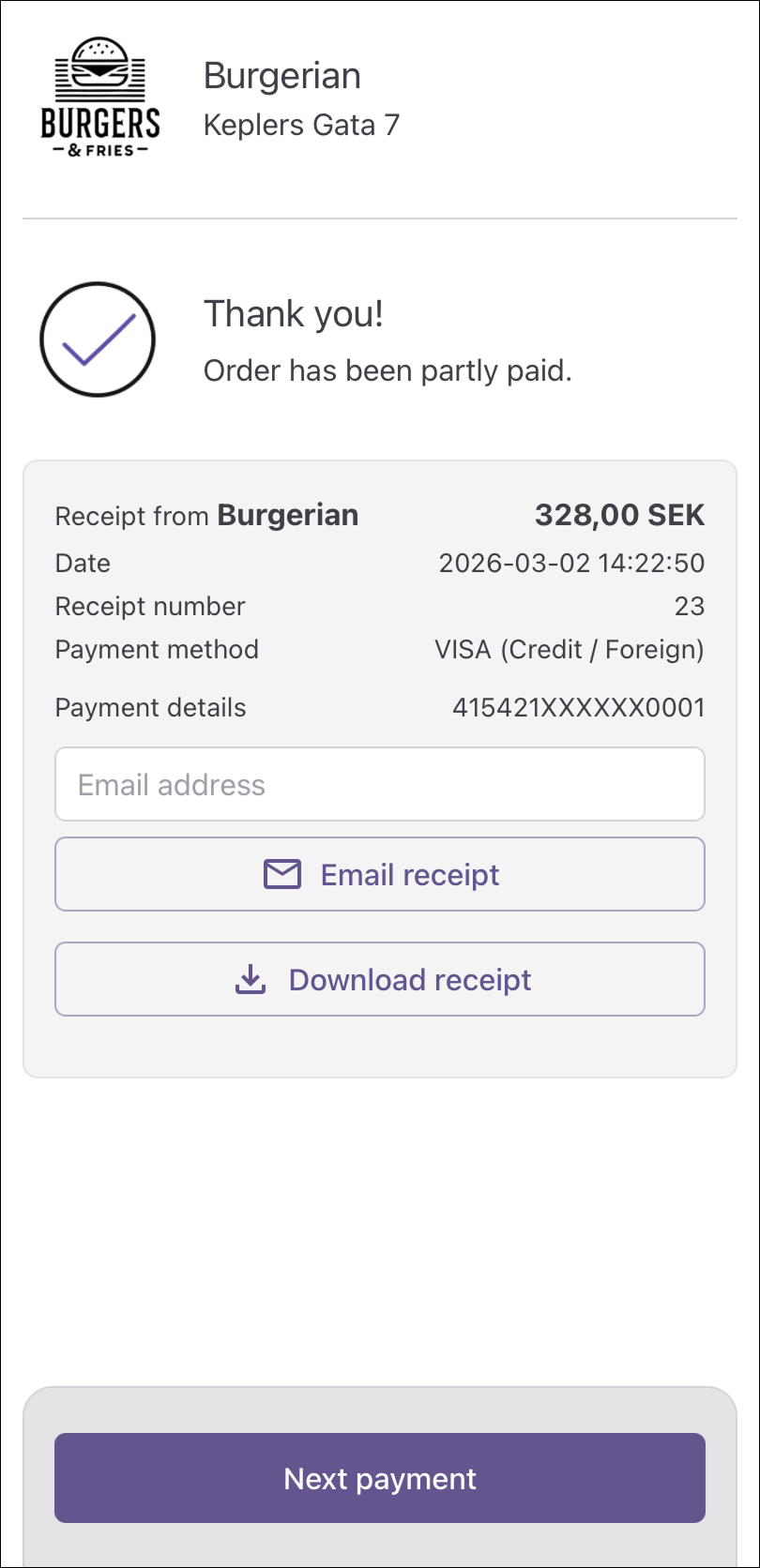
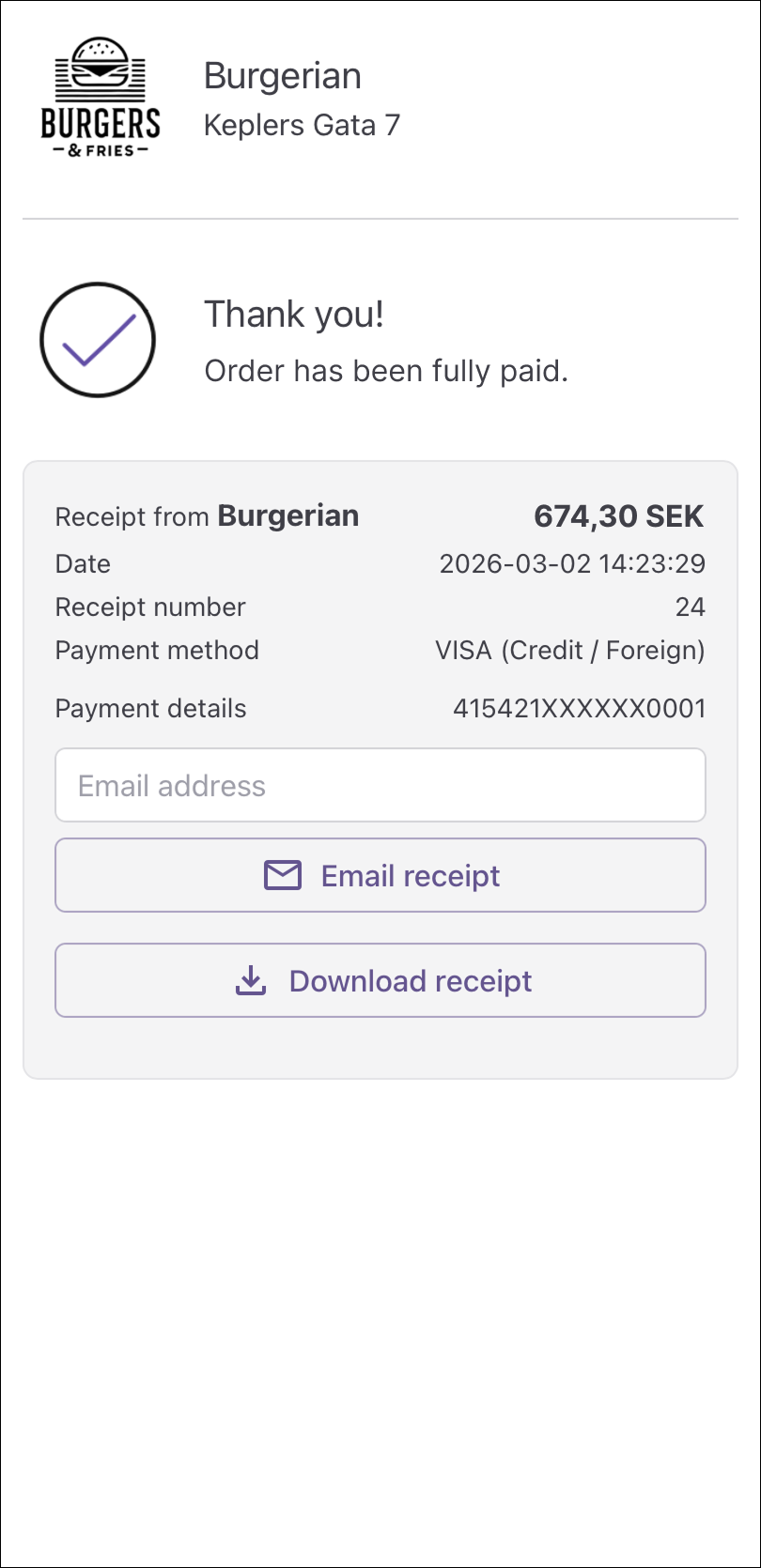
Confirmation and receipt:
If the bill is partly paid:
- Download your receipt or have it sent by email.
- Tap Next to pay for more items, or scan the QR code again.
If the bill is fully paid:
- Download your receipt or have it sent by email.


Splitting the bill
Multiple guests can scan the same QR code and pay for their own items at the same time.
- Items you have selected are marked with purple checkboxes.

- Items selected by other guests at your table are marked with black checkboxes.

Error cases
- If the table order appears empty, ask your waiter for assistance.
