Enable Kiosk mode for self-service
Kiosk mode turns an OPEN Two register into a self-service station. Customers browse your products, select what they want, and pay on their own — without help from staff.
Setting up a kiosk involves two separate things with similar names:
| What it does | Where you set it | |
|---|---|---|
| Device kiosk mode | Locks the device to a single app, so customers can't reach the device's other apps or settings | The device's own settings app (Sunmi and Landi only) |
| Kiosk mode in OPEN Two | Shows what self-service interface instead of the staff register view | The OPEN Two app |
Set up both for a kiosk that customers use unsupervised.
Before you begin
Before you start Kiosk mode must be enabled for your POS before you can use it. Contact your sales representative to enable it.
1. Lock the device to OPEN Two
Skip this step if you're not using a Sunmi or Landi device.
Sunmi devices
- Open the device settings app on your Sunmi device.
- Go to Additional settings.
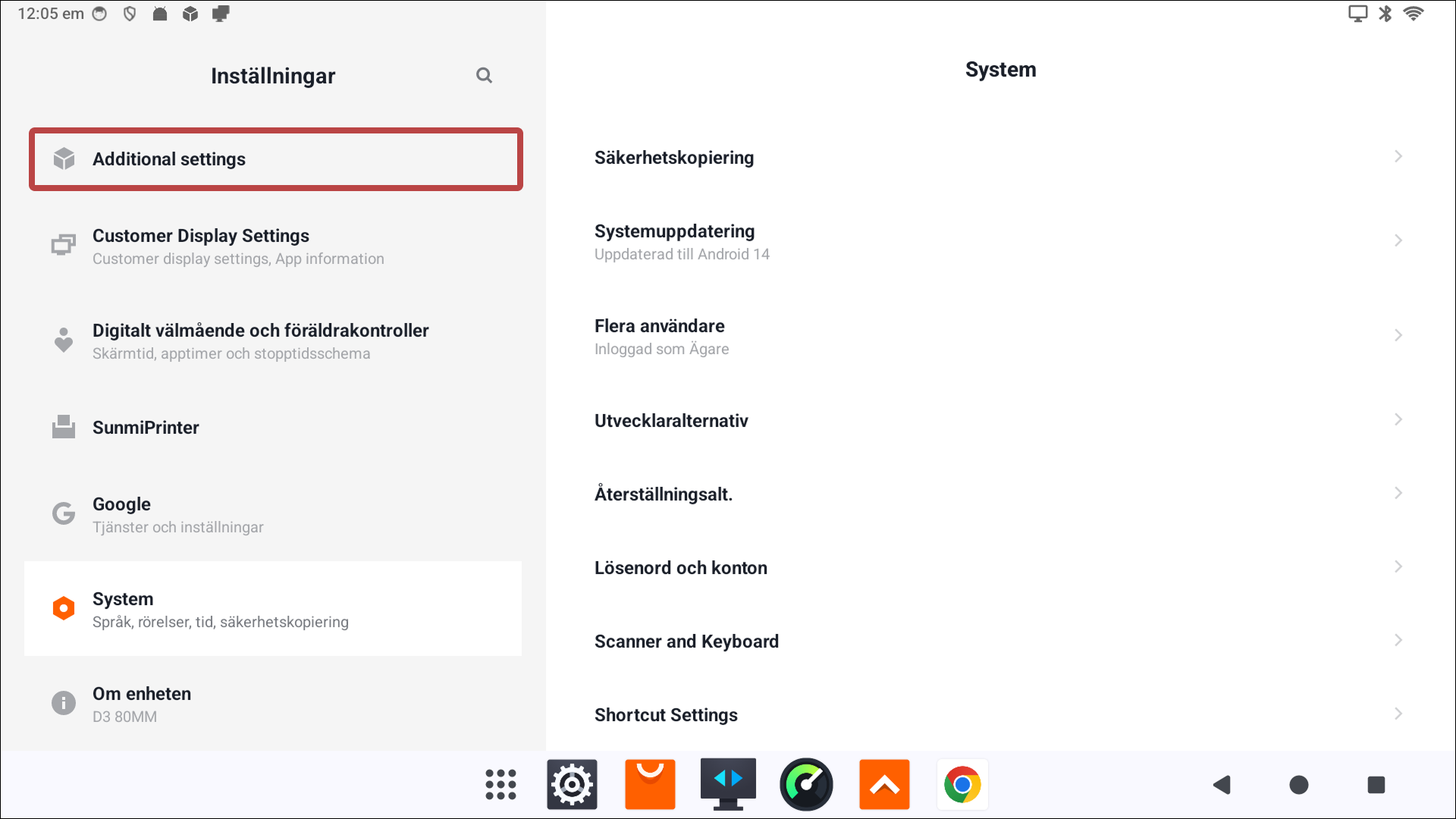
- Press Kiosk.
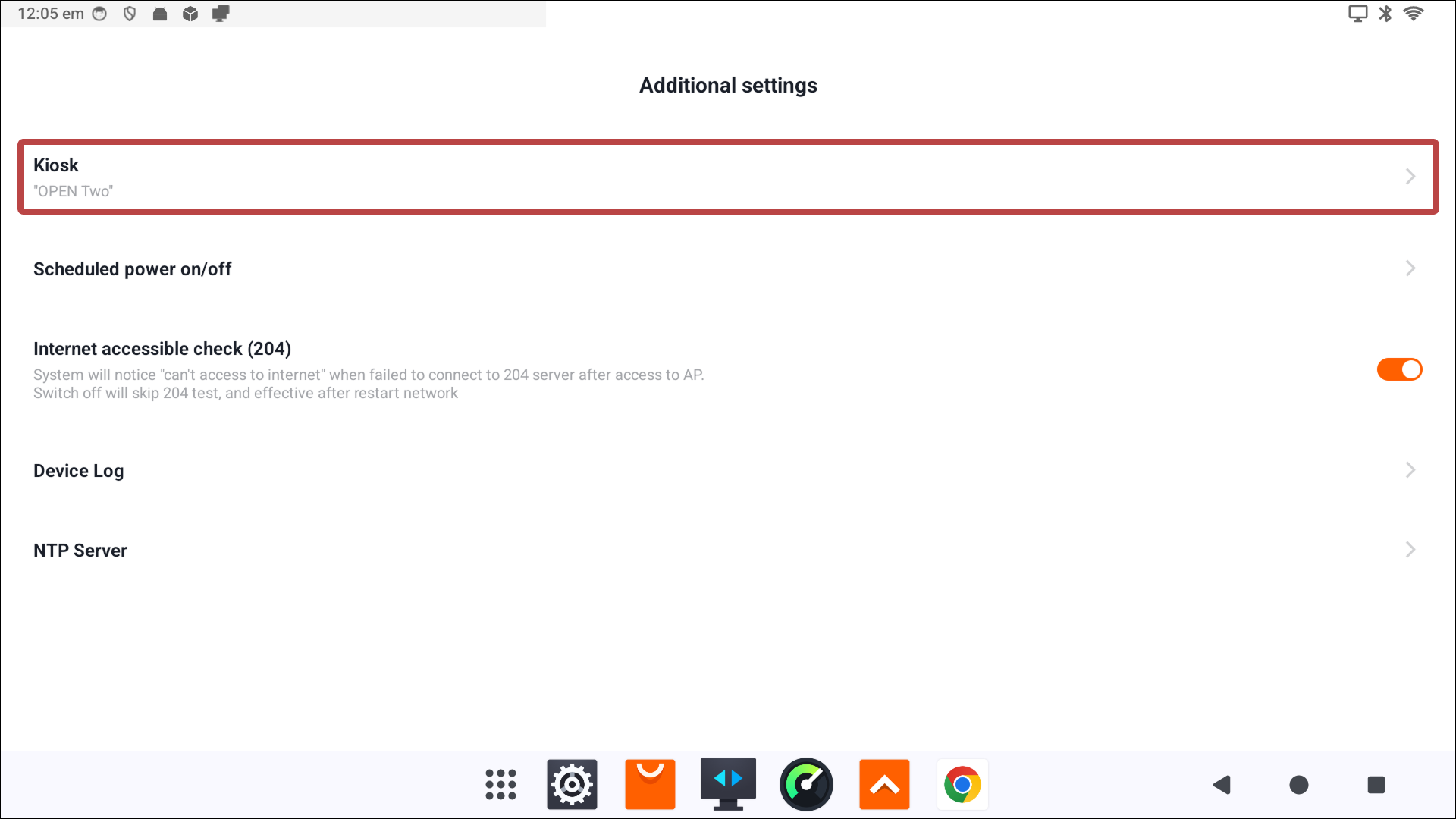
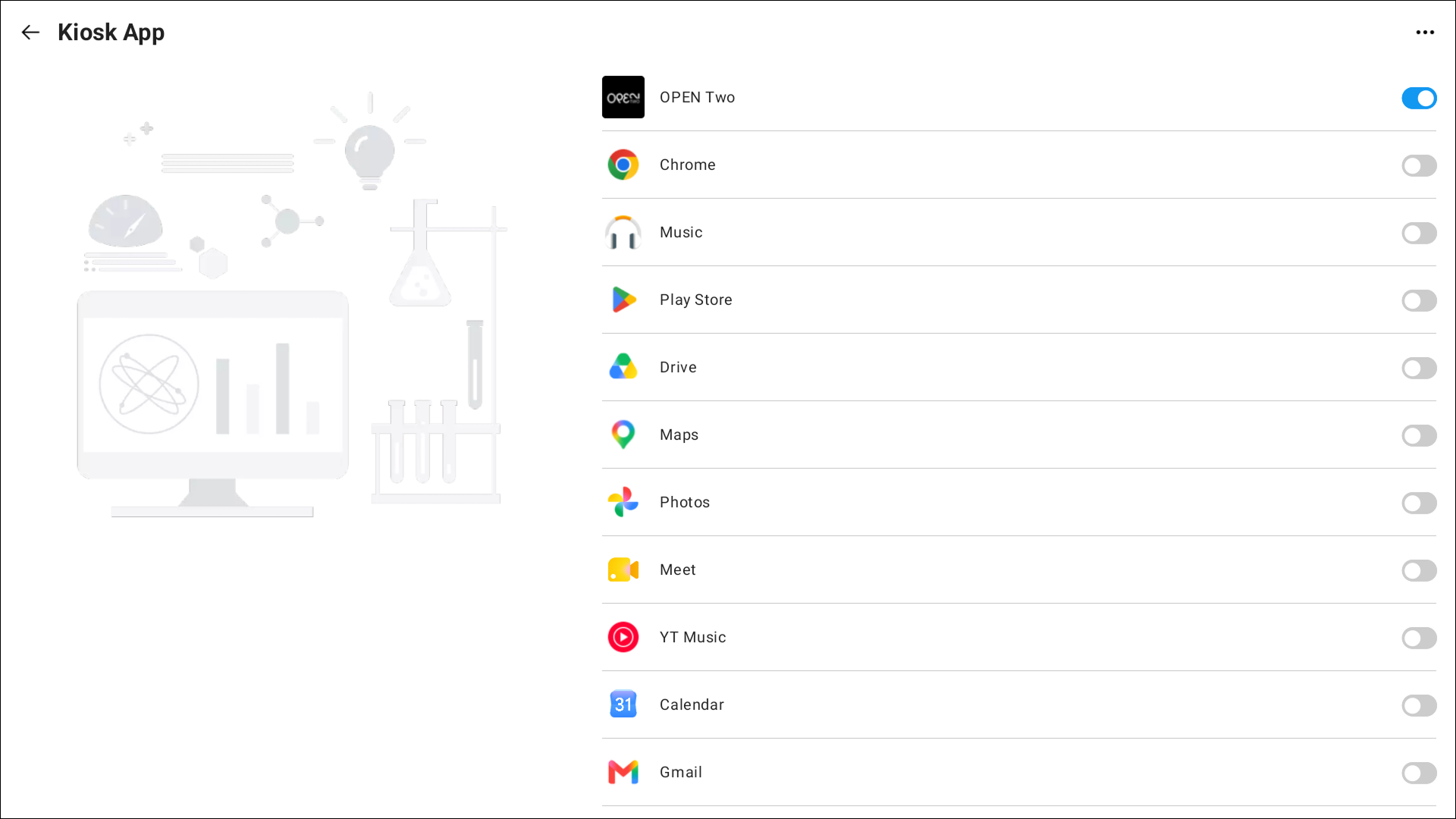
- Turn on the switch for OPEN Two.
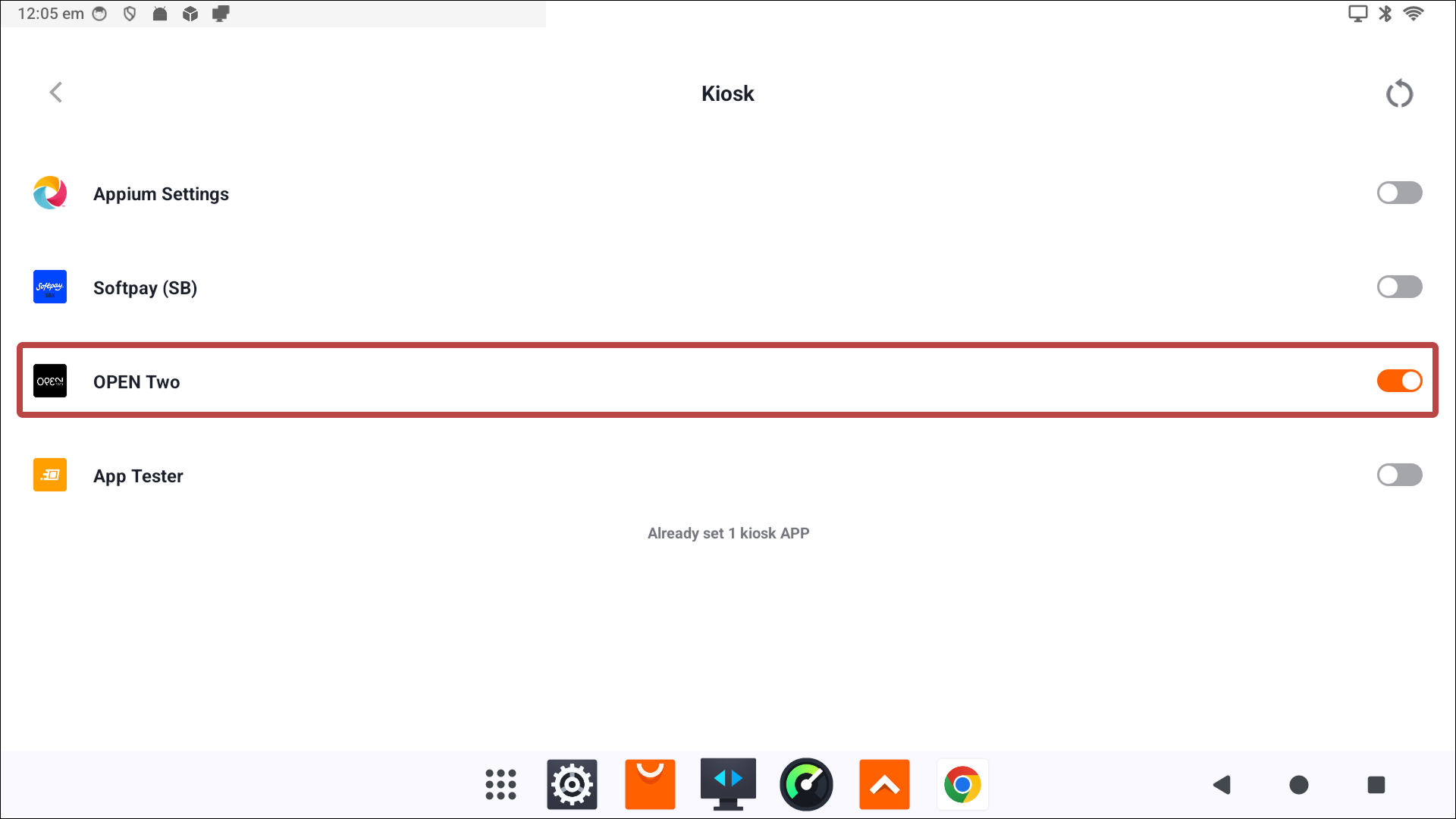
- Close the settings app and open OPEN Two.


To unlock the device later, see Unlock the device.
Landi devices
- Open the device settings app on your Landi device.
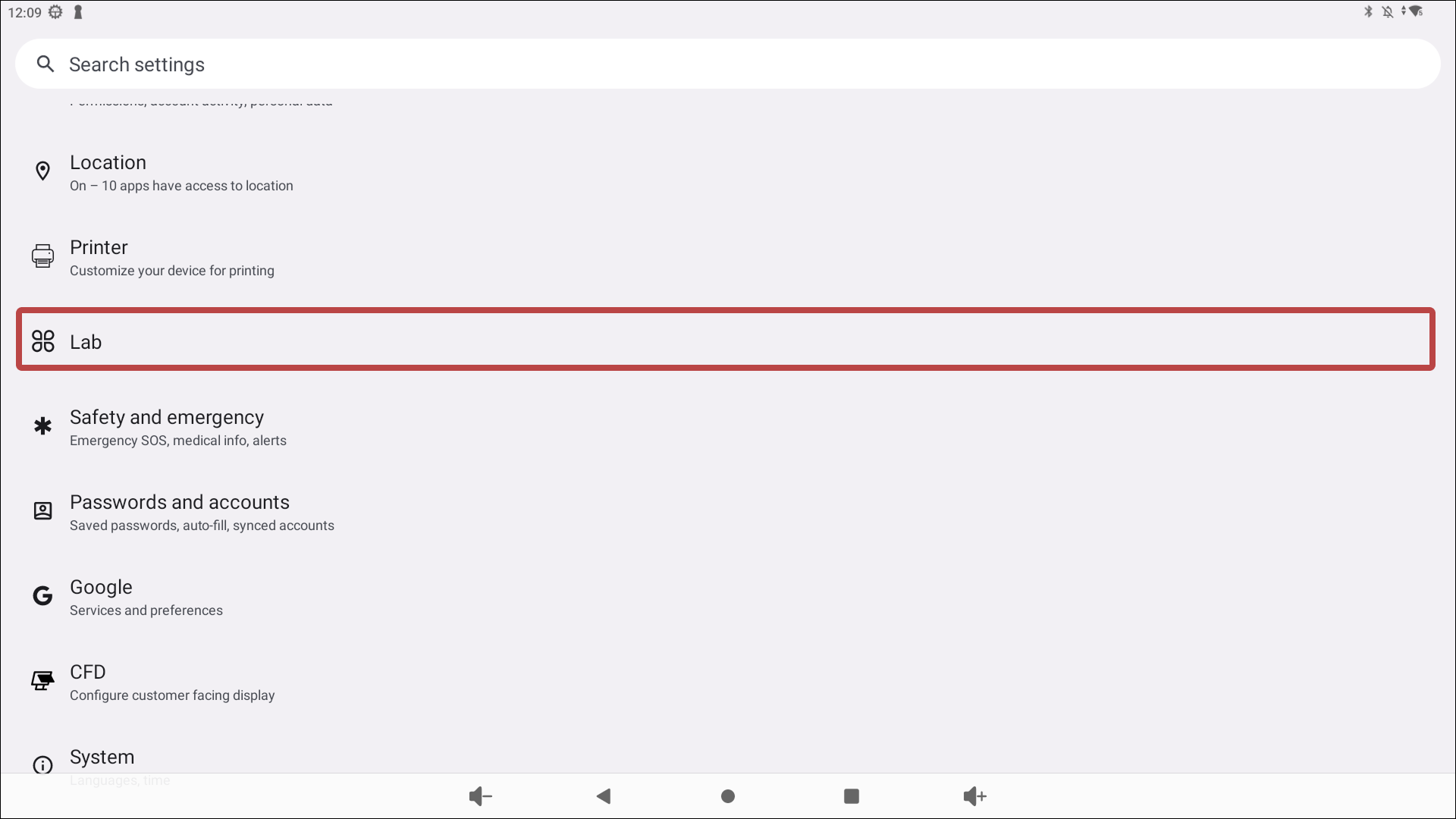
- Scroll down and go to Lab.
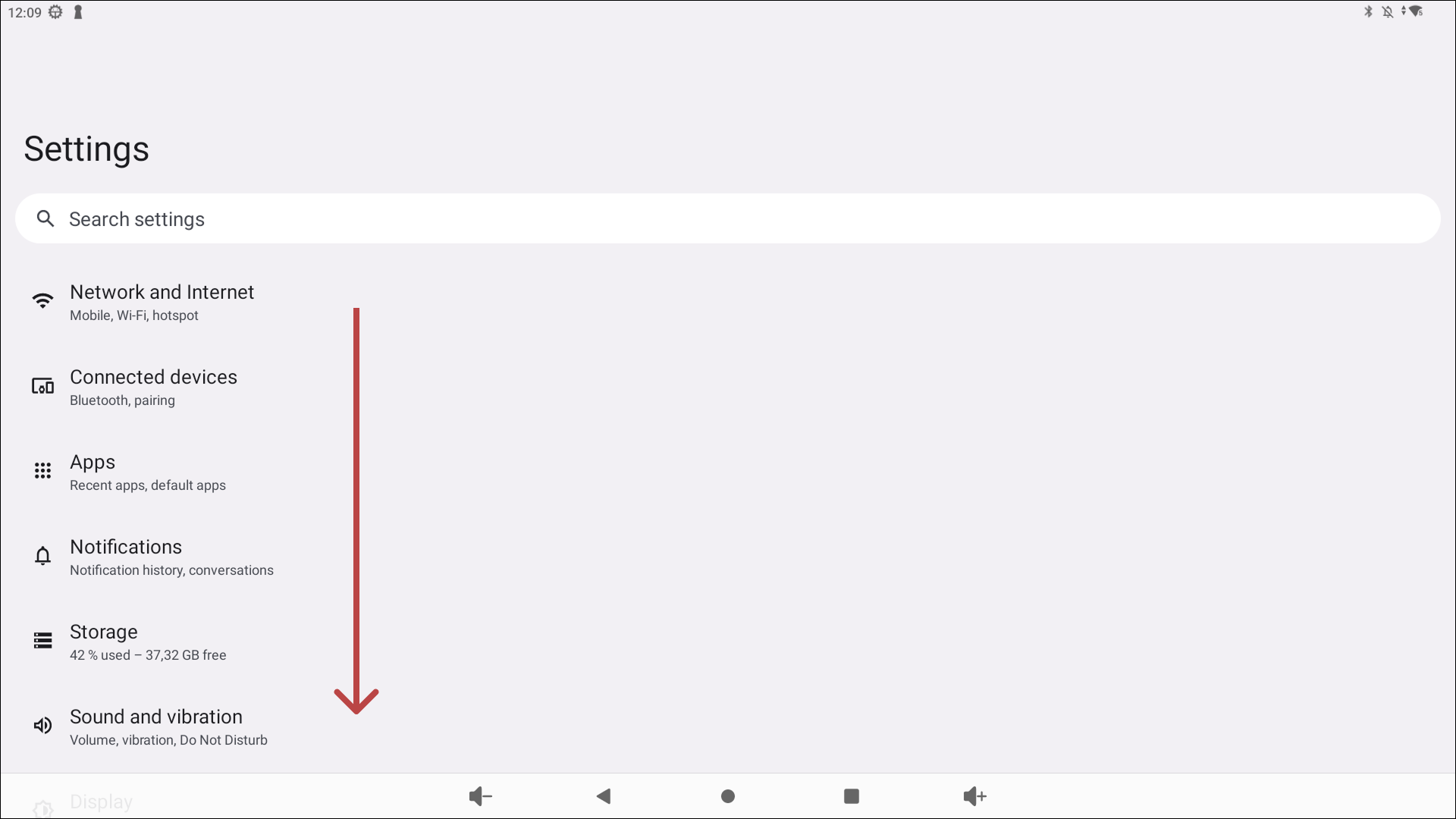
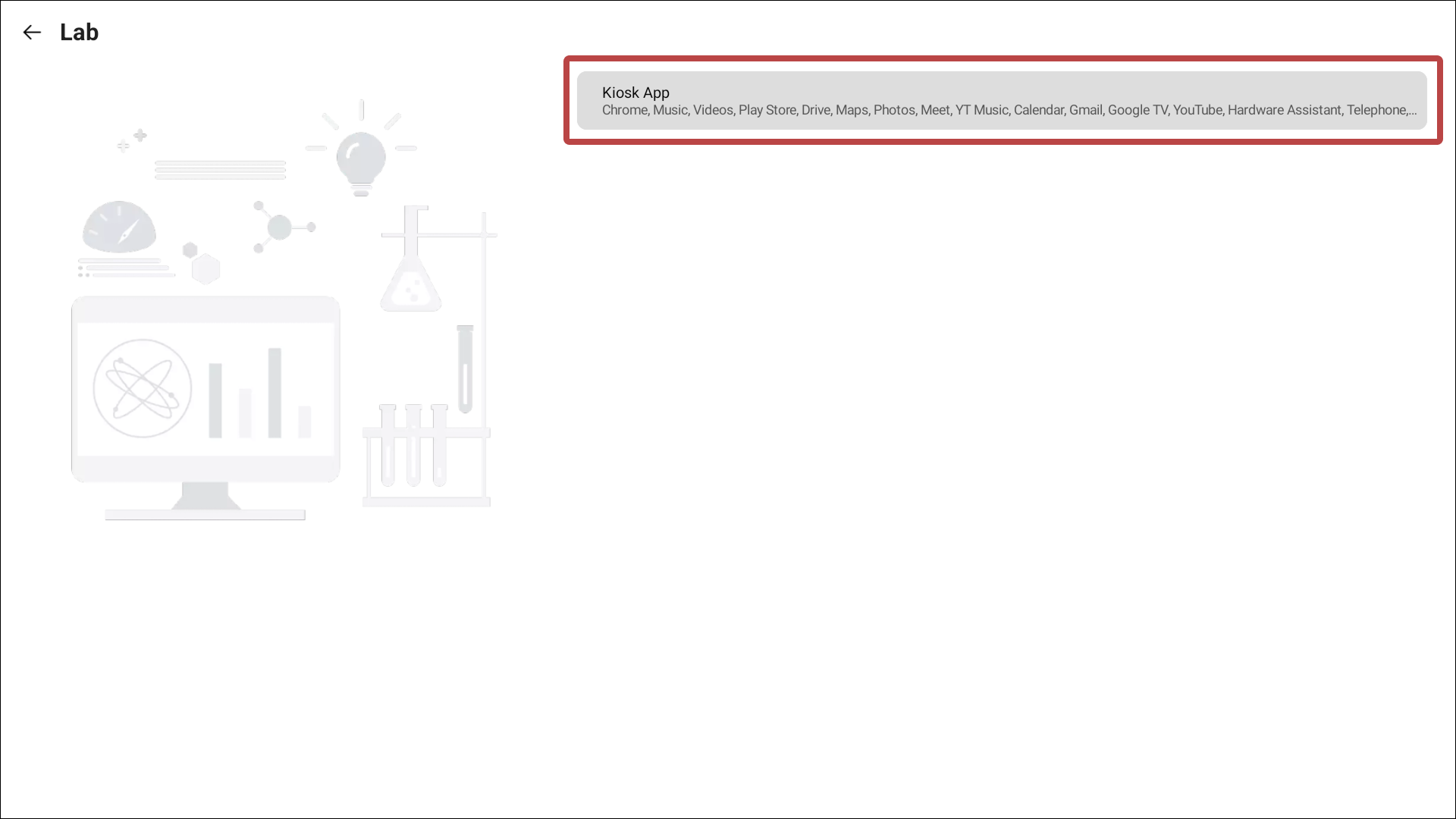
- Press the grey section.
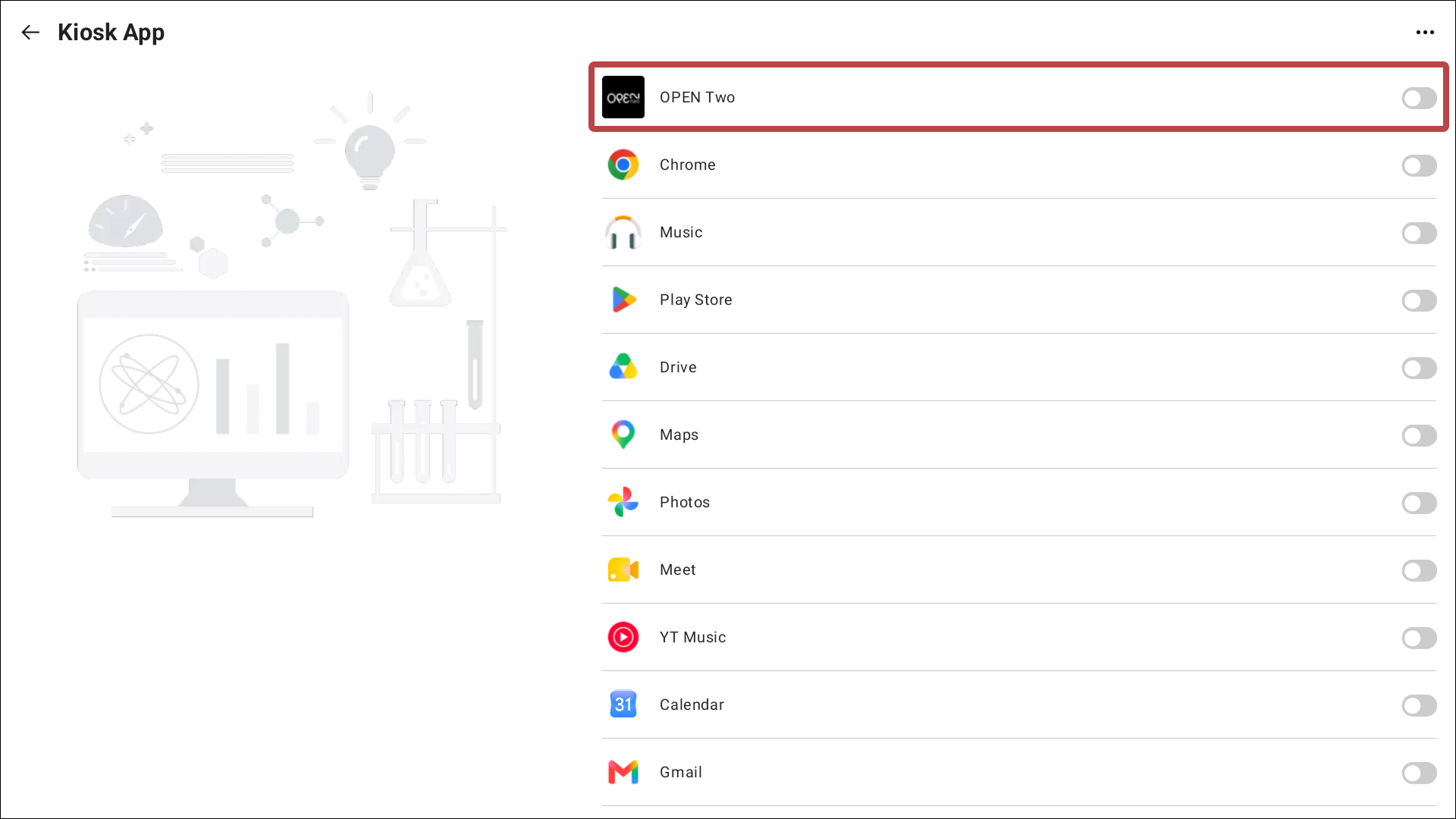
- Turn on the setting for OPEN Two.
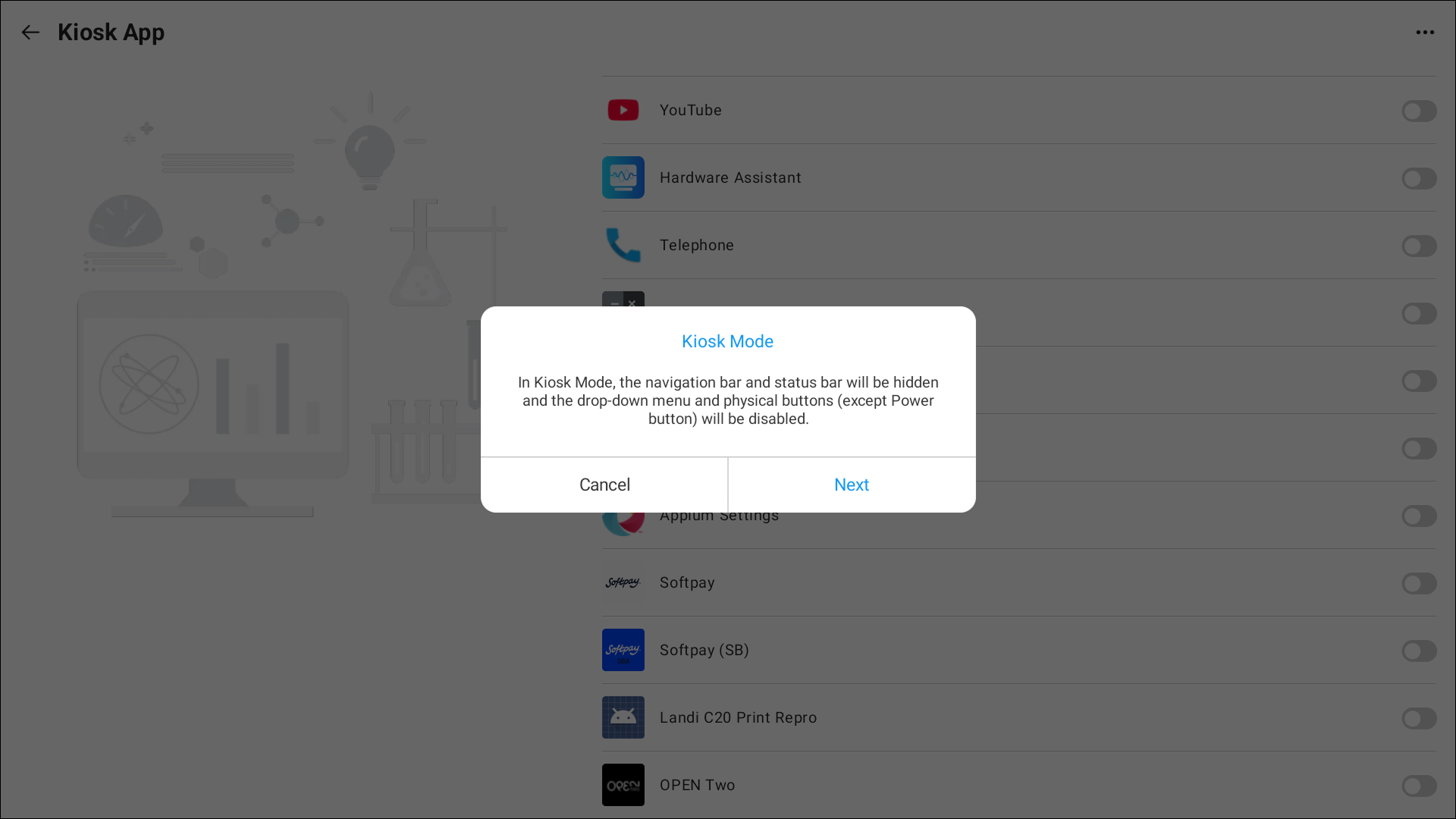
- Press Next in the dialog.
- Choose a 4 digit passcode and press Initialize. You'll need this passcode to unlock the device later, so keep it somewhere else.
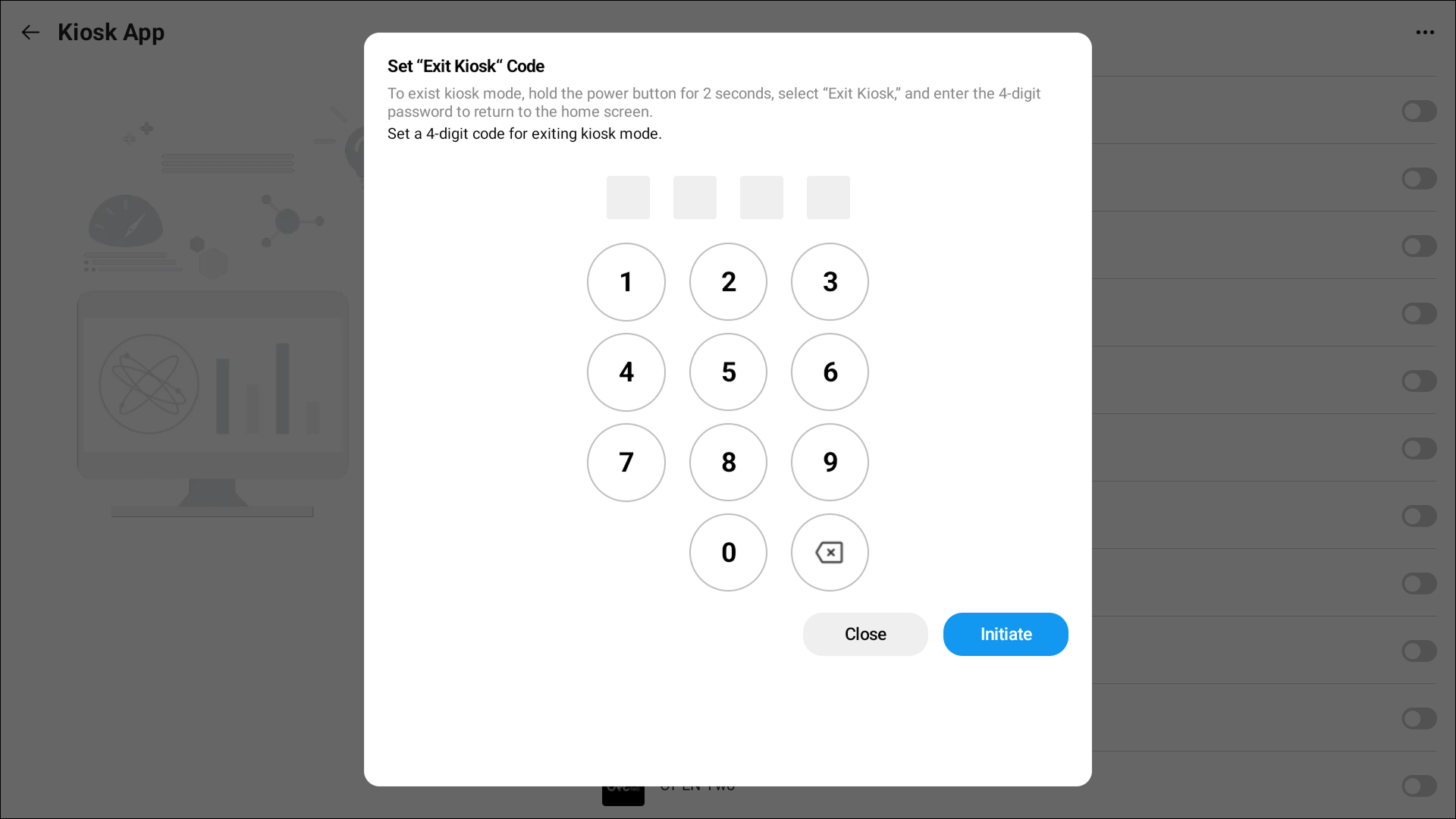
- The device is now locked to OPEN Two.


2. Choose what customers see
Kiosk mode uses the register layout of the cost center the cash register belongs to. On top of that layout, you choose which parts of it customers can see.
- Sign in to the OPEN Two app.
- Open the hamburger menu and go Settings.
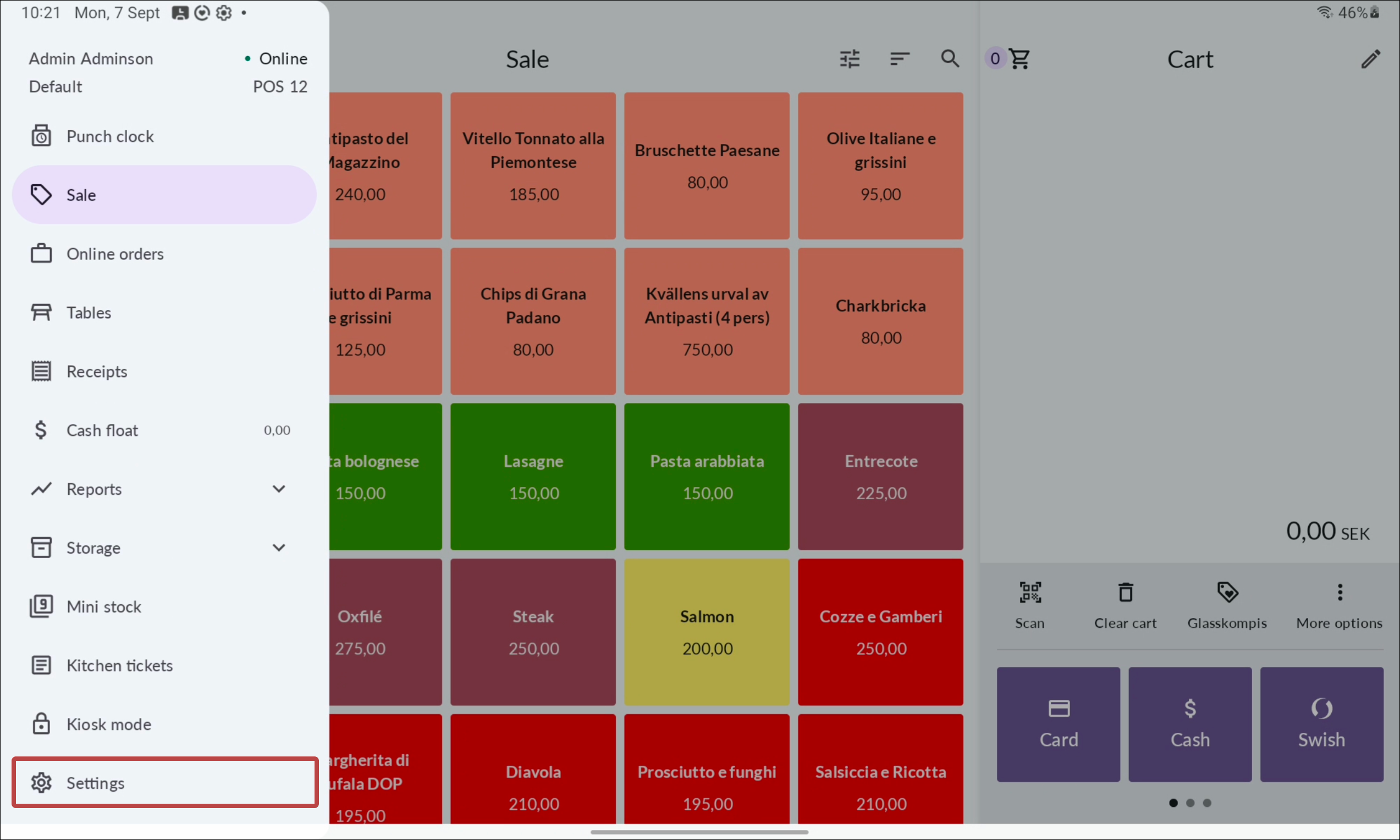
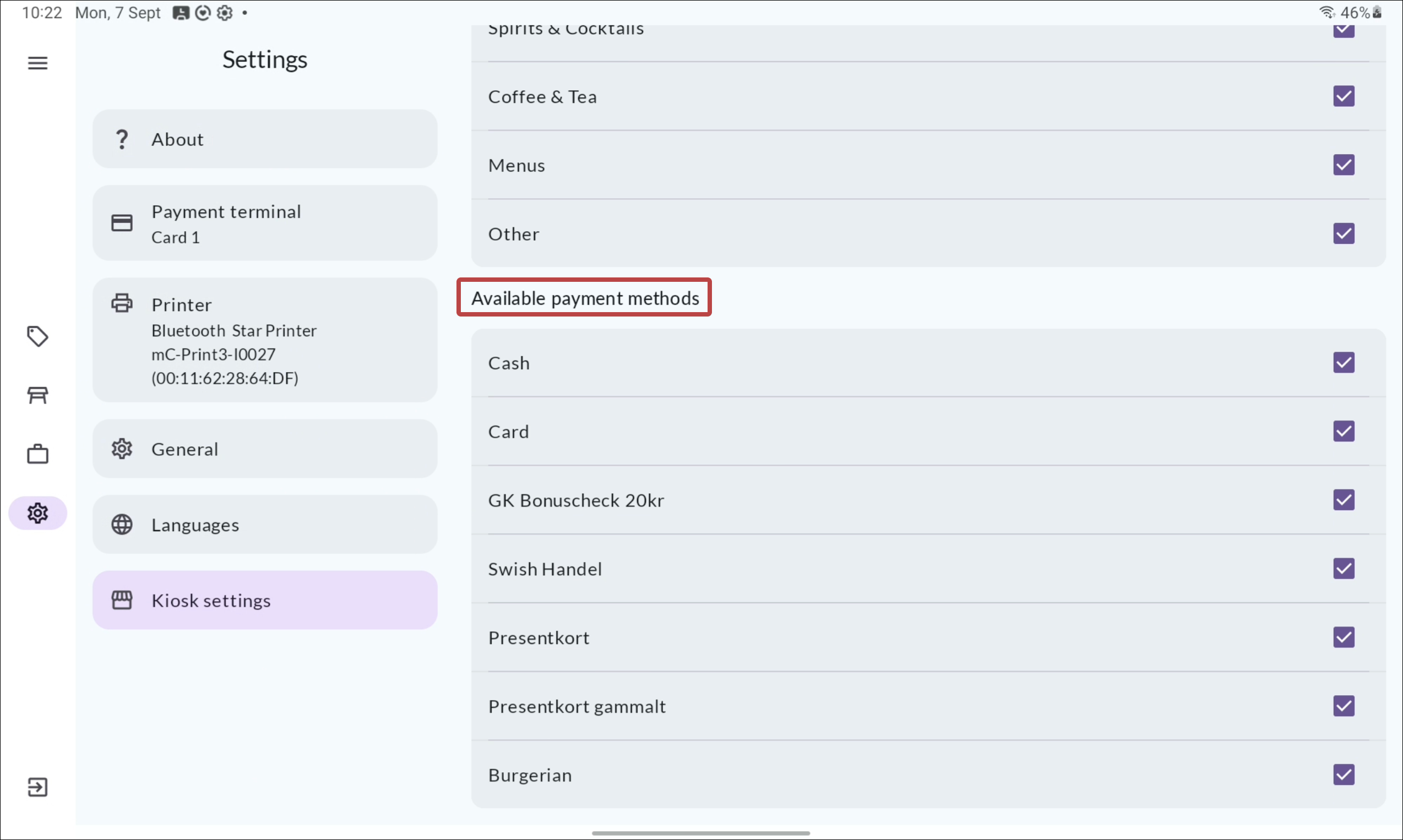
- Go to Kiosk settings.
- Use the switches to show or hide the display category menu and the search bar.
- Tick the display categories customers can order from.
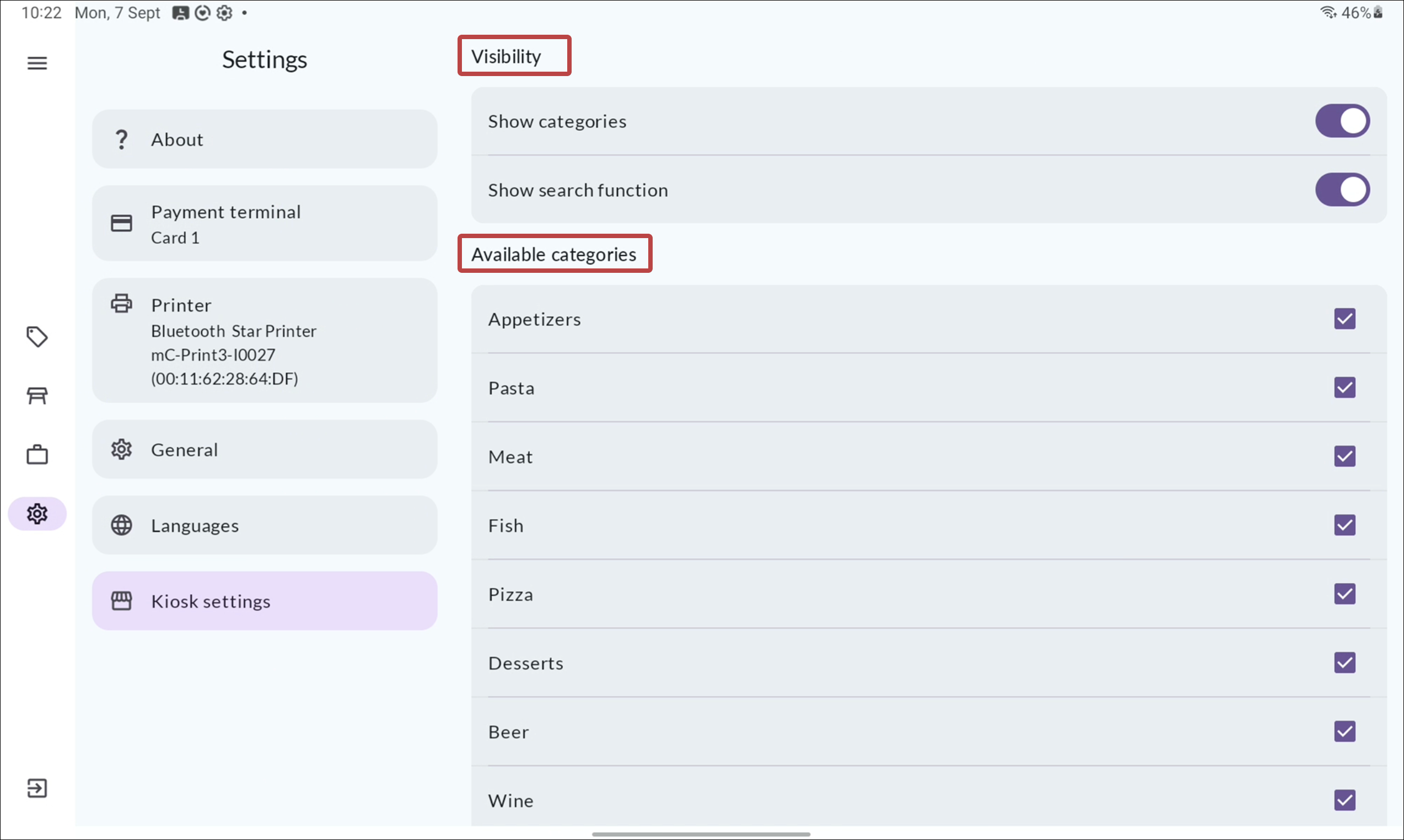
- Tick the payment methods customers can pay with.


3. Start kiosk mode
- Sign in to the OPEN Two app.
- Open the hamburger menu.
- Scroll down and press Kiosk mode.
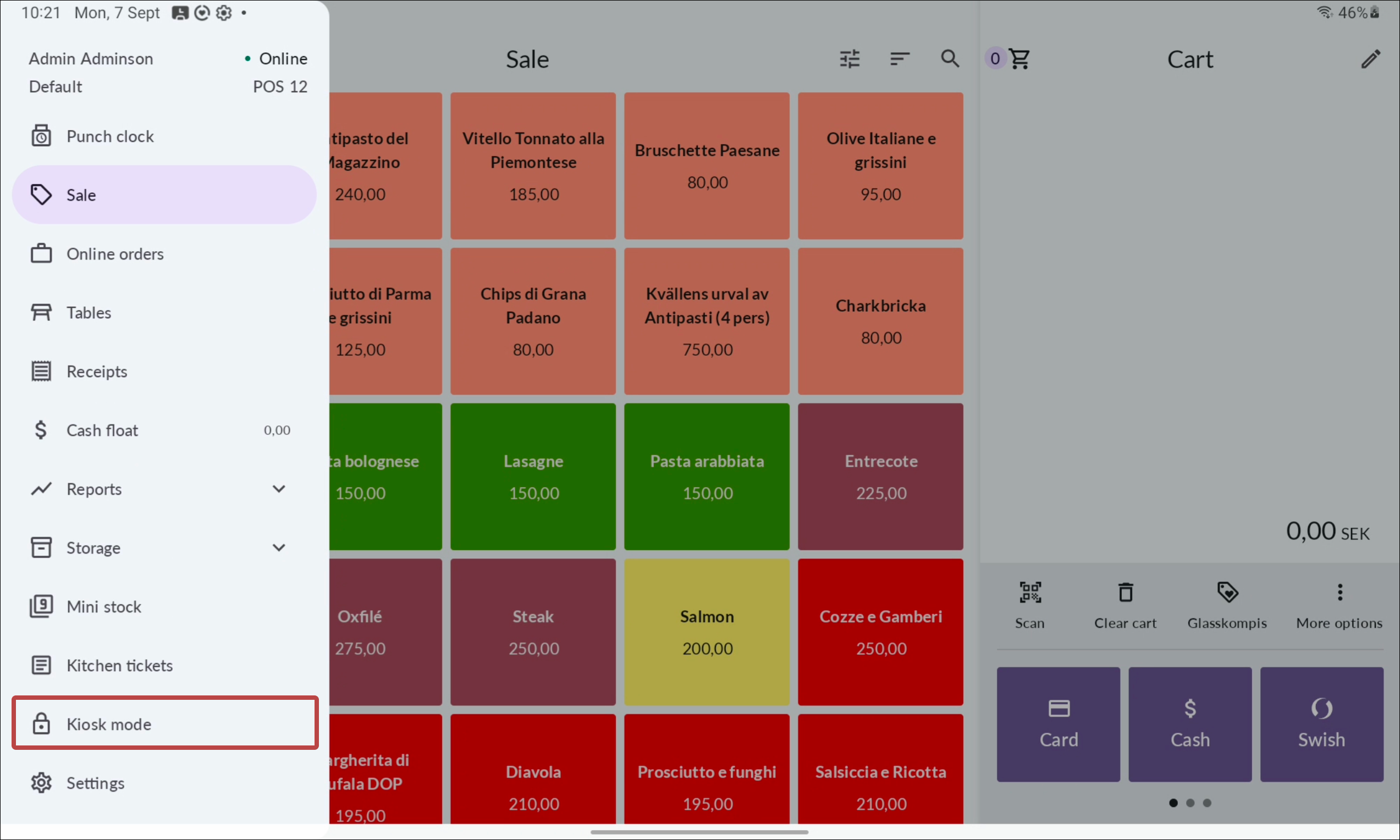

The register is now in kiosk mode and ready for customers.

Exit kiosk mode
Exit kiosk mode in OPEN Two
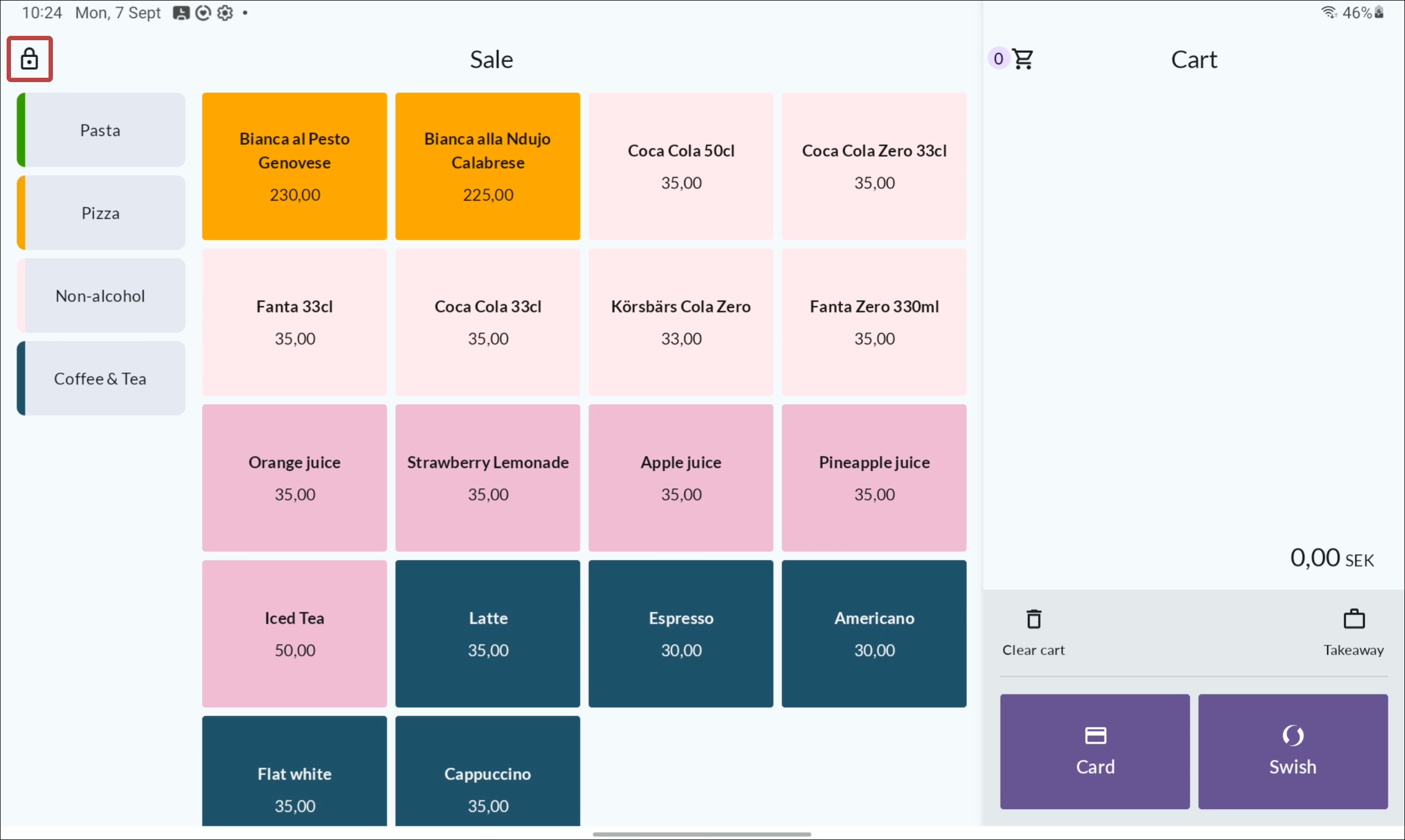
- Press the lock icon in the top left corner.
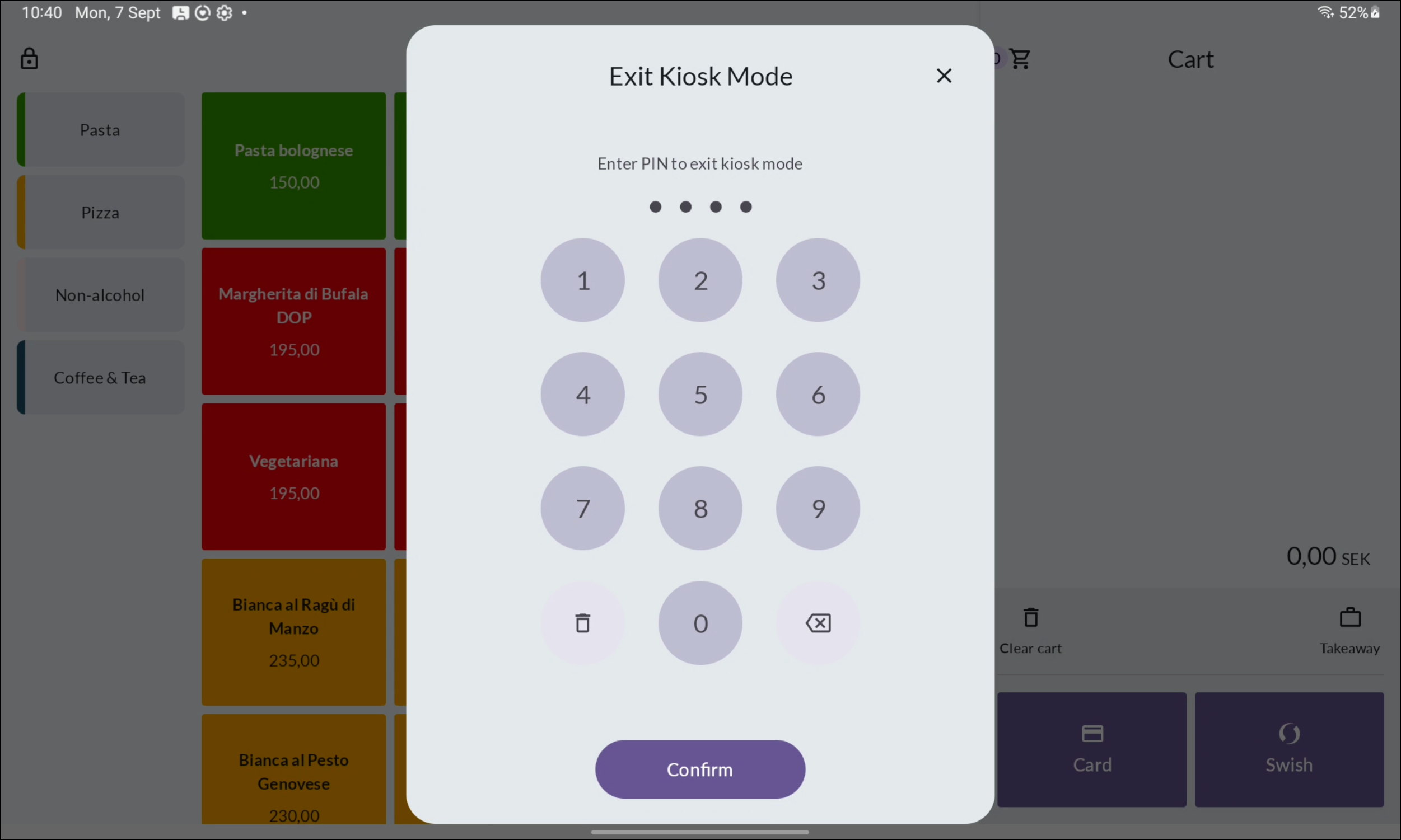
- Enter an employee PIN code.


Which PIN code to use
Use the cash register PIN code of an employee whose user role has permission to edit settings (cash register permission).
Unlock the device
Do this when you need to reach the device's other apps and settings — for example to update the device or switch it back to staff use.
Sunmi: Hold the power button until a dark overlay appears. Press Exit kiosk and enter a cash register PIN code with settings permission.
Landi: Hold the power button for 2 seconds. Press Exit kiosk and enter the 4 digit passcode you've created.