Verifone P630 payment terminal
The Verifone P630 is easy to integrate with your OPEN Two POS system, meets the latest security standards and handles all the most common payment methods. Use the guide below to easily install and get started with your Verifone terminal.
It supports all common payment methods — including magnetic stripe, chip (EMV), and contactless payments such as Apple Pay, Google Pay and Samsung Pay — and features an easy-to-read color touchscreen for a smooth customer experience.

What you'll need
- Verifone P630 payment terminal — the device itself
- Supplied Verifone cable — included in the box; connects the P630 to a power outlet, with an adapter in the middle that optionally supports RS232 or Ethernet connections
- Wi-Fi network — have your network name and password ready
- Cash register device (i.e. a tablet) — with the OPEN Two app installed and activated
Step 1: Installation
Connect the supplied cable to the P630 and plug it into a power outlet.
The P630 will start up automatically once it receives power.
Tip
Make sure the cable cover is properly secured after connecting the cable — this protects the connection from being accidentally pulled loose during use.
Connect the P630 to your Wi-Fi network.
- Open the Settings app on the P630.
- Go to Network & internet.
- Select Wi-Fi and enable the Wi-Fi switch.
- Choose your network from the list.
- Enter the password and press Connect.
Step 2: Activate OPEN Two
- In the OPEN Two app, press LET'S GET STARTED.

- You will now see a code on your screen. Use another device with an internet connection (e.g. your phone or computer) and go to http://backoffice.op3n.dev/activate

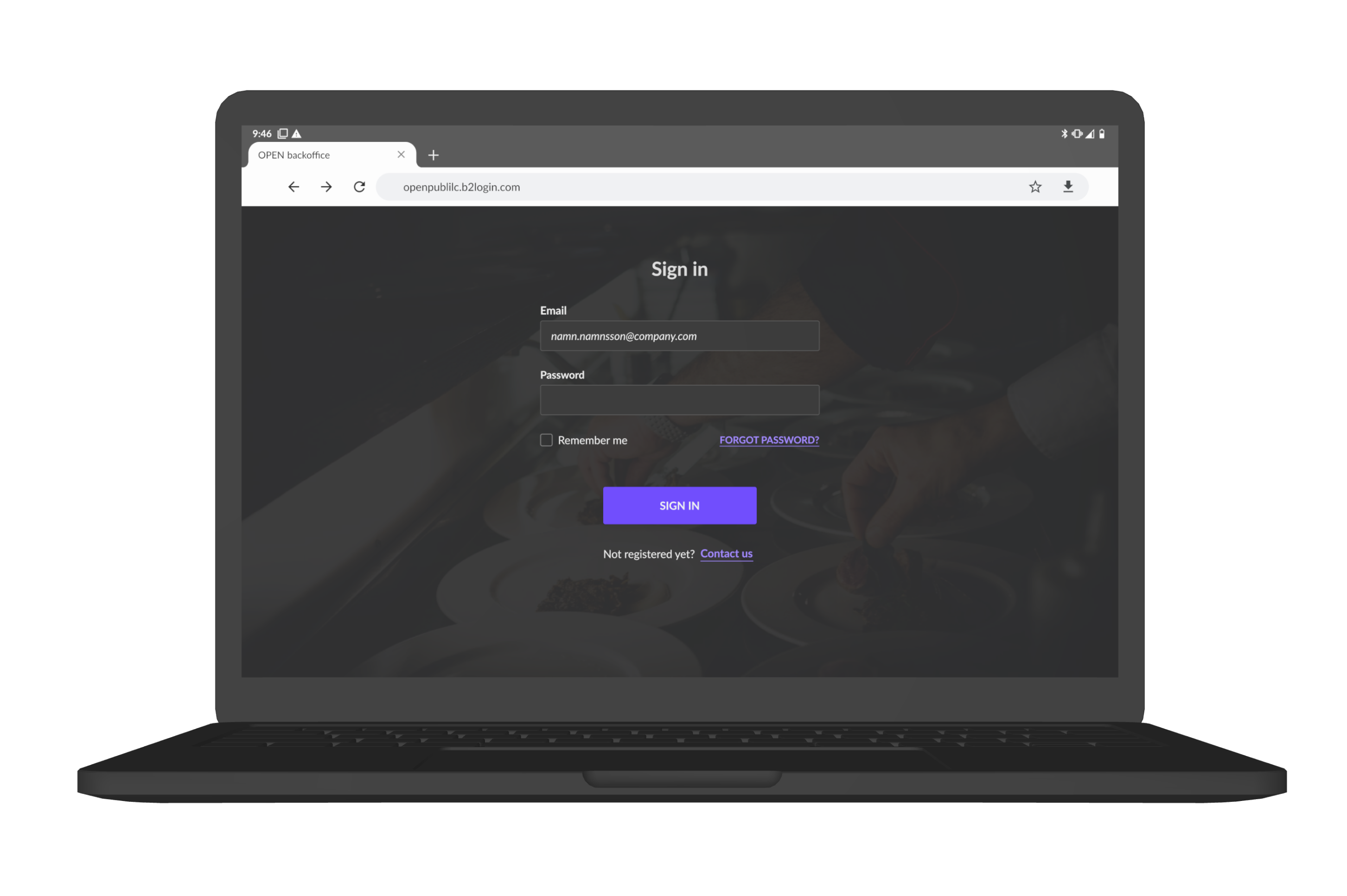
Sign in with your BackOffice account.
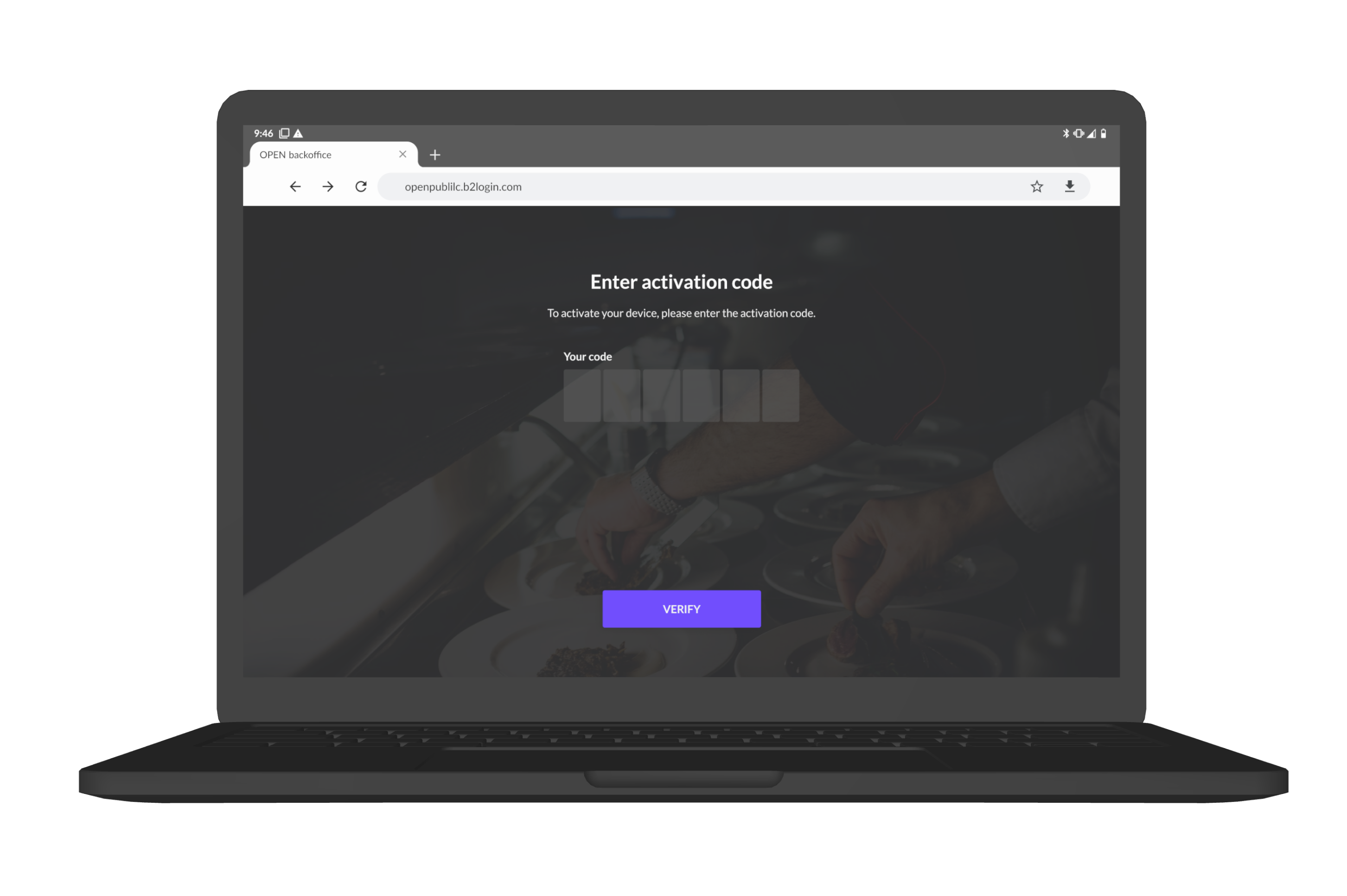
Enter the code you’ve received in your terminal and press VERIFY.
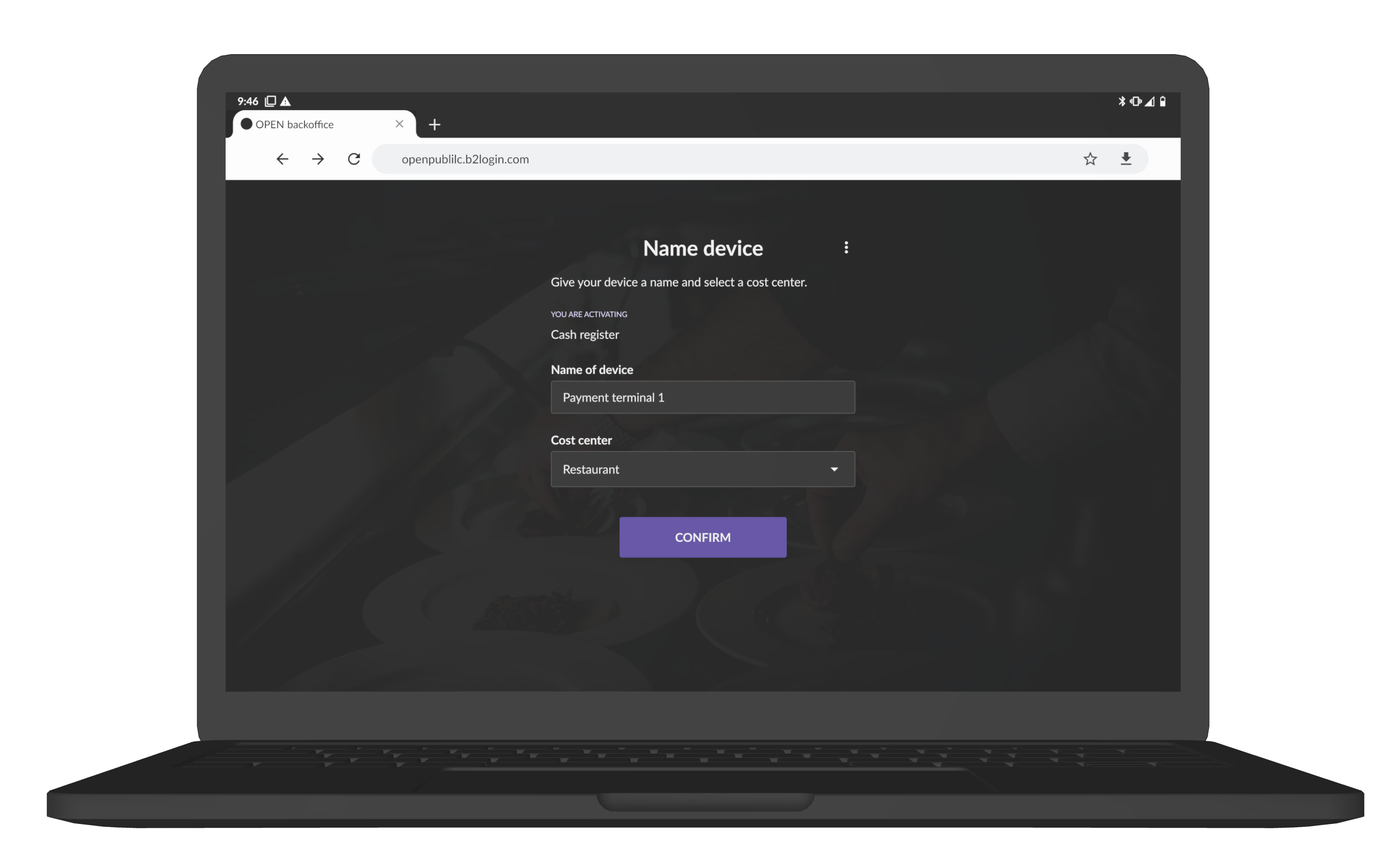
Finally, do the following:
- Enter any name for the cash register.
- Enter which cost center you want the cash register to belong to (if you have multiple).
- Press CONFIRM.


The payment terminal is now activated.
See the steps below on how you connect the payment terminal to a cash register.

Step 3: Connect the terminal to the cash register
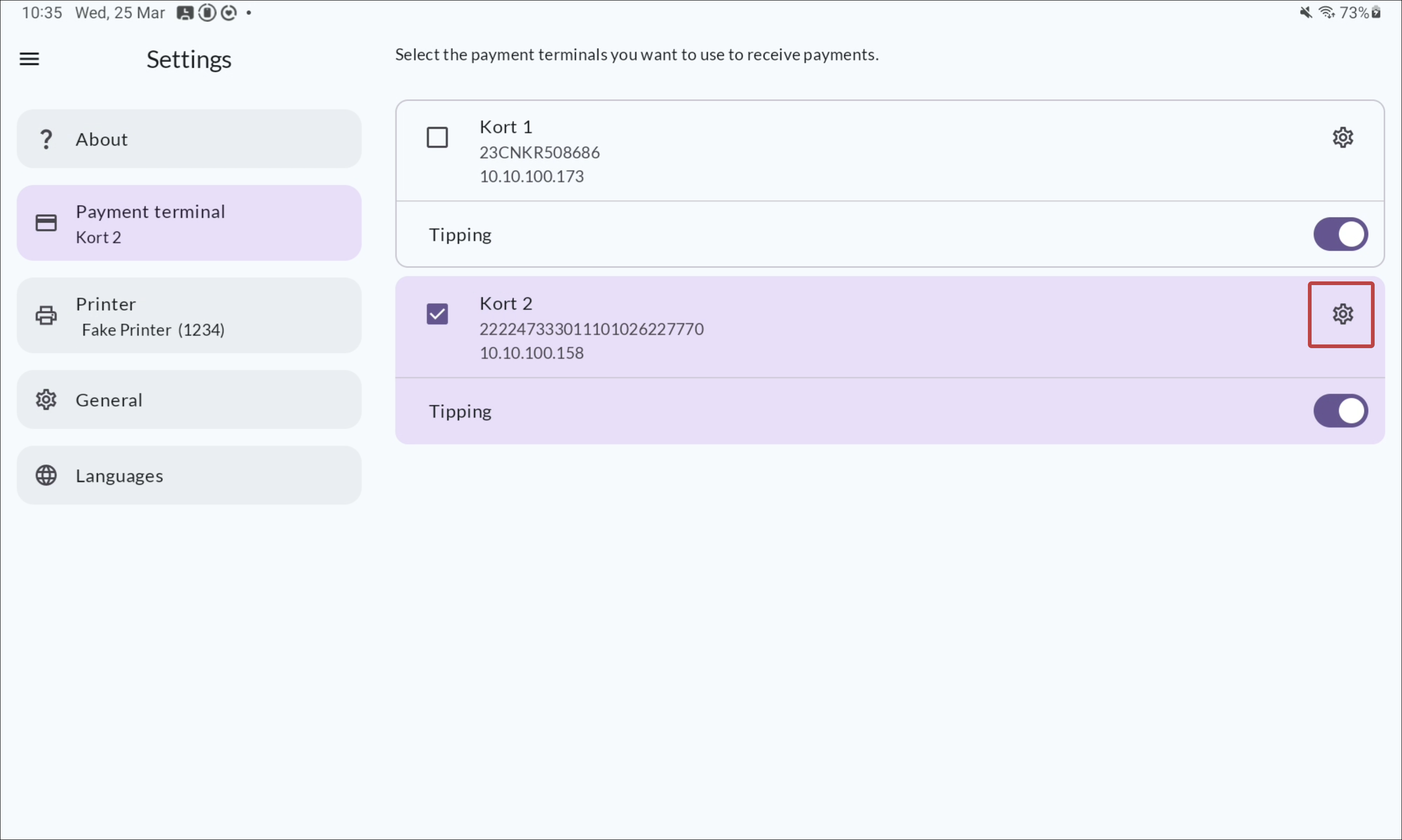
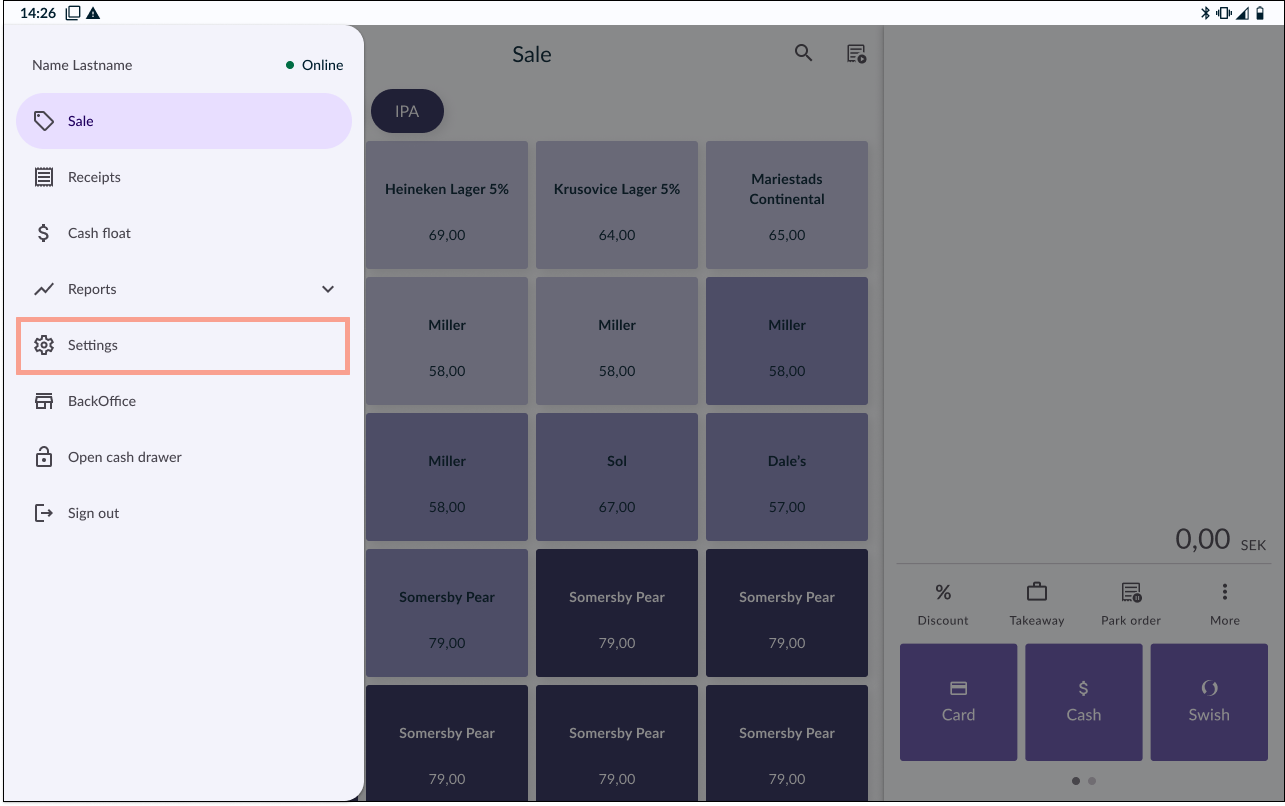
In your OPEN Two cash register device, open the menu and go to SETTINGS.
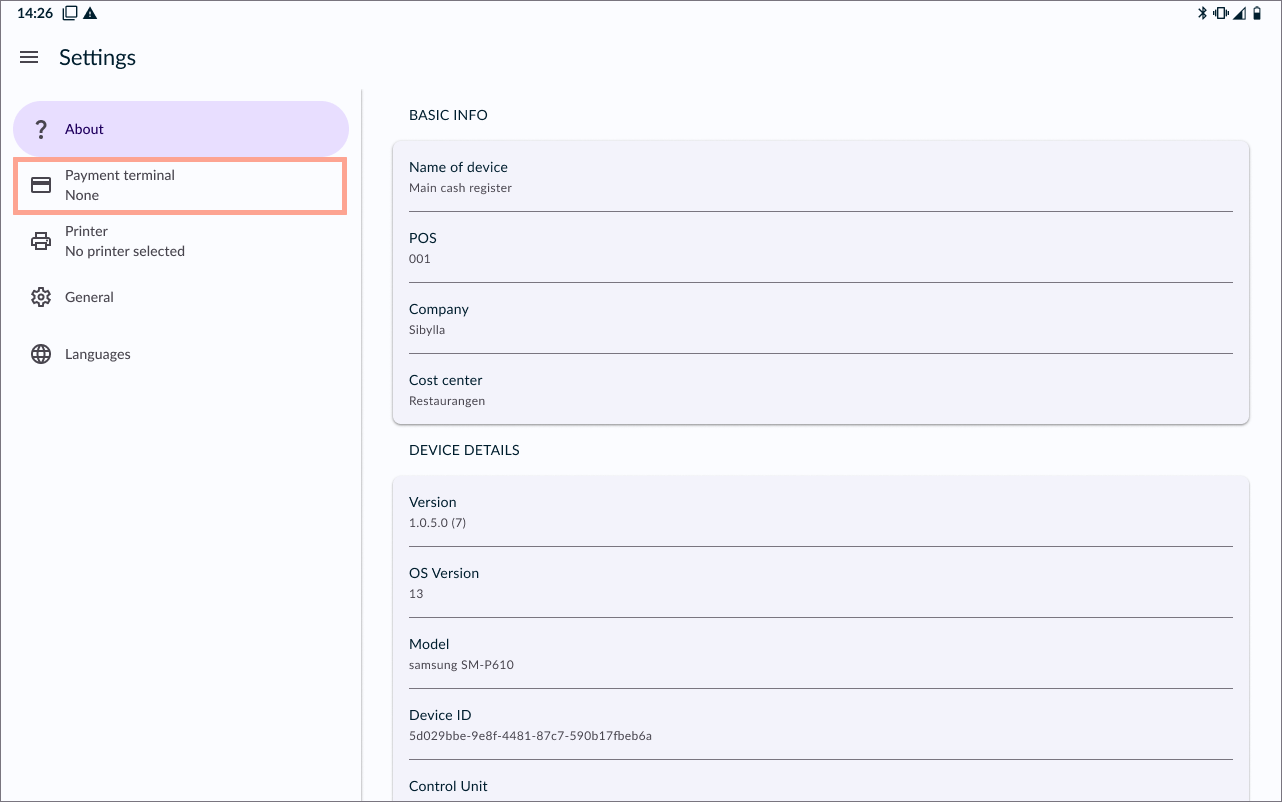
Go to PAYMENT TERMINAL.
Select your payment terminal from the list.
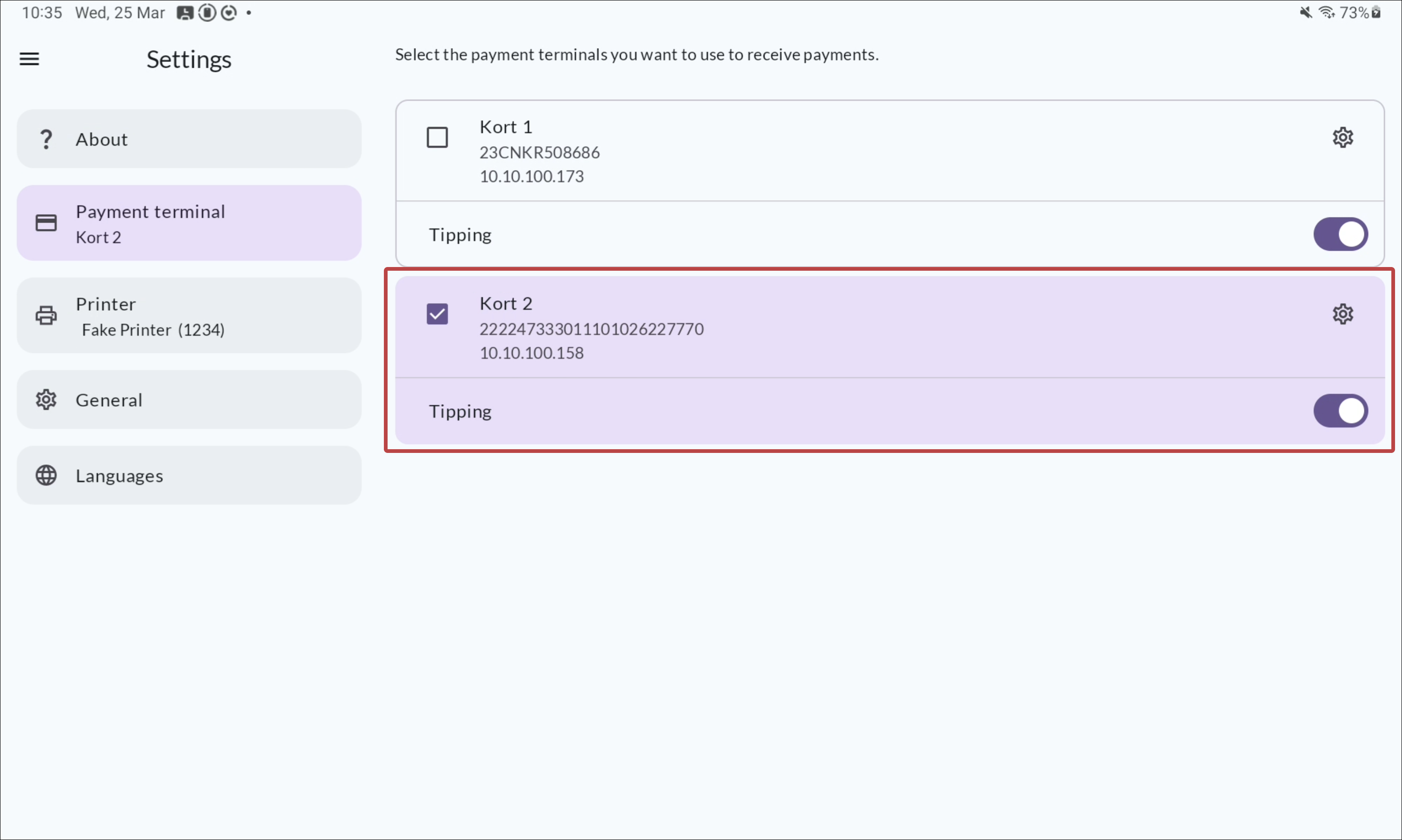
Optional: change the payment terminal name by clicking the cog wheel icon.