Punch clock & staff register
Your employees punch in and out in the POS, and every punch is saved in the staff register. In the POS, the staff register can be shown and corrected, for example if someone forgot to punch out. In BackOffice, you can see when your employees have punched in and out, follow every correction made, and export the staff register.
License required
You'll need the license for Scheduling to be able to use these features. Contact your salesperson to get it.
User role permissions
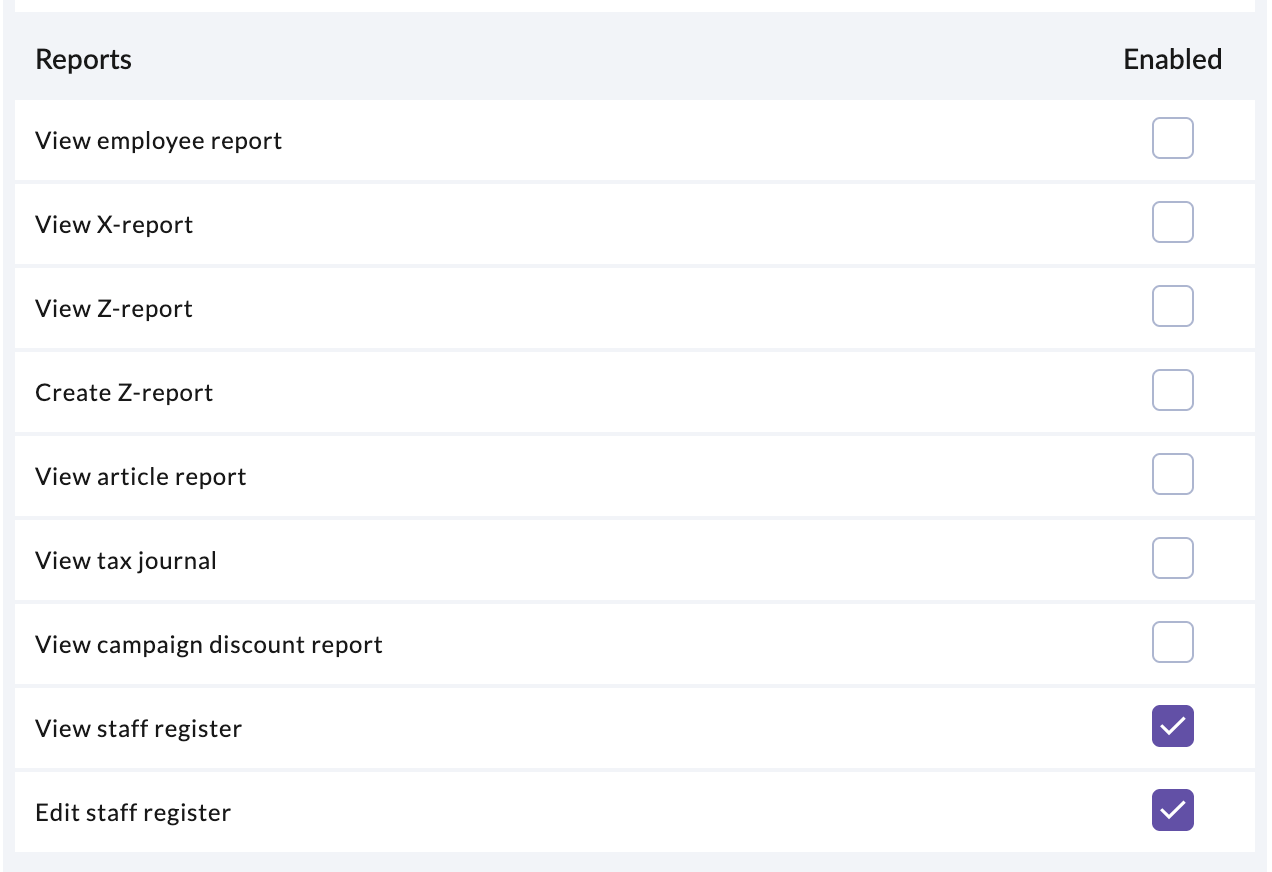
Two cash register permissions decide who can work with the staff register in the POS: View staff register and Edit staff register. The permissions are set on your user roles in BackOffice and apply to every employee with that role.
Go to Company > User roles and open the role you want to edit, or press New role.
Under Cash register permissions > Reports, select View staff register and, if the role should be able to make corrections, Edit staff register.
Press Save & exit.

You give an employee a user role under User role when you edit the employee in Company > Employees.
Always have someone on site who can view the staff register
Make sure that there is always someone working with the permission View staff register, so the staff register can be shown if the tax authorities visit.
Only let certain people make corrections
Only enable Edit staff register for the people who should be able to make corrections to the staff register, for example a manager.
Punch clock
Your employees use the punch clock in the POS to punch in when their shift starts and out when it ends. Each employee uses their own PIN code.
Open the menu in the POS and press Punch clock.
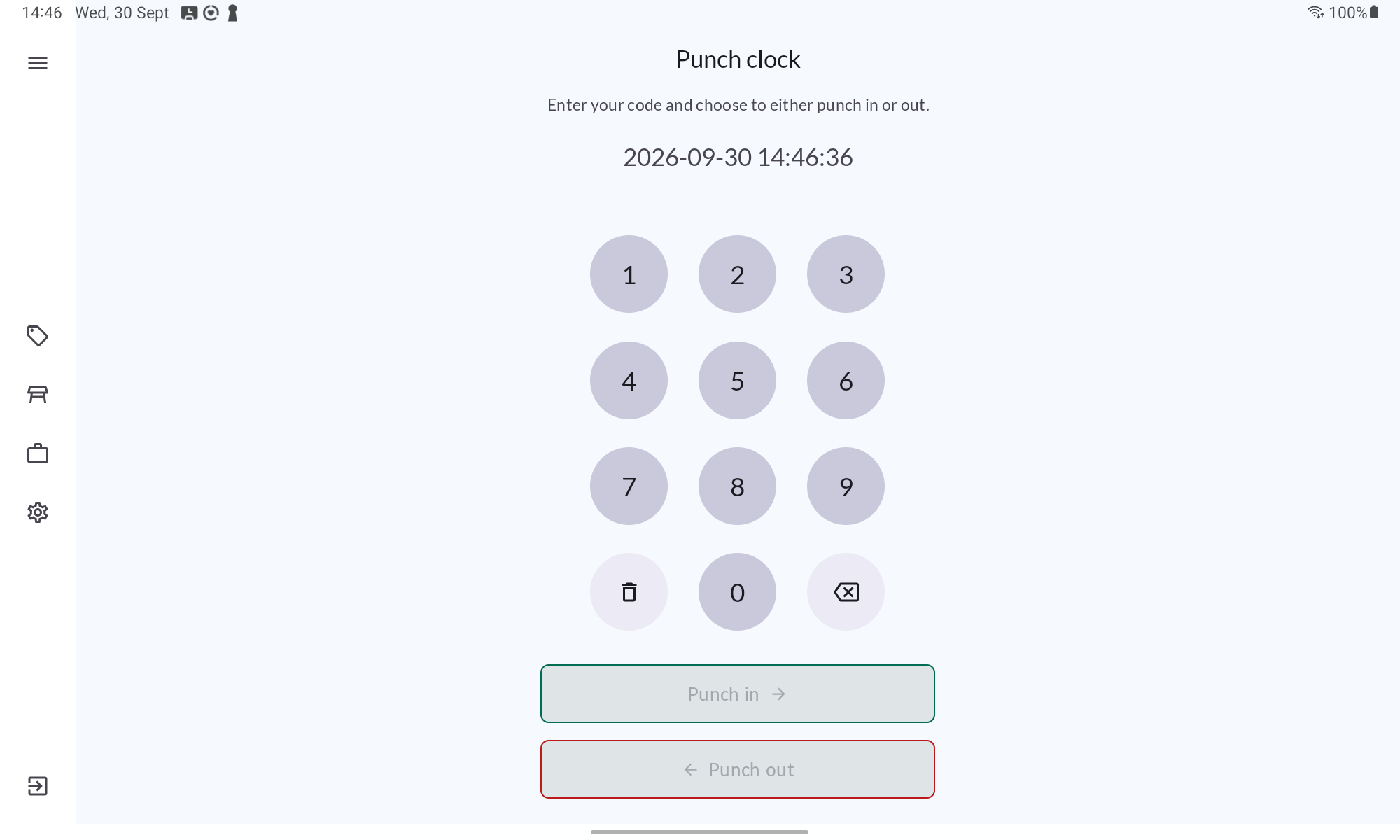
Enter your PIN code and press Punch in or Punch out.
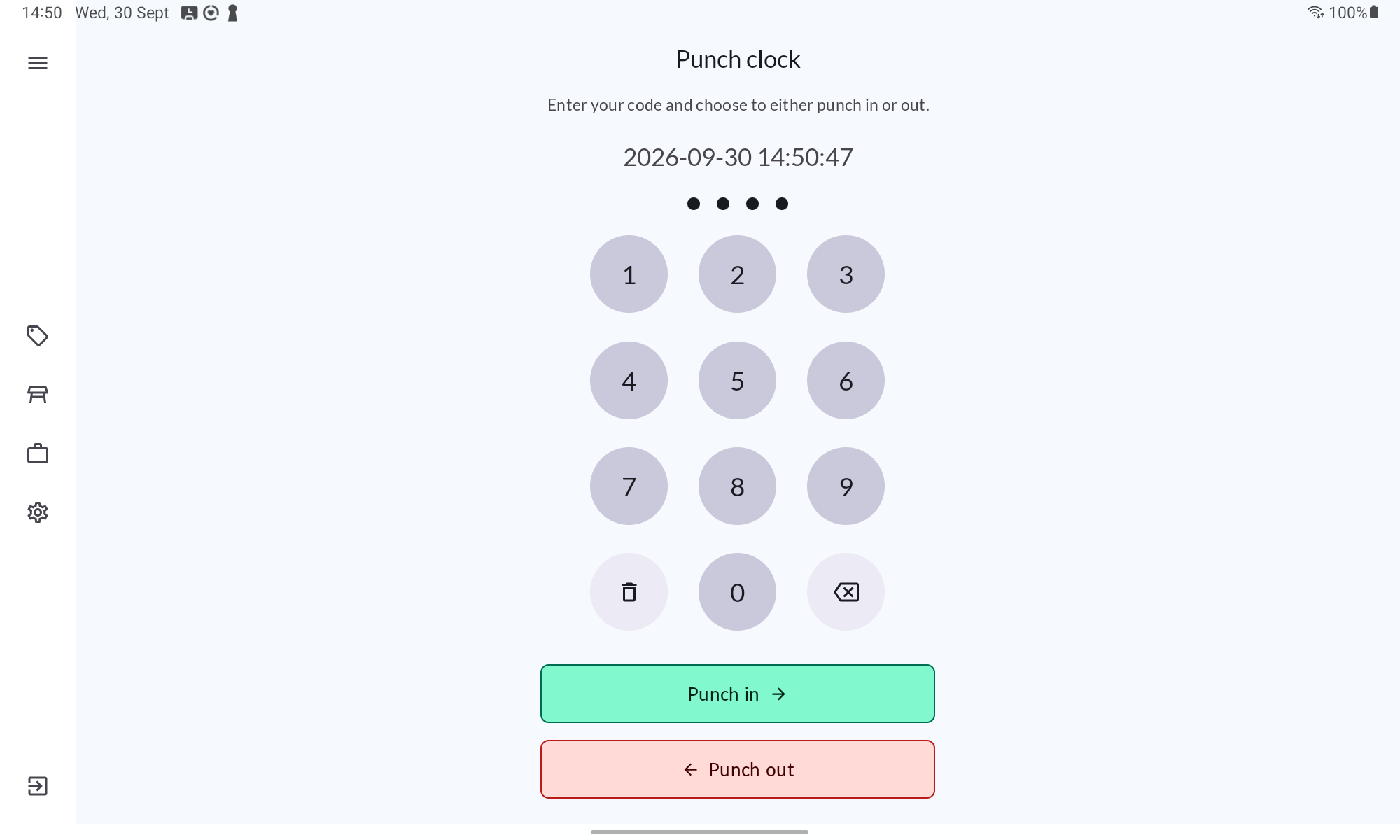


When you punch in, a message confirms that you were punched in. When you punch out, you are signed out of the POS.

If someone forgets to punch out
If an employee is still punched in when the End of day passes, the shift is marked Forgotten punch-out in the staff register. The punch-out then needs to be added afterwards by someone who can make corrections. See Punch in or out afterwards.

Staff register in the POS
Open the menu in the POS and press Staff register. The staff register shows one day at a time. Pick the day with the arrows or the calendar, and search for an employee if needed. A check mark shows that the employee has an open work shift, meaning they have punched in but not punched out yet.
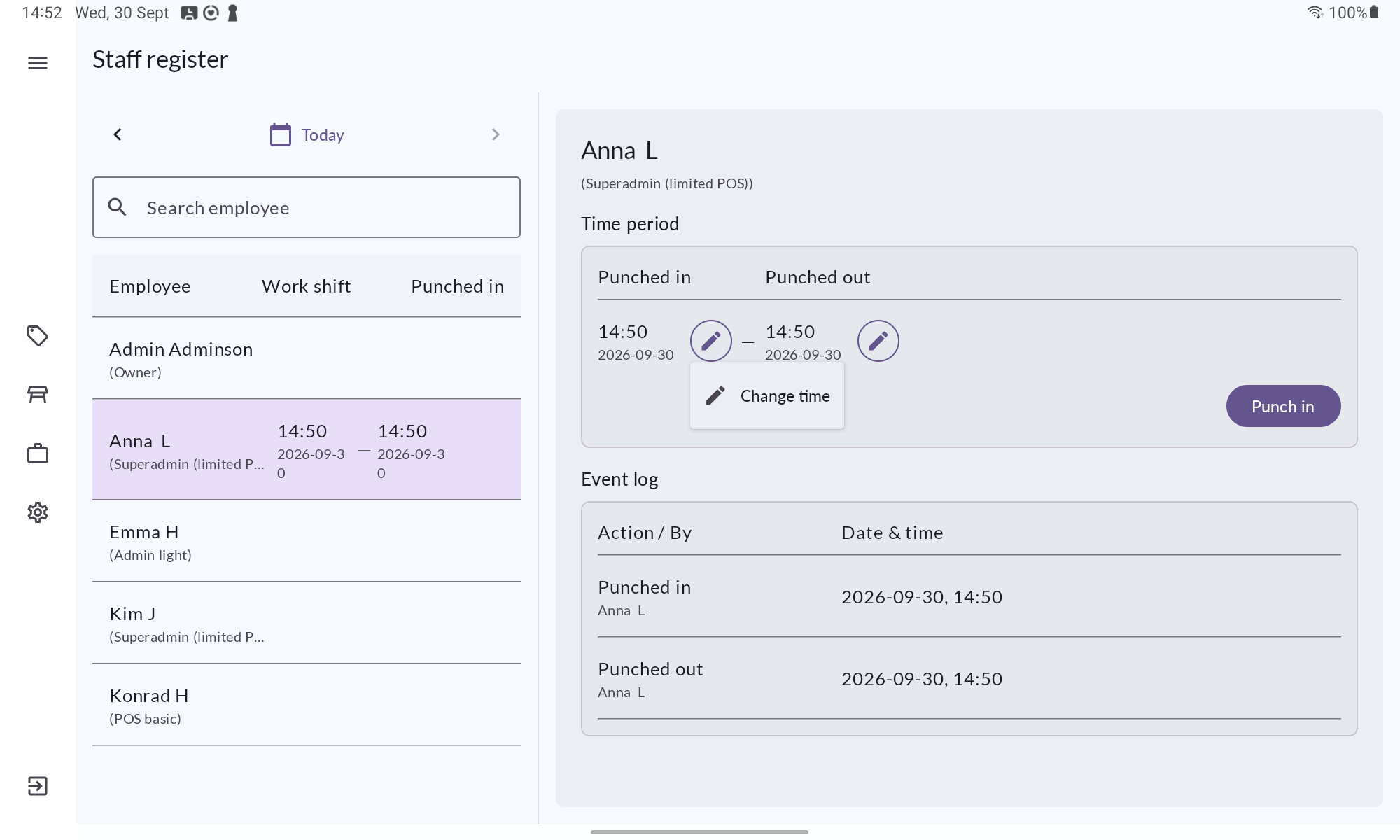
Press an employee to see their Time period with the times they punched in and out, and an Event log of every action, who made it and when. Press View details on an action marked Correction to see what was changed, the reason and who made the correction.

Employees with the permission View staff register can see the staff register, but only employees with Edit staff register can make corrections. Without that permission, the buttons for changing times and punching in or out are hidden.

Correct a punch time
Press the employee in the staff register, then press the pencil next to the time you want to correct and choose Change time.
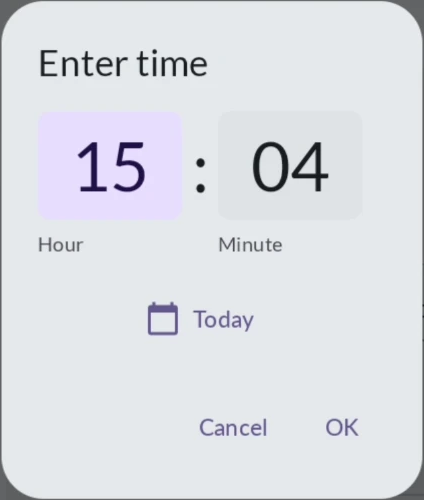
Enter the correct Hour and Minute, and change the date if needed. Press OK.
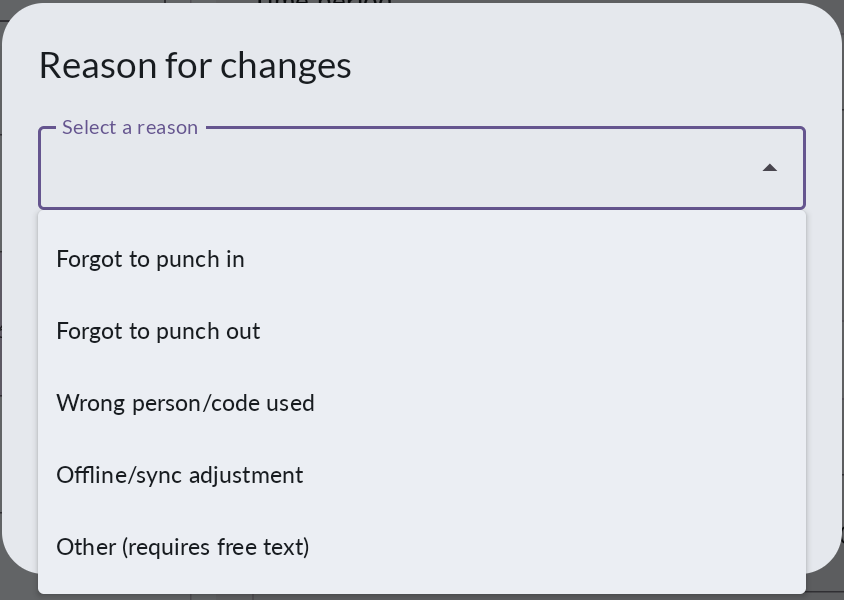
Under Reason for changes, select a reason. You can describe the reason under Details. If you choose Other, a description is required. Press Continue.
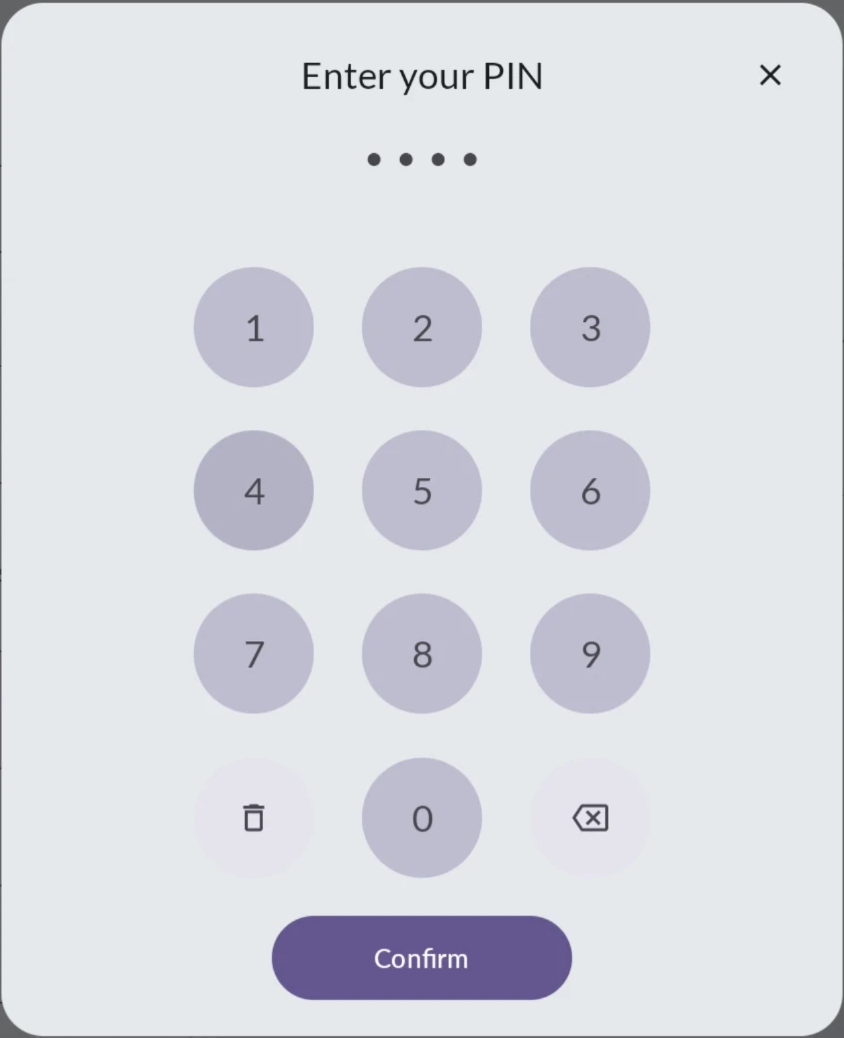
Enter your PIN code and press Confirm. Only an employee with the permission Edit staff register can confirm the correction.


The new time is shown in the staff register, the shift is marked Corrected, and the correction is added to the event log.

Punch in or out afterwards
If an employee forgot to punch in or out, you can add the punch afterwards.
Press the employee in the staff register. If the employee hasn't punched in, it says Not at work on this date.
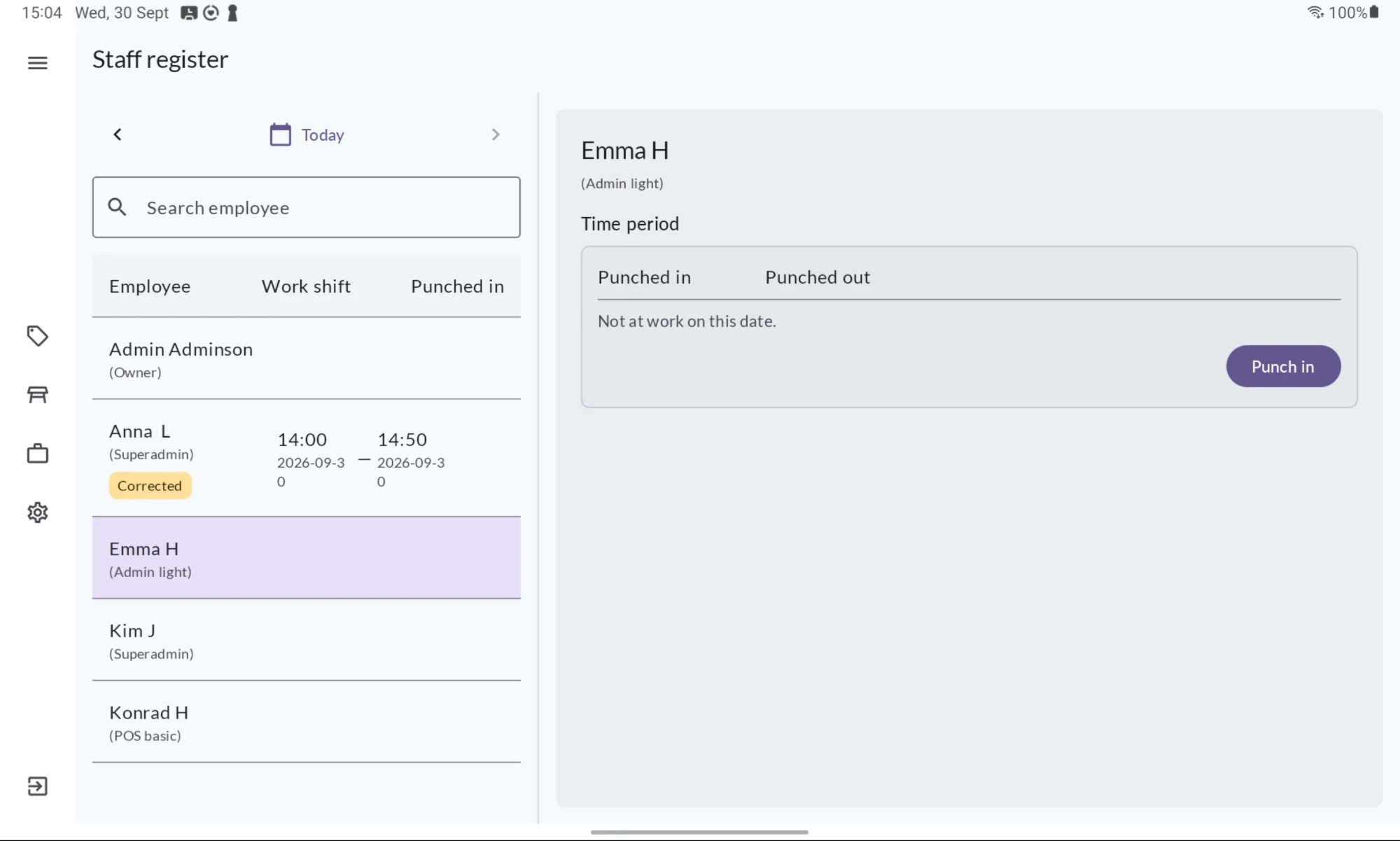
Press Punch in, or Punch out if the employee is already punched in.
Enter the time the employee started or finished and press OK.
Select a reason, for example Forgot to punch in, and press Continue.
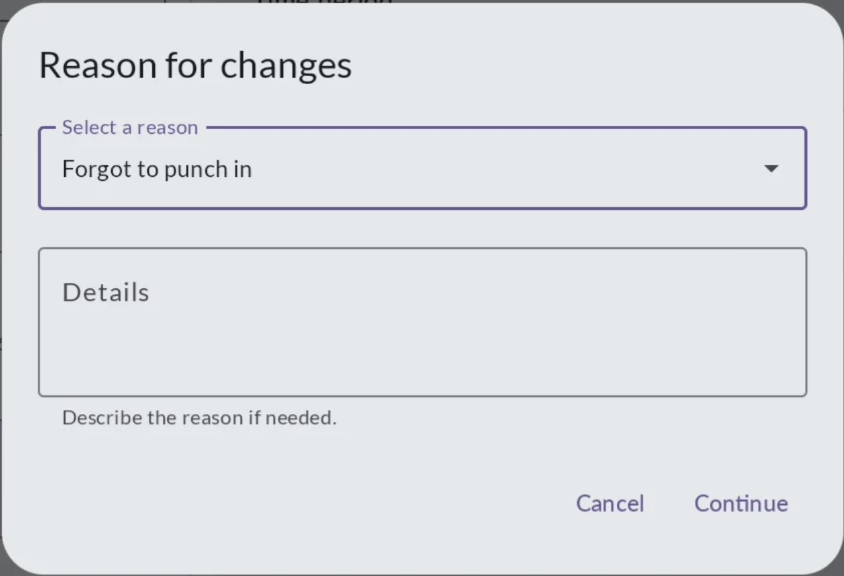
Enter your PIN code and press Confirm.


The punch is added to the staff register and marked Corrected.

Staff register in BackOffice
Go to Staff > Staff register in BackOffice. The staff register shows one day at a time, with the times each employee punched in and out. Pick the day with the arrows or the date field, and filter on Employee or Work premise if needed.

A shift marked Corrected has been changed after the employee punched in or out, for example because they forgot to punch out.
INFO
Currently, corrections to the staff register can only be made in the POS. BackOffice displays the data, including every correction made, but you can't make corrections here. See Staff register in the POS.
See the details and corrections for an employee
Press an employee in the list. A panel opens with the employee's Work shift and an Event log of every action, who made it and when.
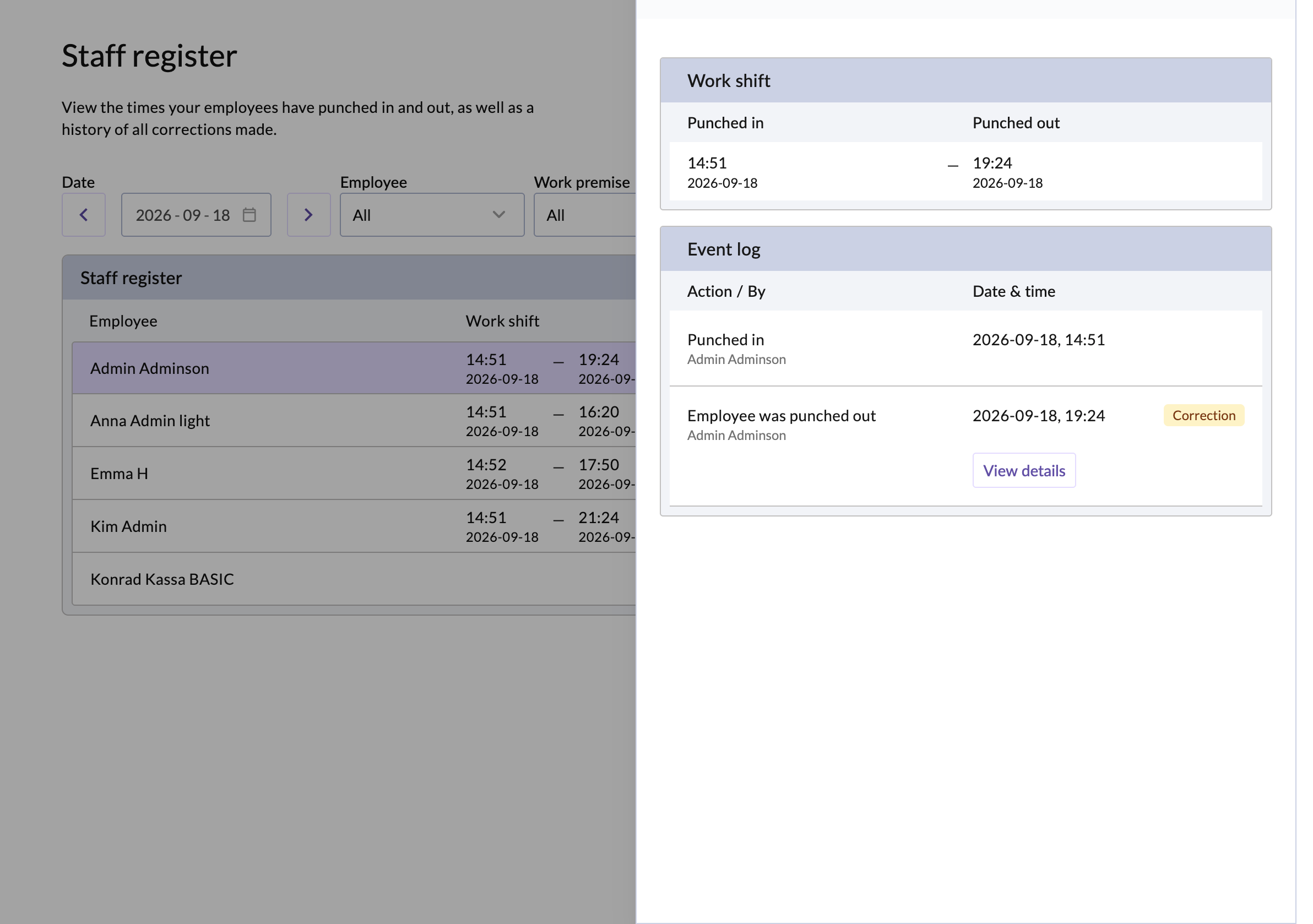
Press View details on an action marked Correction to see what was changed: the initial and new punch time, the reason, any comment, and who made the correction.
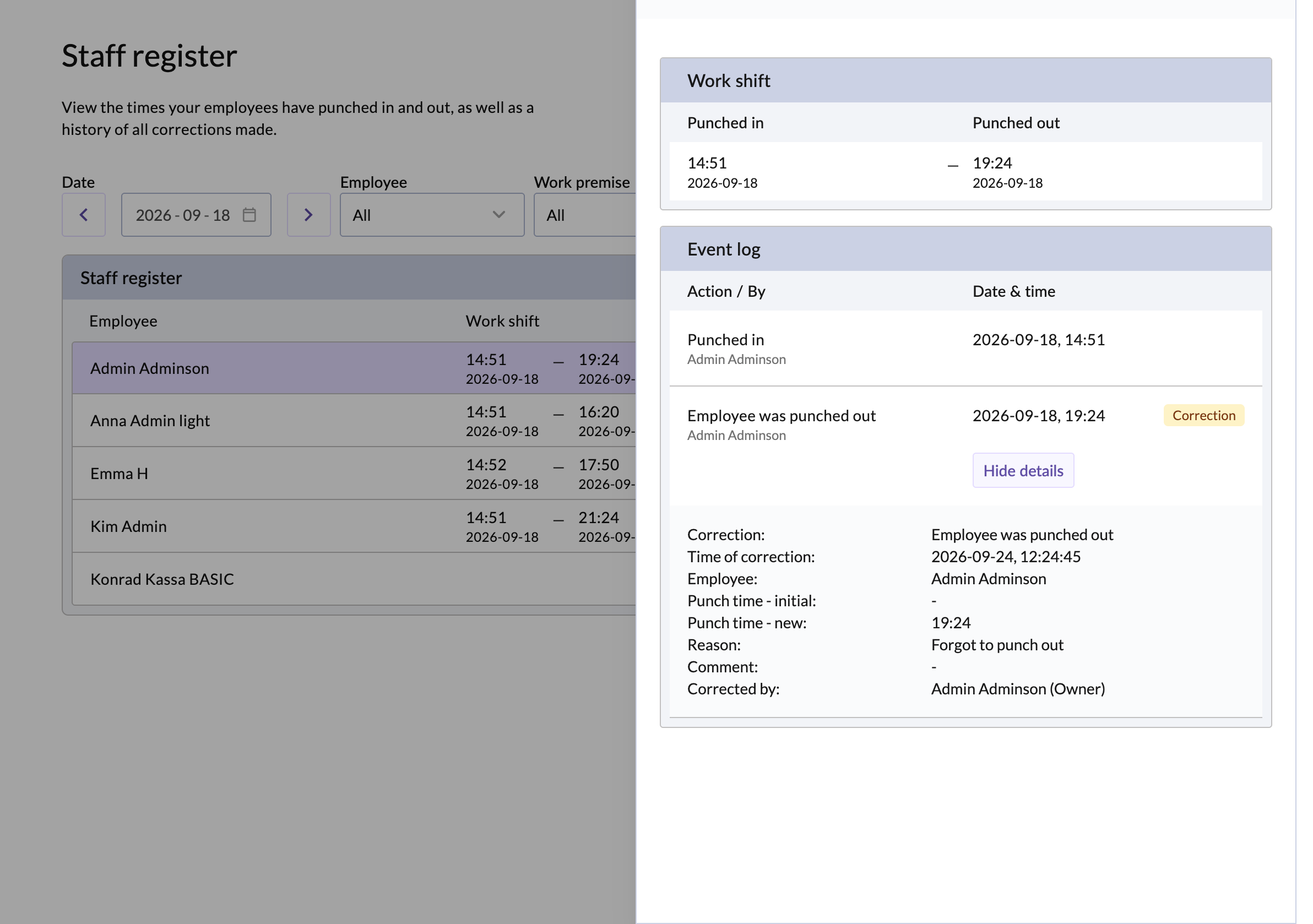


Export the staff register
Press Export to print the staff register or download it as PDF, Excel or CSV.
