Worldline Axium DX8000 - Wireless POS terminal
The portable Axium DX8000 comes with a built-in receipt roll and a large touchscreen , making it easy to use on the go. It has a powerful battery that lasts all day.

TIP
This device can also be used as a cash register, however this requires a specific license. Talk to your sales staff to learn more about your options.
Installation
Take out the charging dock and plug the supplied power cord into the dock and the power outlet.
Place the terminal in the dock.
Don't forget to put the terminal back in the dock when you're not using it. This will keep it charged and ready to use when you need it.
Start the terminal by pressing the power button to the left of the screen.
Connect the terminal to mobile Wi-Fi (recommended).
The DX8000 comes with a mobile network connection, but you should connect it to Wi-Fi if available.
- Connect to Wi-Fi under the Menu icon.
- Select Settings / Network Settings, then select Wi-Fi network and enter the password.
- Make sure you have your terminal password available.
Since the OPEN Two app is already activated and ready, all you need to do is start the terminal.
Tip
To wake up the terminal when it is turned off, double-click on the screen.
Connect the terminal to the cash register
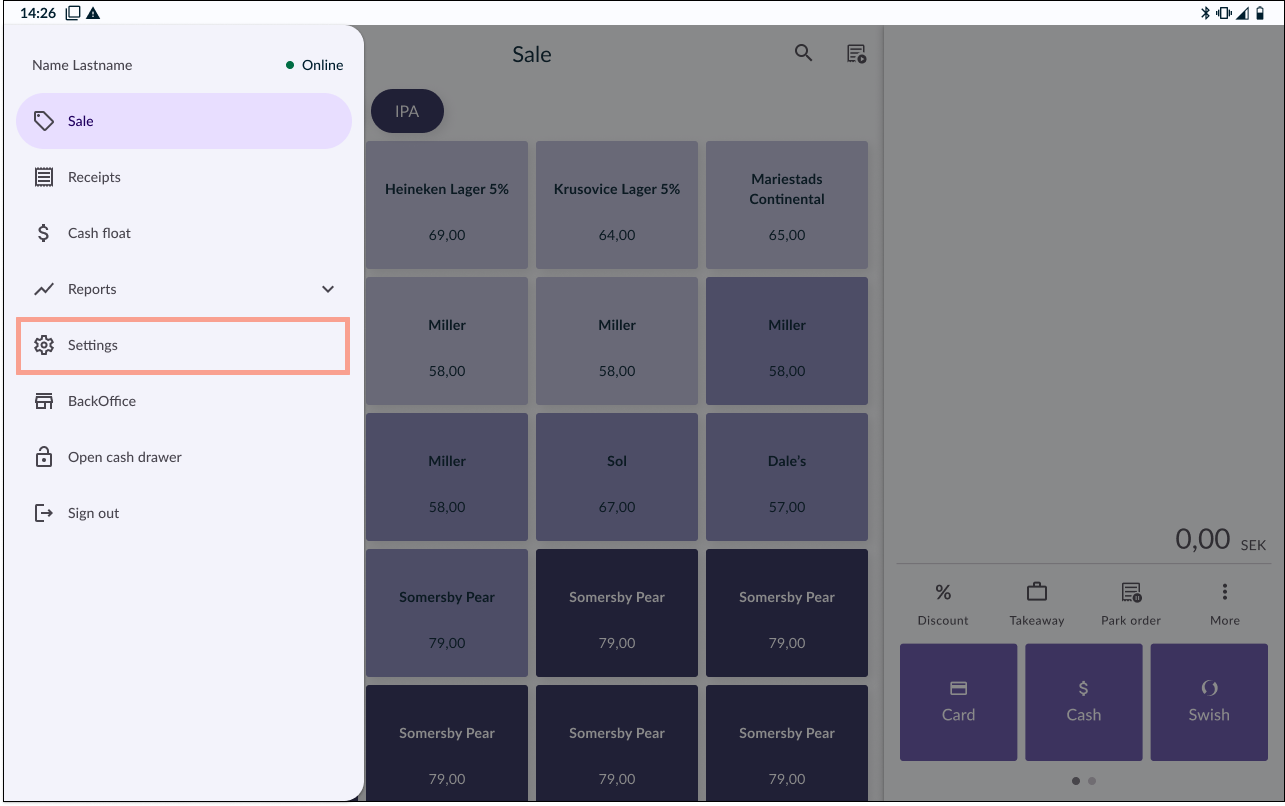
In your OPEN Two cash register device, ocog wheel the menu and go to SETTINGS.
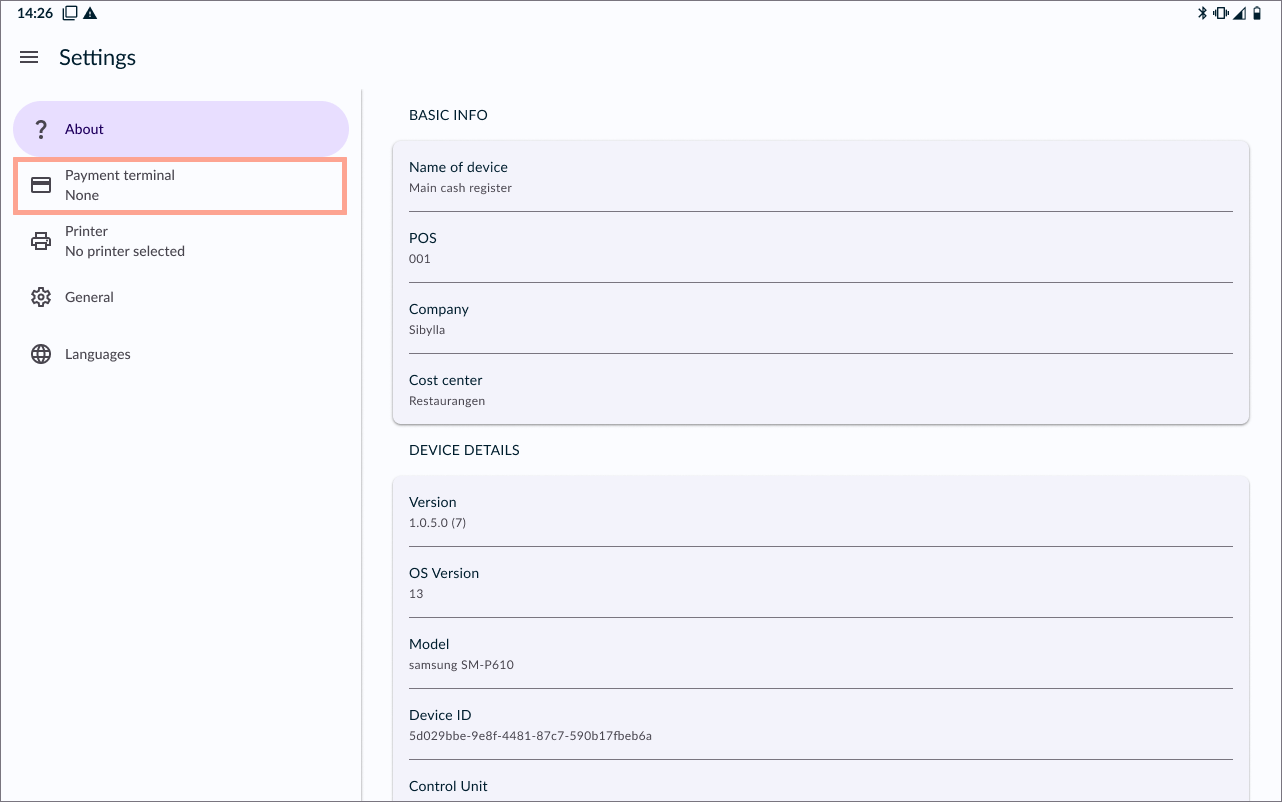
Go to PAYMENT TERMINAL.
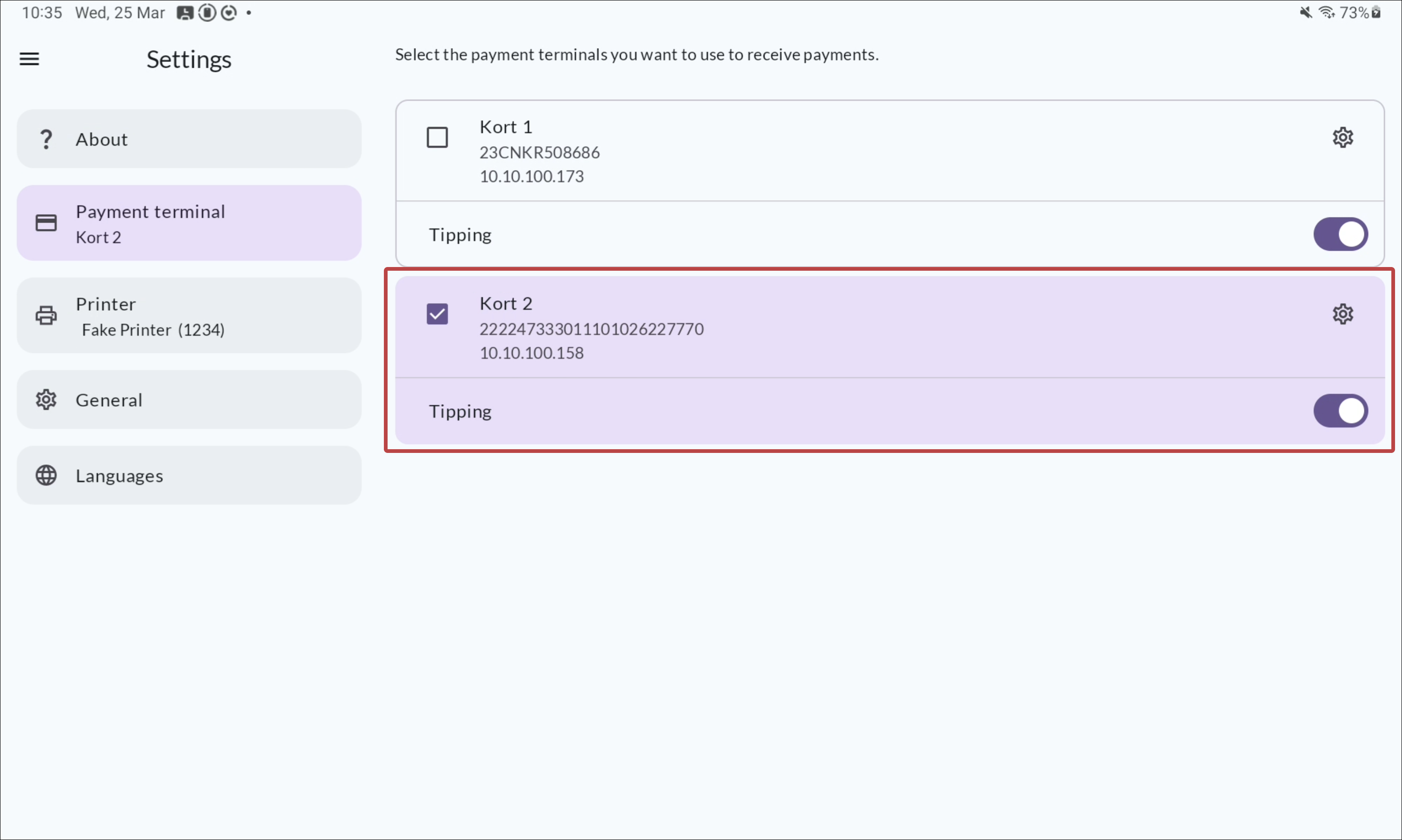
Select your payment terminal from the list.
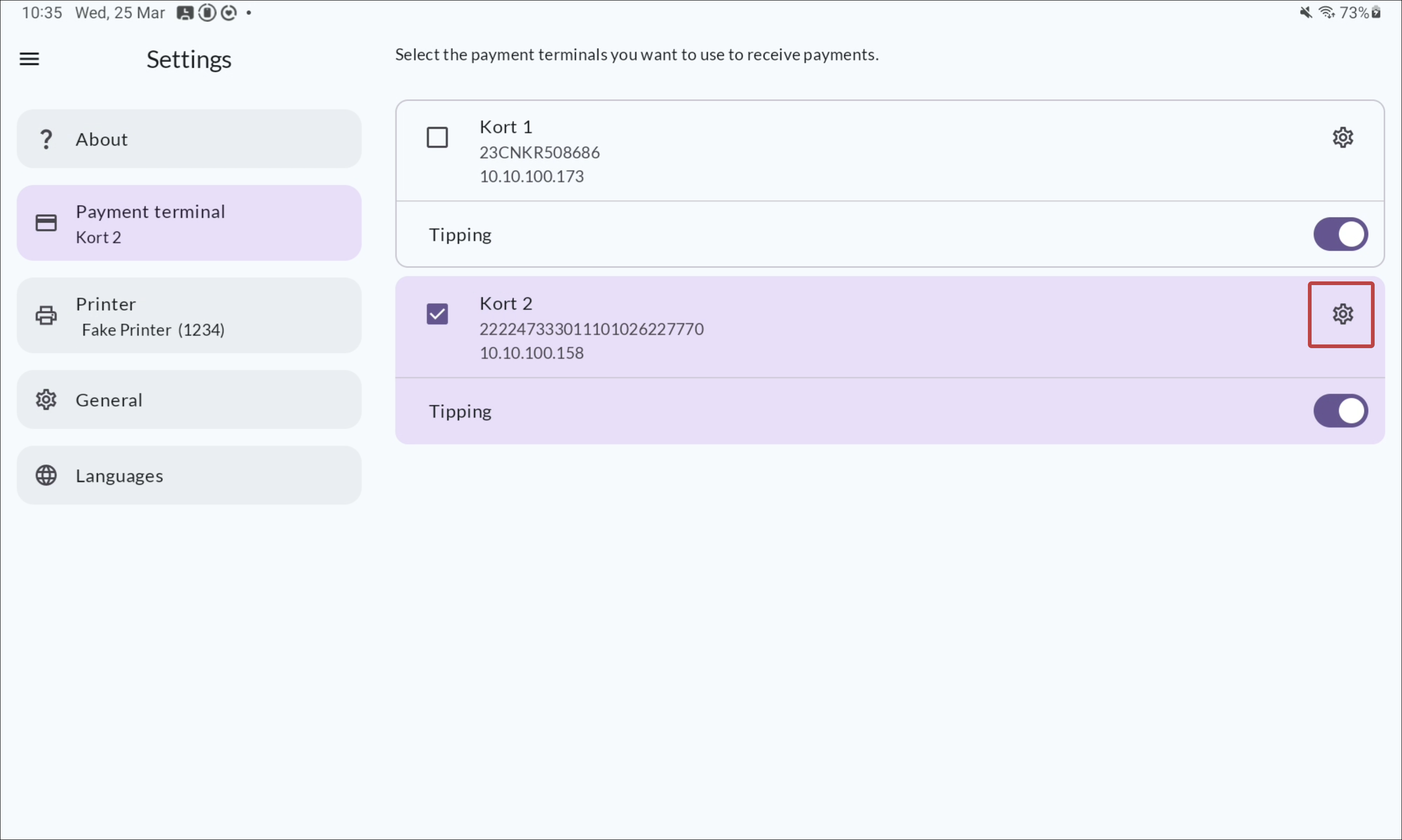
Optional: change the payment terminal name by clicking the cog wheel icon.